How to Build a Real Estate Agency Website in Next.js
Build a real estate agency website in Next.js with property listings, viewing requests and an admin dashboard: setup, staging, roles and launch.
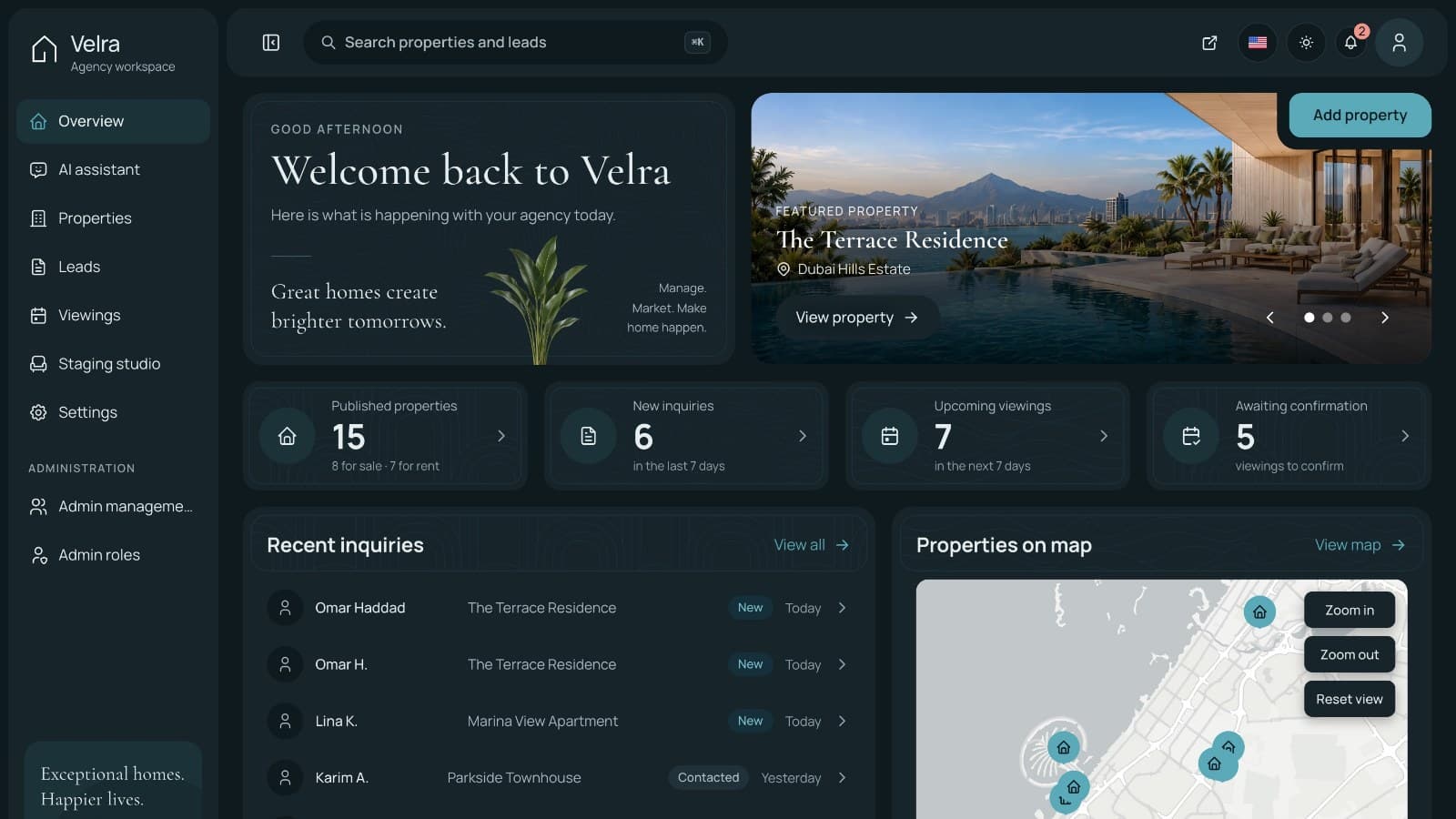
This guide shows how to build a real estate agency website in Next.js with property listings, an admin dashboard for the agents, and an API that connects them. We use the Velra template as the starting point and follow one example agency from first install to launch.
A property site does one job: turn a browsing visitor into a request an agent can act on. So the steps focus on the path from listing to lead, then on how the team handles that lead, with the setup chores kept short. If you are building the site for an agency client, the same order works for them.
The brief
Sandstone Realty is a small agency in Dubai with five agents. It sells and rents apartments, villas and townhouses, and most of its inquiries come from people who browse on a phone in English or Arabic. The new site needs to:
- Offer homes to buy and to rent, filtered by area, type, budget, bedrooms and amenities.
- Give every property a page with photos, facts, a description and a place on a map.
- Let visitors save homes and compare a few side by side without creating an account.
- Collect viewing requests at a preferred time, and let an agent confirm or decline them.
- Give agents a dashboard to add and publish listings, work inquiries and manage viewings.
- Show staged photos of empty rooms, clearly labelled as AI-generated.
- Work in English and Arabic, with the Arabic pages right to left.
Two facts shape the example. The template prices in UAE dirhams (AED) and uses the Asia/Dubai time zone, and it is a lead-generation site: there is no payment step and no outgoing email. Sandstone is in Dubai, so both suit it.
How the template covers the brief
| Need | Where it lives | What you use |
|---|---|---|
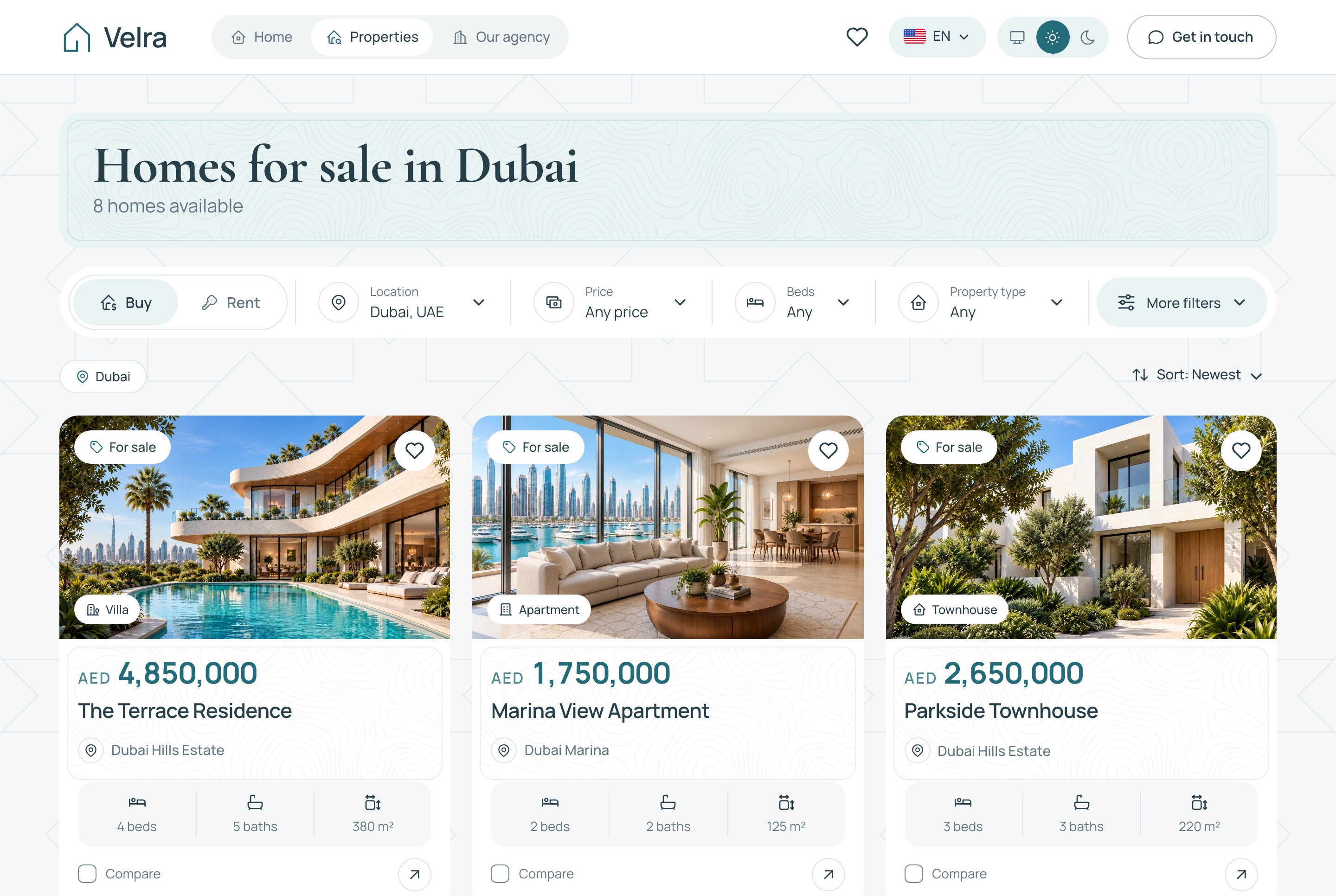
| Listings with filters | Public website | The properties page, with filters and sorting kept in the address bar |
| Property pages | Website and API | Gallery, facts, amenities, neighborhood and similar homes |
| Saved homes and comparison | Website | Saved page and compare page, both kept in the visitor's browser |
| Viewing requests | Website and dashboard | The viewing dialog on each property, and the Viewings page |
| Add and publish listings | Agency dashboard | Properties list and editor with English and Arabic tabs, ordered photos and statuses |
| Inquiries from visitors | Dashboard | The Leads page, with a status and a note on each |
| Staged room photos | Dashboard and website | The staging studio, and the before and after slider on a property page |
| English and Arabic | All three apps | /en and /ar routes, message files, bilingual property editor |
Before you start: decisions to make
A listings site is only as good as the decisions behind it. Settle these first.
- Which package. Full Stack for a new agency. A single front end needs an API somewhere.
- Where it runs. A Node host for three apps, a database (SQLite on a persistent disk, or MySQL) and a place for photos (a persistent folder or a bucket such as Cloudflare R2).
- The market. The template is set to AED and the Asia/Dubai time zone, with Dubai wording in some messages. Another market means changes.
- Languages. Each property is written in English and Arabic, so plan who writes and checks the Arabic.
- AI tools. Staging needs a Google Gemini key. The assistant works with a key from Gemini, OpenAI or DeepSeek. Decide whether to use either, and who pays the provider.
- How leads are answered. There is no email or payment service, so decide who watches the notifications and who replies, from which inbox or phone.
- Who has which role. Owner, agents, and anyone who needs a narrow role, such as a photographer.
- What counts as a listing. Agree how to handle sold, rented and archived homes before you have fifty of them.
Step by step
Step 1: Choose the package
Velra is sold in four forms: Full Stack, the public website alone, the agency dashboard alone and the backend API alone. The website and the dashboard have no data of their own, and both read from the API. So a new agency needs the Full Stack package, which puts all three apps in one folder.
Single packages suit other cases. An agency that already has an API, or a developer who wants to replace one side, can take the public website or the agency dashboard separately. Remember the shape of the product: it serves one agency, not a portal where many agencies post their own listings.
Check before moving on
You know which ZIP you hold and which apps it contains, and where the API will run if you only have a front end.
What usually goes wrong
A single front end shows nothing without the API, because neither app holds its own data.
Step 2: Run it locally with Docker
Install Docker Desktop, download the ZIP from My templates, extract it and open a terminal in the velra-real-estate-full-stack folder. Then start all three apps:
docker compose up --buildYou need no configuration for this first run. It builds three images and loads a demo agency into the database, so allow a few minutes. The public website opens at http://localhost:3030 (Arabic at /ar), the agency dashboard at http://localhost:3031 and the API at http://localhost:8000. When a port is busy, put SITE_PORT, ADMIN_PORT or API_PORT in a .env file beside docker-compose.yml and run the command again.
Sign in to the dashboard as admin@velra.example with Admin@123, or as an agent with agent@velra.example and Agent@123. The website has no sign-in at all.
The demo agency has 17 properties (15 published, 2 drafts), 6 neighborhoods, 2 approved staged rooms, 5 inquiries and 8 viewing requests. Browse the site as a visitor first, send yourself a viewing request, then open Viewings in the dashboard as the agent. That one loop is the whole product in two minutes.
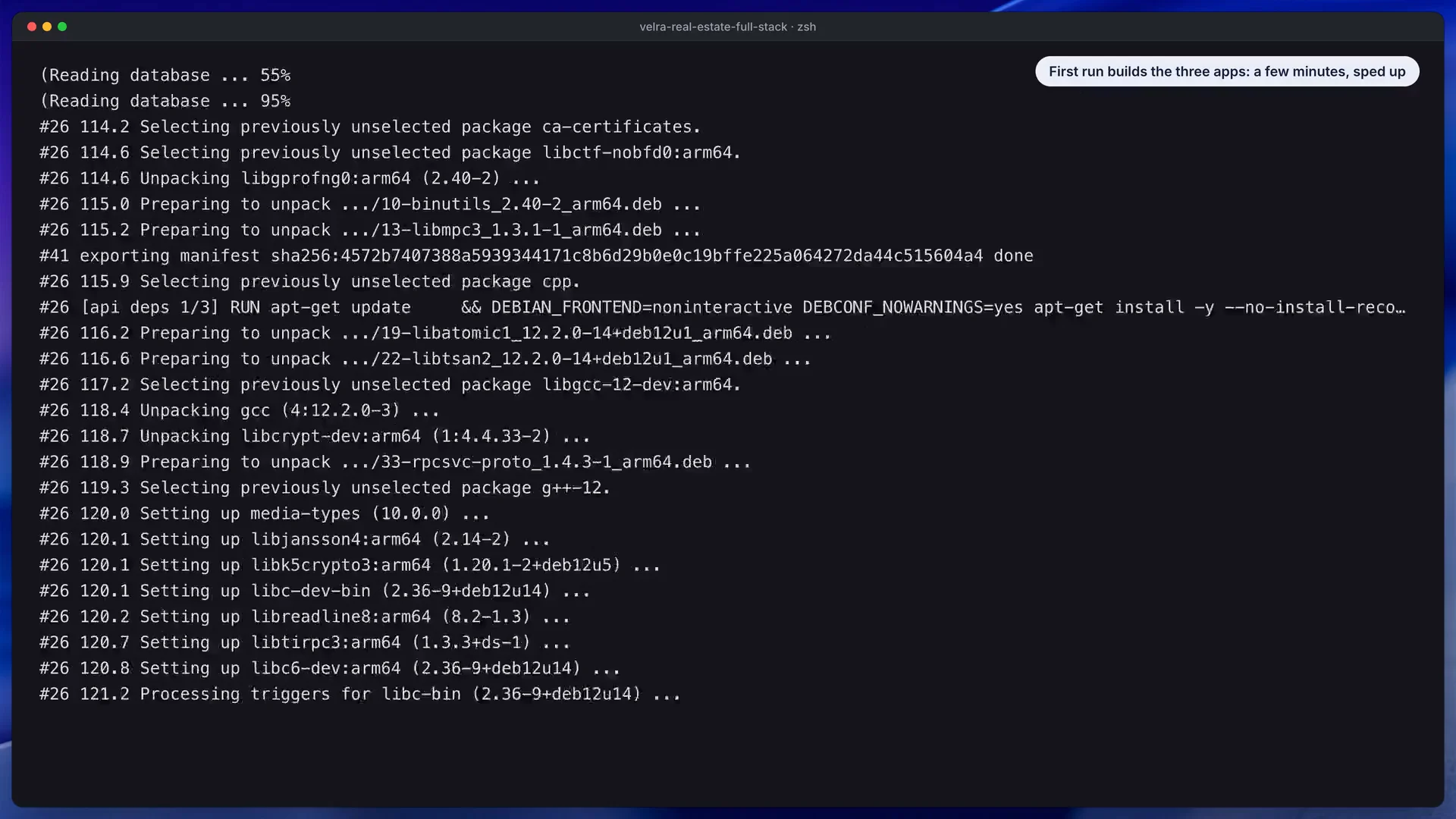
In this still from the install video, look at the single command that starts all three apps.
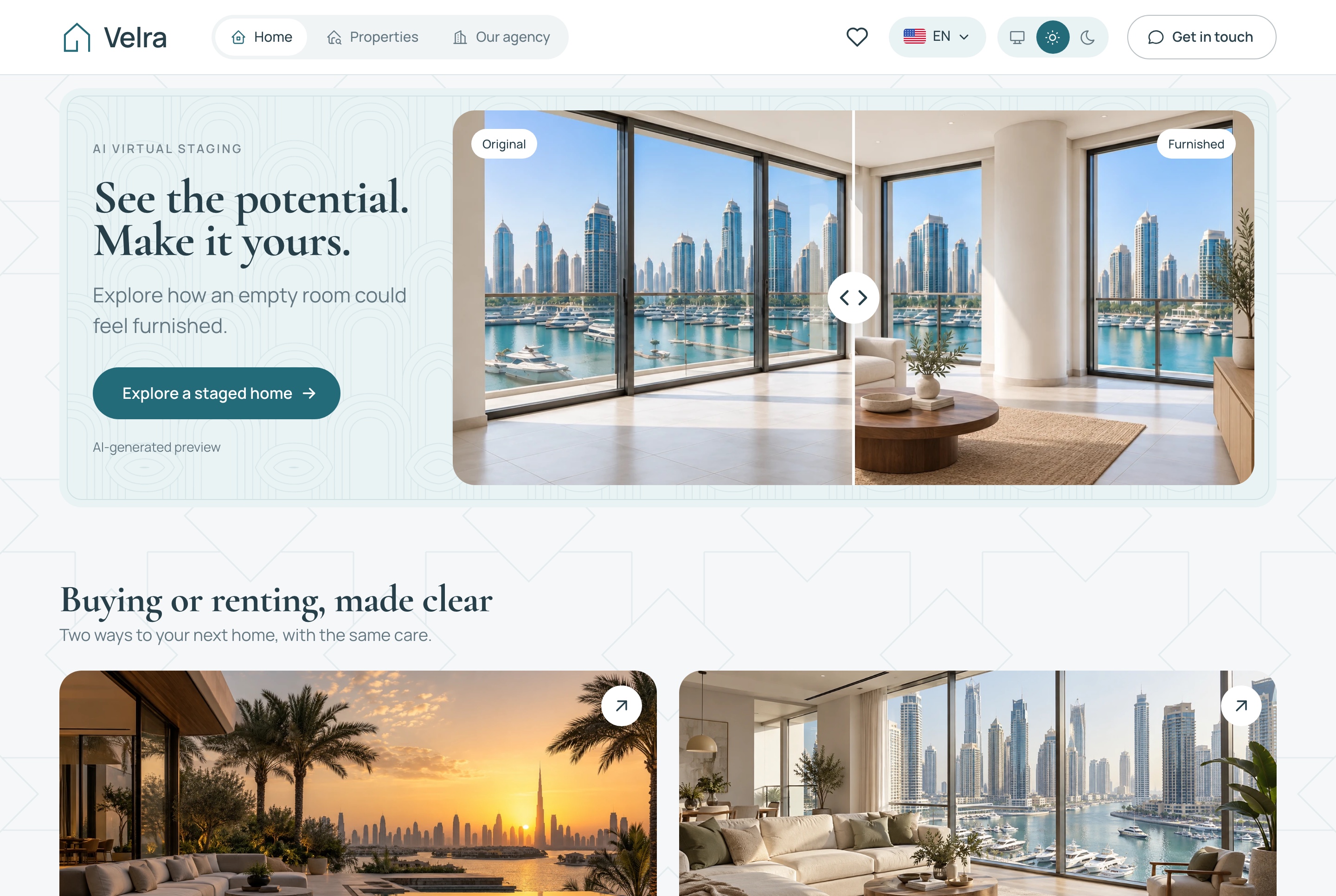
Look at the empty room beside its AI-furnished version, the comparison visitors see on the home page.
To stop, press Ctrl+C. Your data lives in the velra-data volume, and docker compose down -v deletes it, after which the next start seeds a fresh demo agency.
Check before moving on
All three addresses answer, you sent yourself a viewing request, and you saw it under Viewings in the dashboard.
What usually goes wrong
Docker is not running, so start Docker Desktop and retry. A busy port ends the start with "address already in use": move the app with the port variables above. Without Docker, the apps expect Node.js 22 or newer, and Yarn 1.22 answers until you run corepack enable.
Step 3: Make it Sandstone's
Branding sits in a few predictable places. In the website's folder, src/config/brand.config.ts holds the name, contact email and market. src/styles/theme-variables.css holds every color as a token with a light and a dark value, so change the primary color in both blocks. The logo mark files are in public/brand/, and the agency's own photos are served by the API from public/media/velra/site/.
Several sentences name the demo brand and its city. Search messages/ for Velra and Dubai (and their Arabic spellings) and rewrite those lines in both languages. Agency details that guests read are data: the agency name, its tagline and description, a contact email and the city are edited in the dashboard under Settings, Agency. Last, rewrite the privacy page. It is placeholder text for a fictional agency, and it says so on the page until you remove the flag.
Check before moving on
The site name, footer and headings are Sandstone's in both languages, and no page still mentions Velra or the demo city.
What usually goes wrong
A color changed in one theme only, Arabic copy left behind in the messages files, or the placeholder privacy text published as it is.
Step 4: Add neighborhoods and properties
Start with areas, because a listing points at one. Under Settings, Neighborhoods, add each area with a name in both languages, a slug, a short description and a cover photo, and choose whether it is featured. Then open Properties and add a listing. Every new property starts as a draft, hidden from the website, so you can take your time.
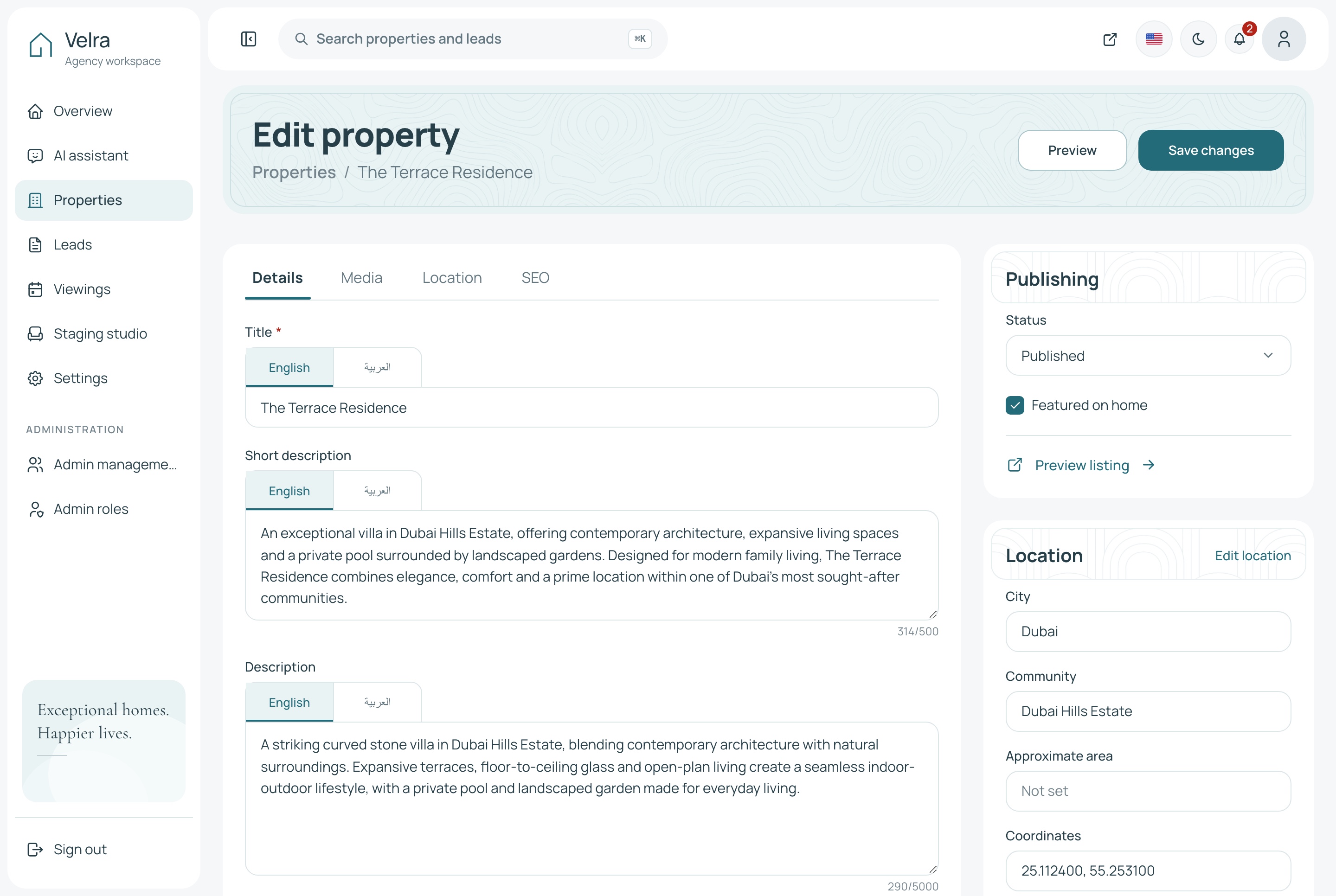
The editor has four tabs:
- Details: title and descriptions in English and Arabic, purpose (sale or rent), type (apartment, villa or townhouse), price, the facts and amenities.
- Media: up to 30 photos, ordered by dragging, with one marked as the cover.
- Location: the city, the neighborhood, the address and a pin on the map, marked exact or approximate. Search finds the place for you.
- SEO: the search title and description, the address slug and internal notes.
Rentals are priced per year, and the price is an amount in AED. Statuses go beyond draft and published: you can mark a home sold, rented or archived, and each of those hides it from the site while keeping the record. Use the approximate location for homes where the owner does not want the exact pin public.
Finish with Settings, Homepage, where you choose the three featured homes, in order. If none of them is published, the home page falls back to published homes marked as featured.
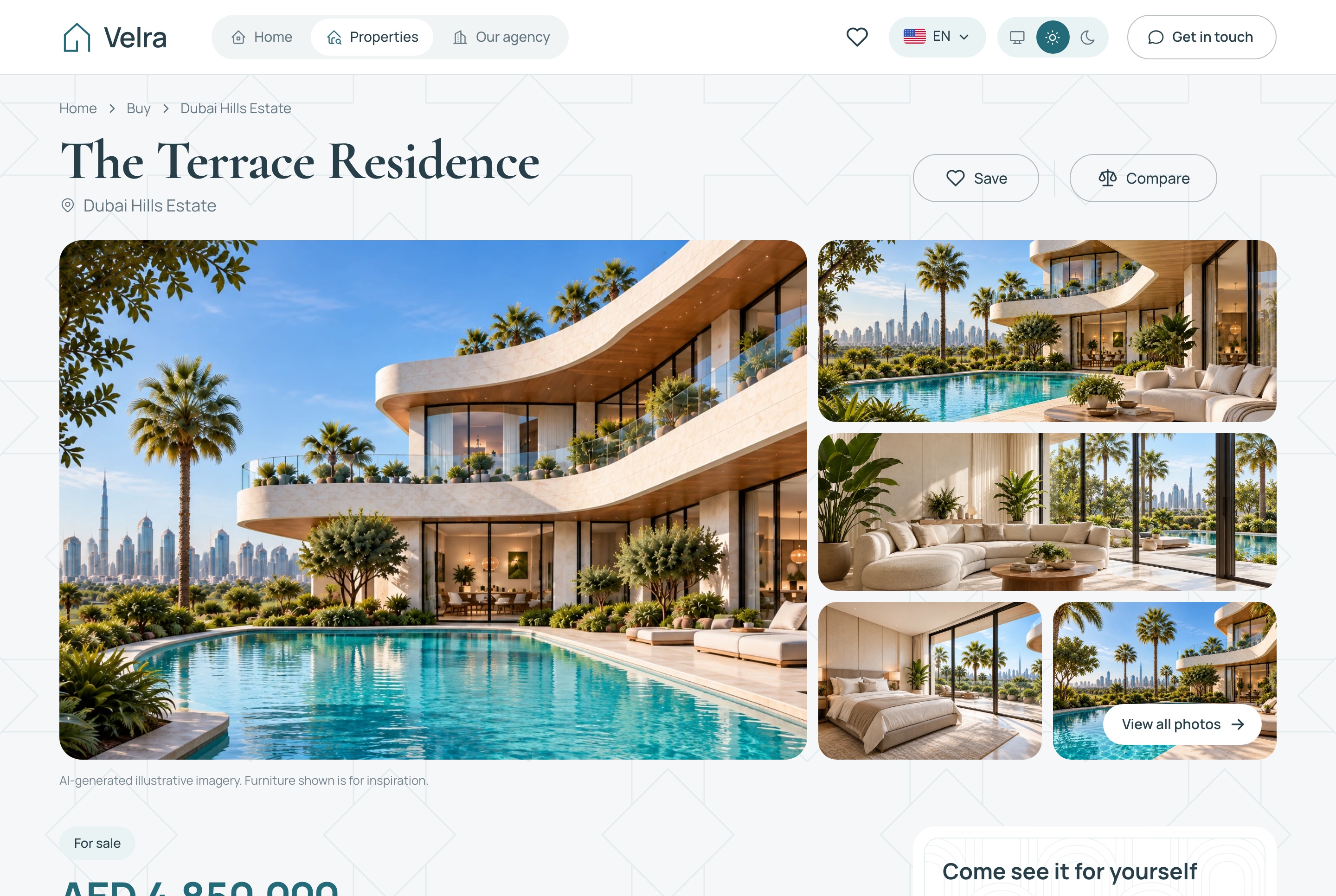
Look at the gallery, the key facts and the viewing card, which are all filled from the editor tabs above.
Check before moving on
Open one published property as a visitor, then look for the same property under Sold or Archived after you change its status. It should vanish from the site and stay in the dashboard.
What usually goes wrong
Photos do not load, because their addresses come from PUBLIC_MEDIA_URL and must reach the API from the visitor's browser. Another trap is deleting a property, which removes it from the dashboard too. Archive it instead if you may need it later.
Step 5: Try AI staging on one empty room
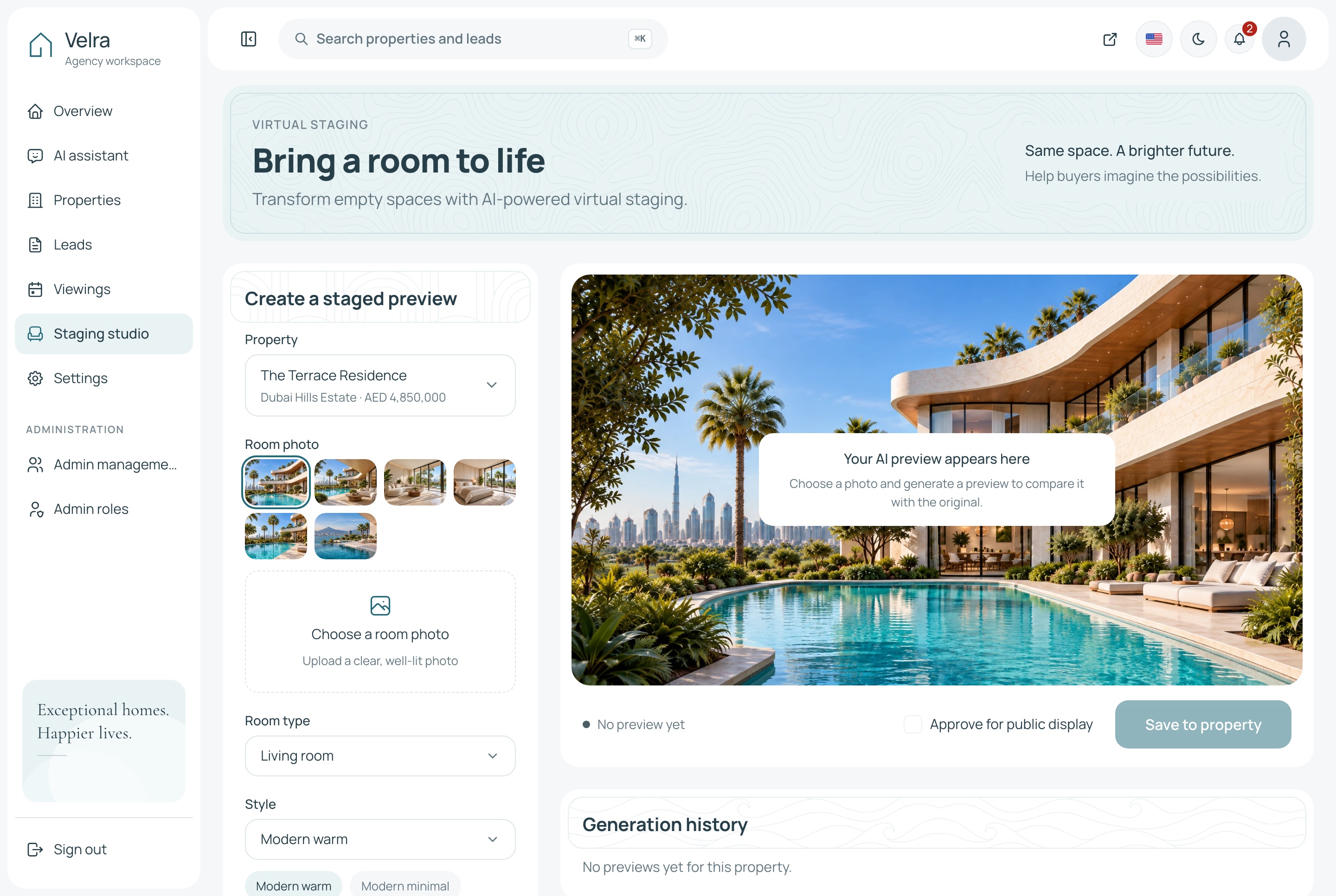
Staging is optional, and it is a good fit for new-build units that are photographed empty. Open the staging studio, pick a property photo of an empty room or upload a clear one, choose the room type (living room, bedroom, dining area or study) and a style (modern warm, modern minimal or contemporary), then generate. The result keeps the walls, windows and layout. You compare it with the original, save the pair to the property, and tick the approval box to show it publicly.
On the website, the property page then shows a before and after slider with an AI label on the furnished image. Keep that label. It tells buyers what they are looking at, and it keeps you on the right side of honest marketing.
The studio runs on Google Gemini, so it needs GOOGLE_API_KEY in the API's .env. Without it the studio says it needs a key and nothing is billed. Google charges per its own pricing, listed on the Gemini pricing page.
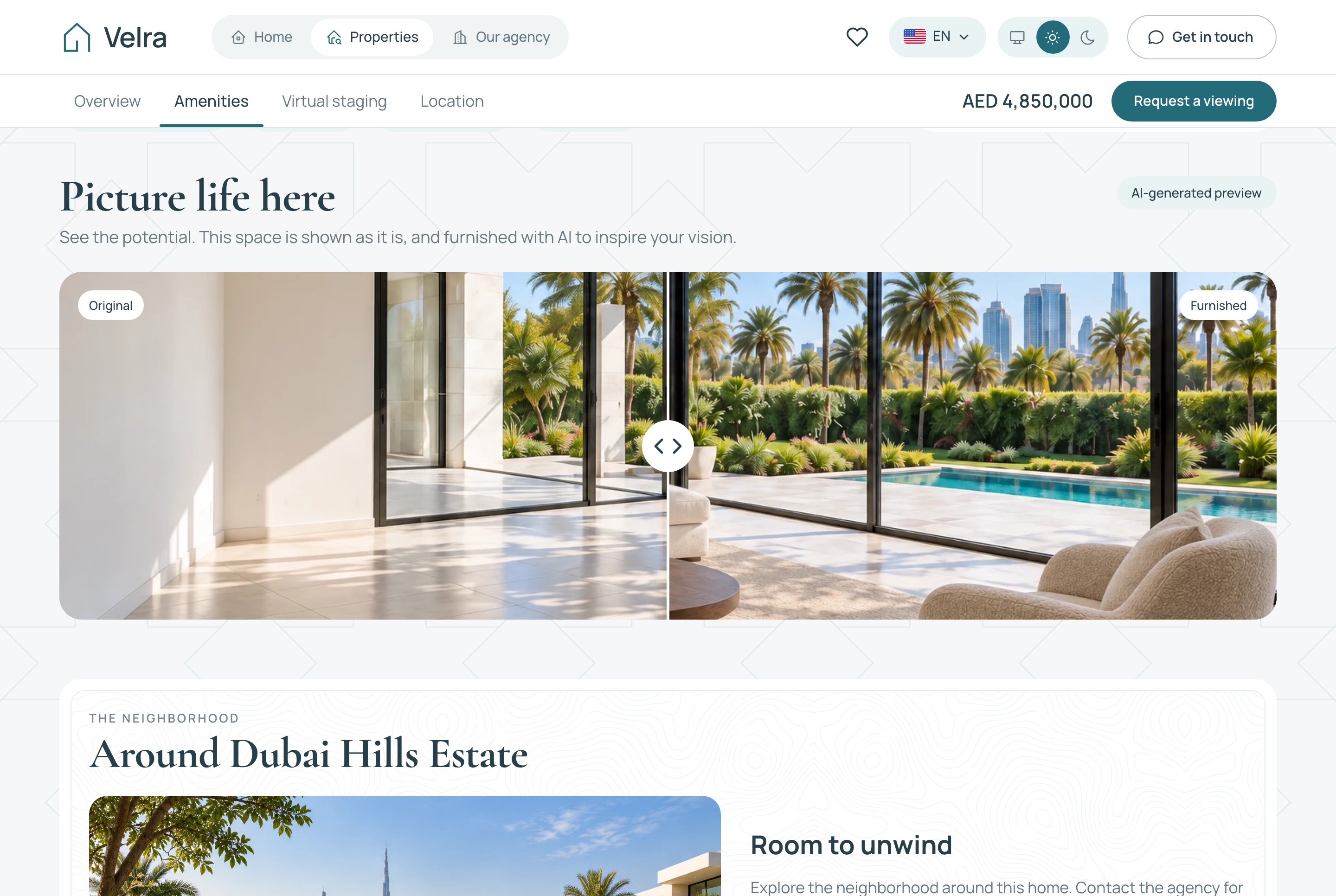
Look at the before and after slider and the label that marks the furnished image as AI-generated.
Check before moving on
Open the staged property as a visitor and drag the slider. Confirm the AI label is visible.
What usually goes wrong
The studio asks for a key. It generates with Google only, so GOOGLE_API_KEY is needed whatever other key is set. Put it in the API's .env, not in a front end file, and restart the API.
Step 6: Decide how inquiries and viewings are handled
There are two ways a visitor reaches the agency. The contact form creates an inquiry, with a buy-or-rent choice, a preferred area, a budget and a message. The viewing dialog on a property page asks for a name, email, optional phone, a date and a time. Visitors pick a slot between 09:00 and 18:00 Dubai time, in half-hour steps, at least an hour from now.
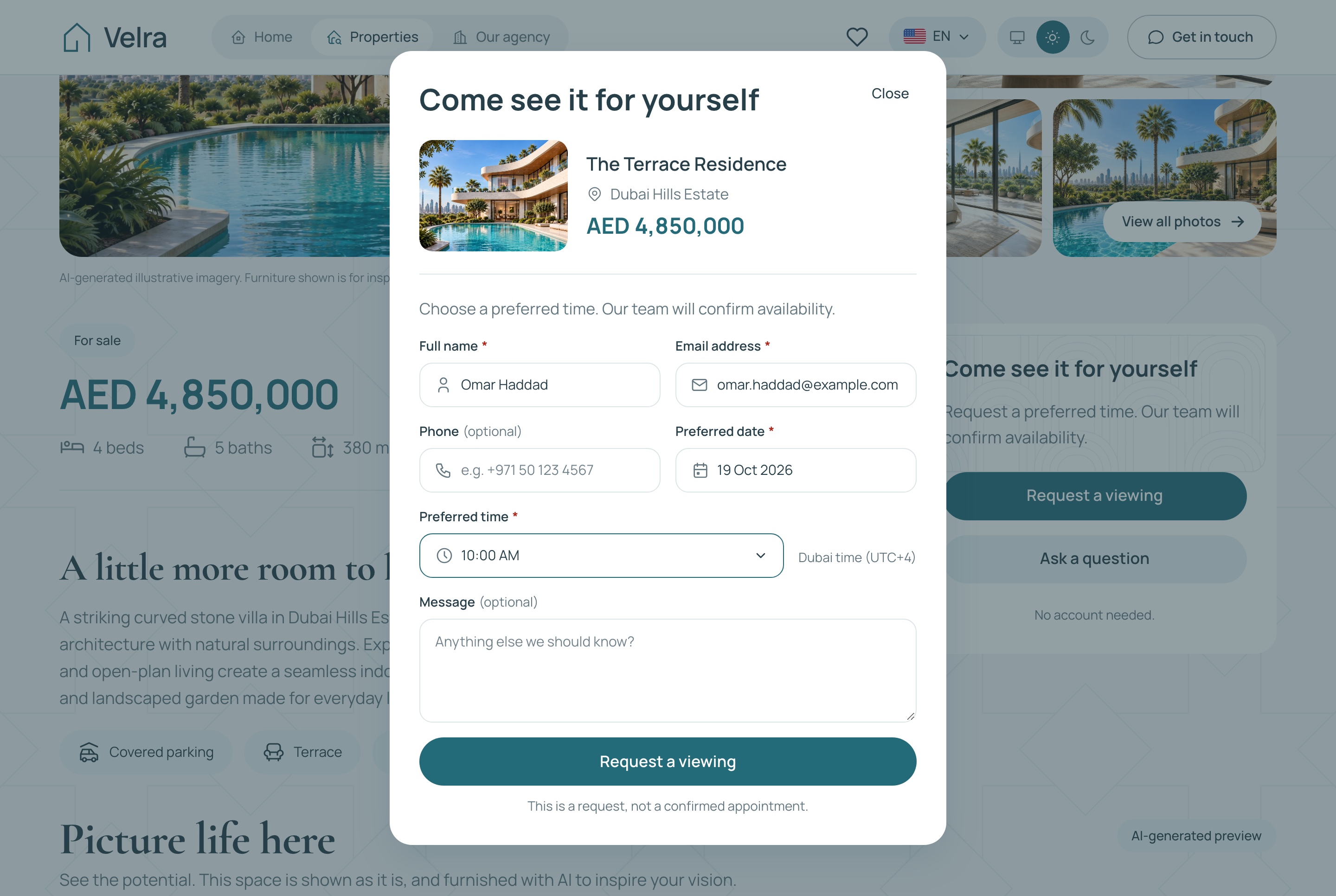
Look at the date and time fields, and at the fact that the dialog asks for a preferred time, not a confirmed slot.
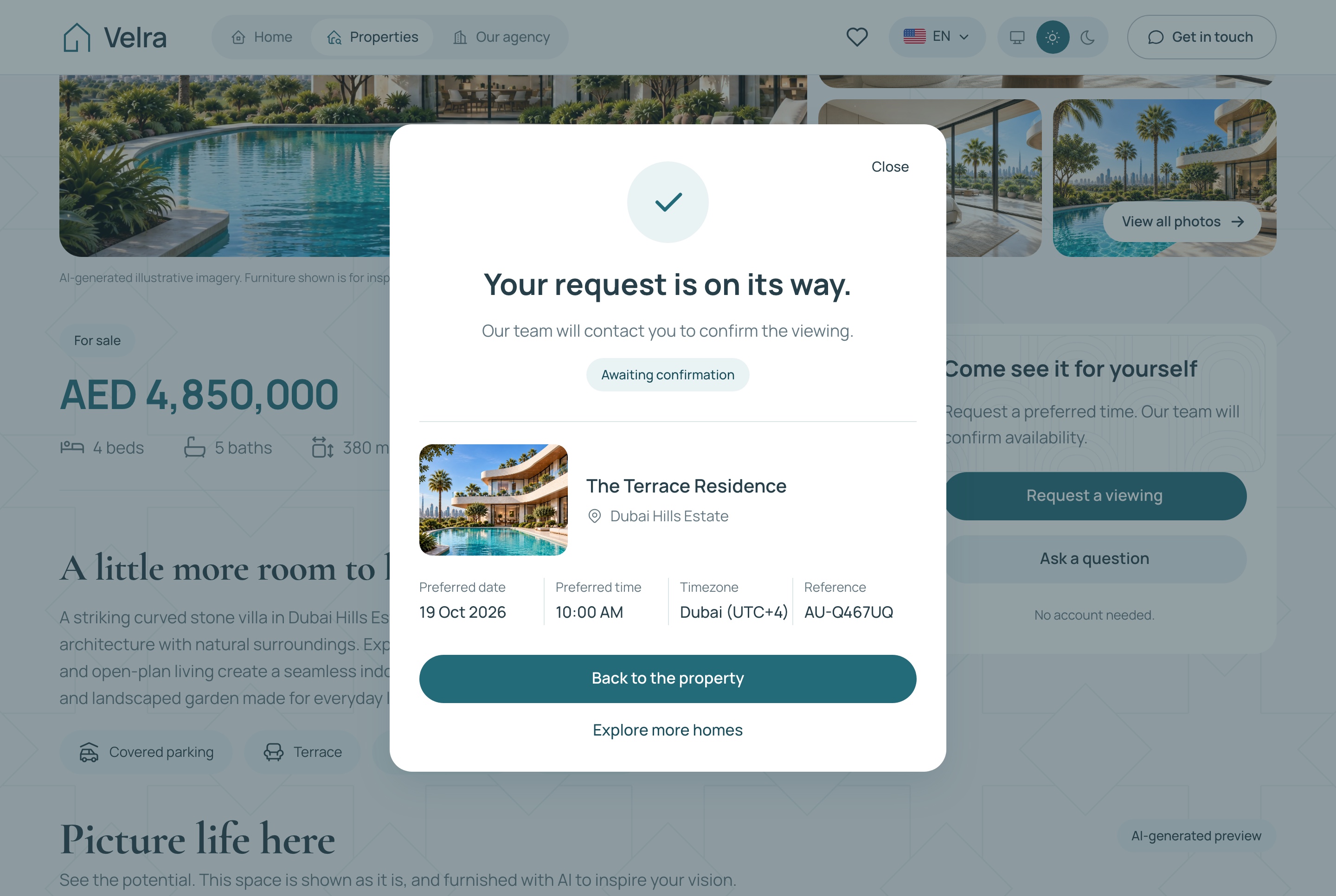
Look at the pending wording the visitor sees afterward, which makes clear that the agency has not confirmed yet.
A viewing request is shown to the visitor as awaiting confirmation, with a reference, never as a booked appointment. In the dashboard it appears under Viewings with a notification, and an agent can confirm it, confirm it again at a different time, complete it or cancel it. Inquiries move from New to Contacted, Qualified or Closed, and each has a note field.
Because the template sends no email, the agency should decide how a visitor hears back. The simplest rule for Sandstone is that an agent replies from the agency's own email or phone as soon as a request is confirmed, and the site says so near the form. Both forms accept five submissions per address in ten minutes and ignore bot traffic, so the first real inbox is not buried in spam.
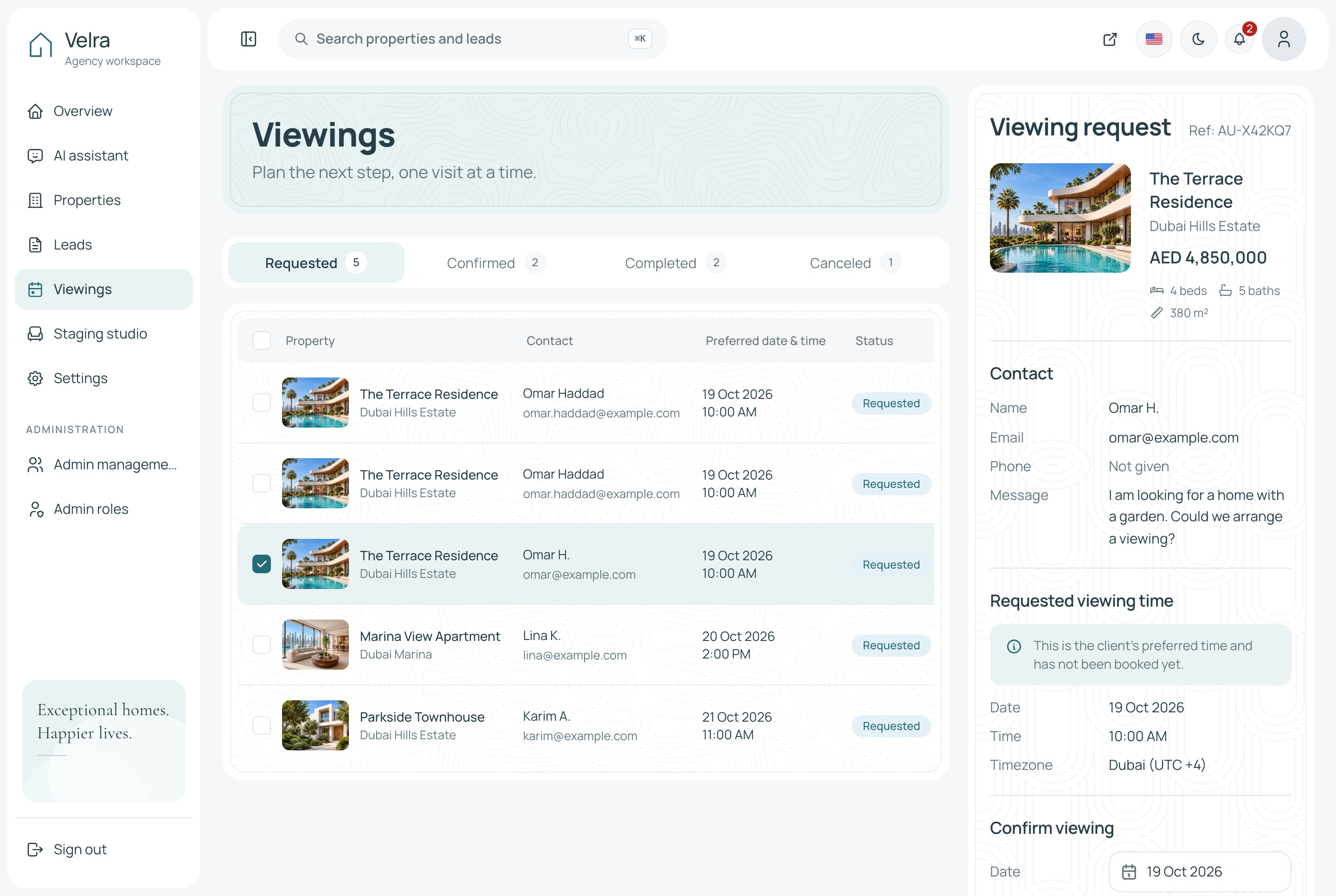
Check before moving on
Send a viewing request and a contact form submission. Confirm the first appears under Viewings as requested and the second under Leads as new, each with a notification.
What usually goes wrong
A form is refused after a few tries. Both forms accept five submissions per address in ten minutes, and behind a proxy everyone can look like one address until you set TRUST_PROXY.
Step 7: Add the team and set their access
There is no sign-up page; the first two dashboard accounts come from the seed. The Super Admin can do everything. The Agent role is narrower: properties, inquiries, viewings, staging and the neighborhood list, but no settings, admin accounts, roles or assistant. Create real accounts under Admin management, then replace the demo passwords or remove the seeded accounts before the dashboard faces the internet.
For Sandstone, the owner keeps the Super Admin role, the five agents take the Agent role, and a part-time photographer gets a custom role. Under Admin roles you tick only what that person needs, for example properties.view, properties.edit and the staging permissions.
Check before moving on
Sign in as an agent and confirm that Settings, admin pages and the assistant are missing. Sign in as the photographer role and confirm only properties and staging show.
What usually goes wrong
The seeded passwords stay in place. Change them before the dashboard faces the internet.
Step 8: Optionally turn on the assistant
The dashboard has a chat assistant that answers from the agency's own data: how many inquiries arrived this week, which viewings are waiting, which listings are still drafts. It can also act when asked, such as moving an inquiry along or confirming a viewing. It works within the signed-in person's permissions.
It needs one provider key in the API's .env, from Google Gemini, OpenAI or DeepSeek, as GOOGLE_API_KEY, OPENAI_API_KEY or DEEPSEEK_API_KEY. Any one is enough. Without a key it says it needs one and nothing is billed. Each provider charges under its own pricing.
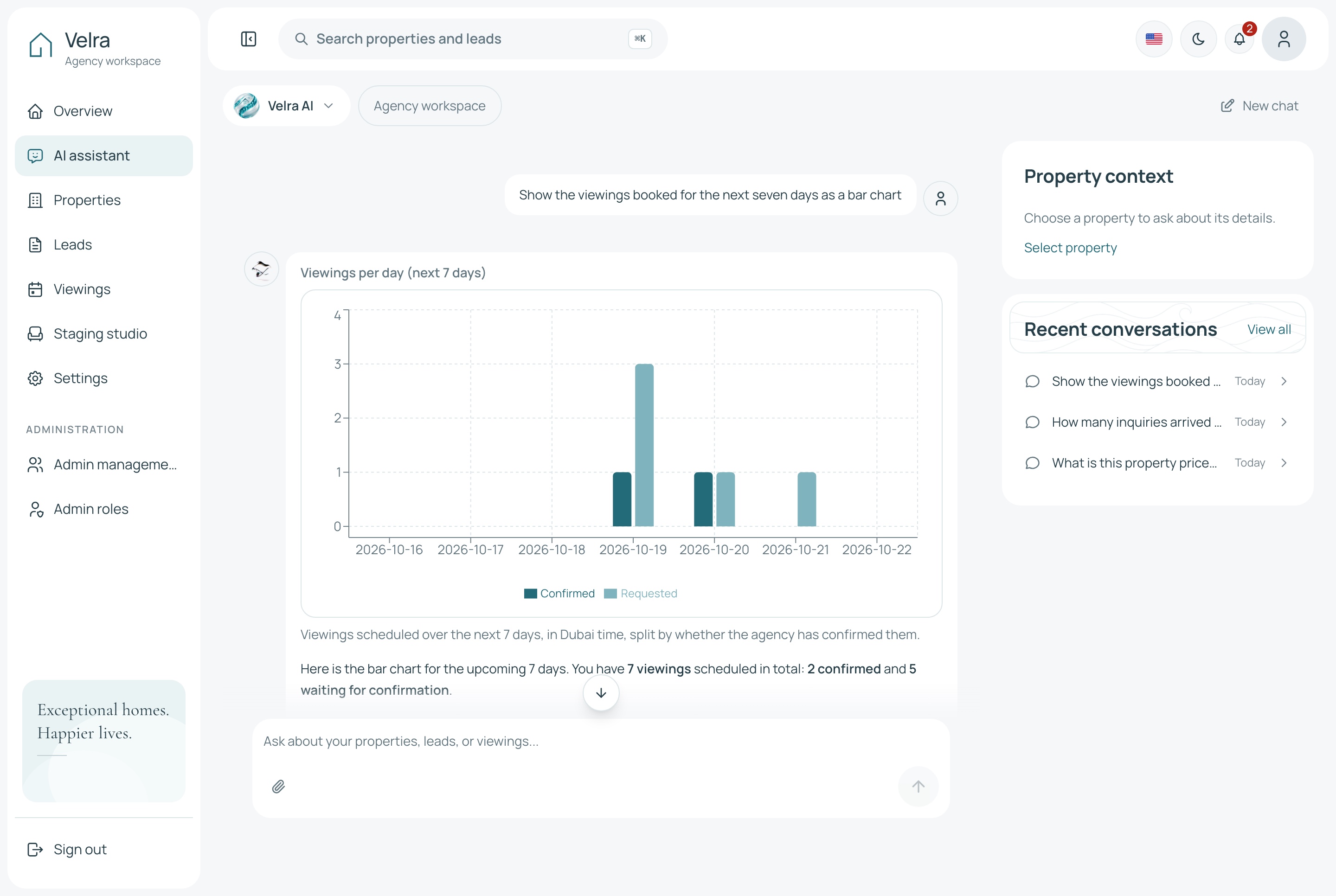
Look at the chart the assistant draws from the agency's own viewings.
Check before moving on
Ask the assistant something you can verify on the Leads page, such as how many inquiries are new, and check its answer.
What usually goes wrong
The assistant shows a provider message in place of an answer: the key was not accepted, the account has no credit left, the model has no requests left, or the provider is busy. It stays on the model you chose and does not retry or switch by itself, so correct the cause or pick a different model, then press Try again.
Step 9: Check it on a phone and in Arabic
Most property searches start on a phone. Open the site on one, run a search, open a property and send a viewing request. On the phone layout, a sticky viewing bar stays at the bottom of the property page. Save two homes, compare them, then try to add a fourth home to the comparison, which the site refuses because the limit is three.
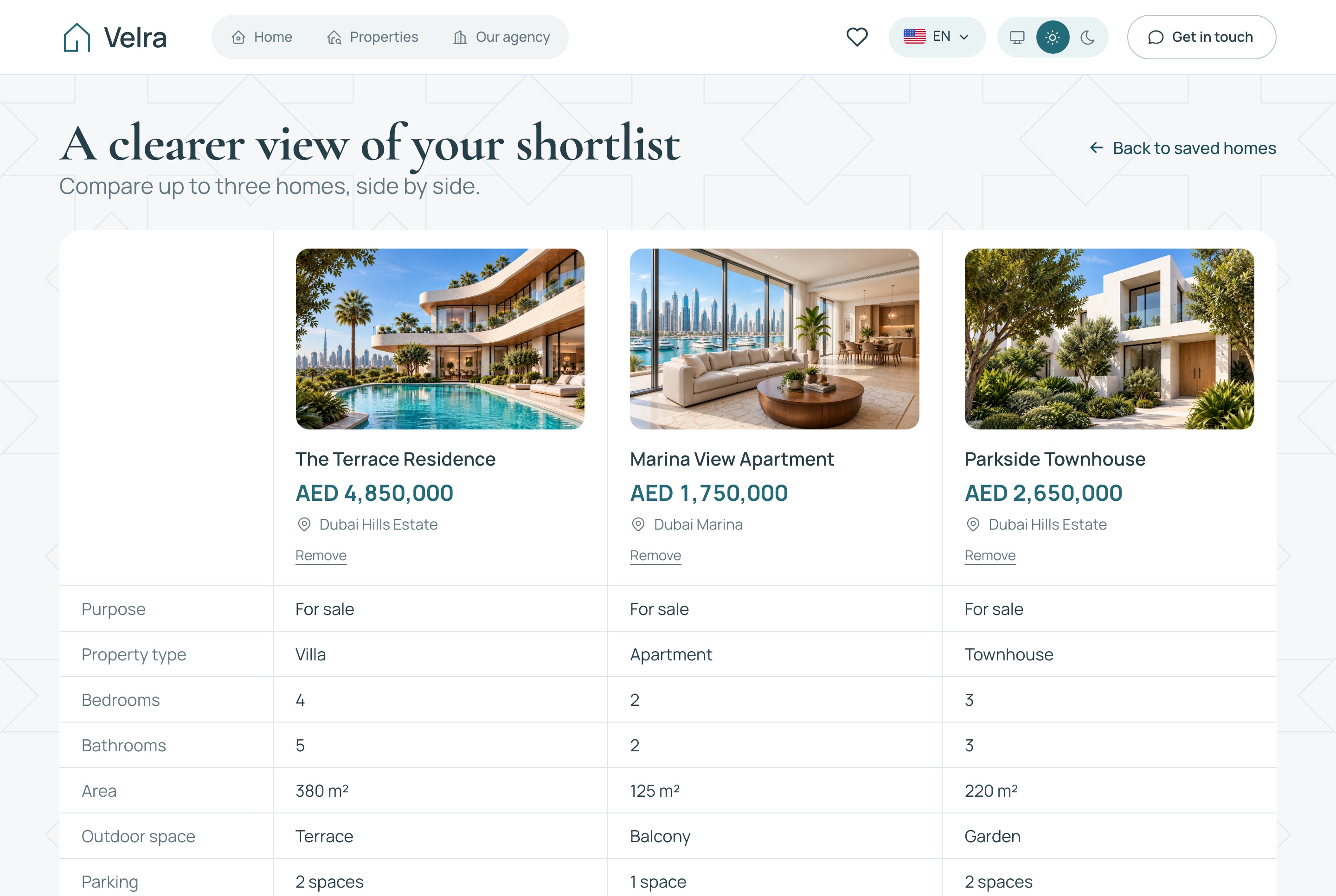
Look at the three homes in one table, which is the most a visitor can compare at a time.
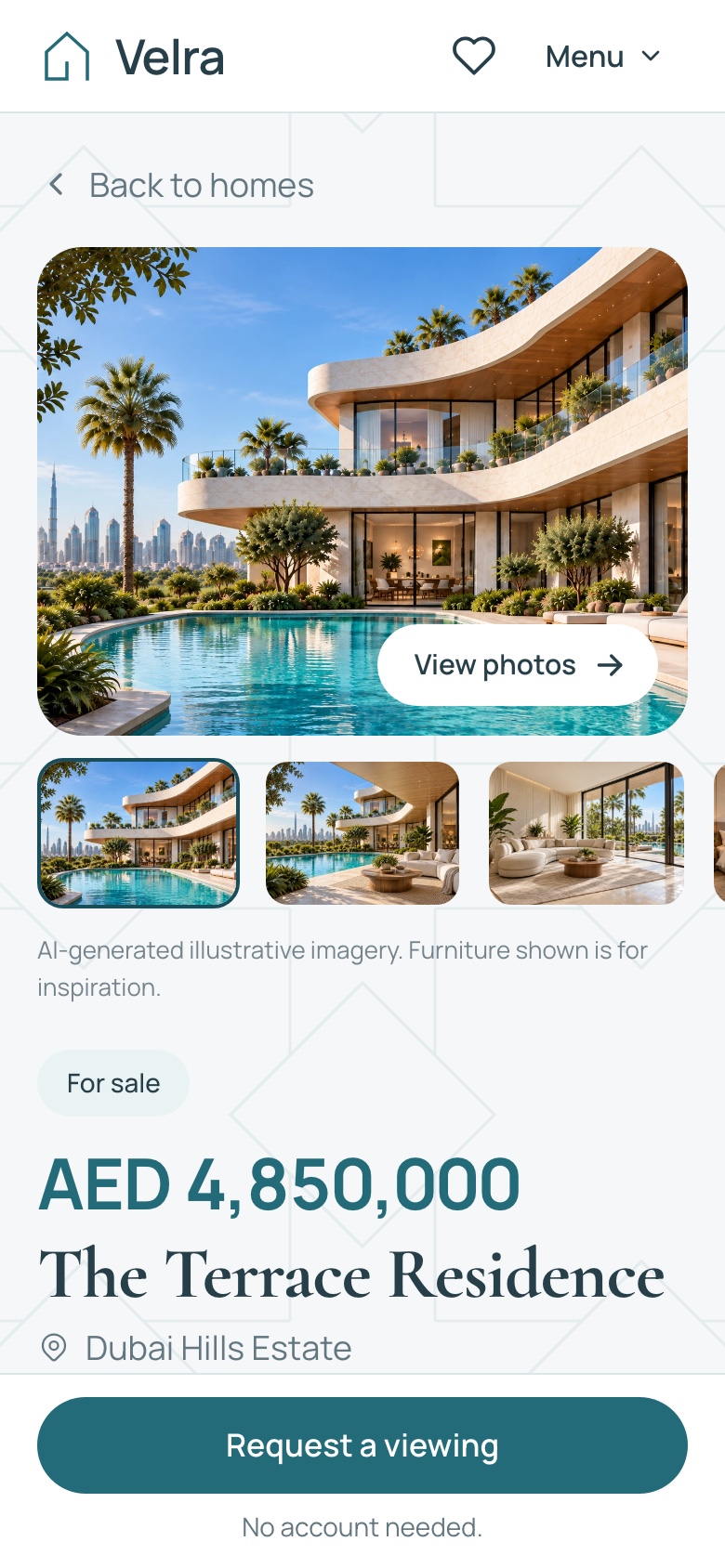
Look at the viewing bar that stays at the bottom of the phone screen as the page scrolls.
Repeat in Arabic at /ar, and in the dashboard. Check that Arabic text, the filters and the map labels look right when mirrored. The dashboard's map tiles come from OpenFreeMap and the place search from a public service, so test them with an internet connection.
Check before moving on
Run a test list on a phone: search, open a property, save two homes, compare them, request a viewing, and then confirm it as an agent.
What usually goes wrong
The website says it could not load something. In the browser console, a CORS message means the frontend address is missing from CORS_ORIGIN. Also, a property page tab that reads "Property details" in Docker is harmless: the website's own server cannot reach the API at localhost from inside the container, and the full stack already sets the right internal address.
Step 10: Go live
You can deploy in three ways: one server running Docker Compose behind a reverse proxy for HTTPS, each app from its own Dockerfile on a host such as Railway or Render, or plain Node.js. For a small agency, one server is the simplest. Put the three public addresses in a .env beside docker-compose.yml as SITE_URL, ADMIN_URL and API_URL, and the allowed origins and photo addresses follow from them.
- Build the website and dashboard with public addresses.
NEXT_PUBLIC_API_BASE_URLand the otherNEXT_PUBLIC_*values are compiled into the pages, so a change needs a rebuild. - Set
NODE_ENV=production, your ownJWT_SECRETandCORS_ORIGIN. The API will not start in production without a proper secret and an origin list. - Create the tables once on a production setup with
yarn seed:prod(demo agency) oryarn db:sync:prod(empty tables, no accounts). With empty tables you still need a first admin, so start with the demo agency and replace its data. - Store the SQLite file and uploads on persistent storage, or use MySQL and a bucket such as Cloudflare R2.
- Set
NEXT_PUBLIC_SITE_URLto the real website address for canonical links and the sitemap. - Set
TRUST_PROXYbehind a reverse proxy so per-visitor limits count the real visitor.
Never run yarn setup:fresh or yarn db:reset against an agency with real listings. Both drop every table.
Check before moving on
In a private window, request a viewing on the live site and confirm it arrives with a notification.
What usually goes wrong
Pages stay empty because the real addresses are not in CORS_ORIGIN, or photos fail because NEXT_PUBLIC_MEDIA_HOSTNAME does not name their host. Rebuild the front ends after changing any NEXT_PUBLIC_* value.
Running it day to day
This is a normal week at Sandstone, using screens the dashboard already has.
A morning in the dashboard
The overview shows properties, inquiries and viewings in focus, with a map of the properties. Start with the notification bell, which collects new inquiries and viewing requests.
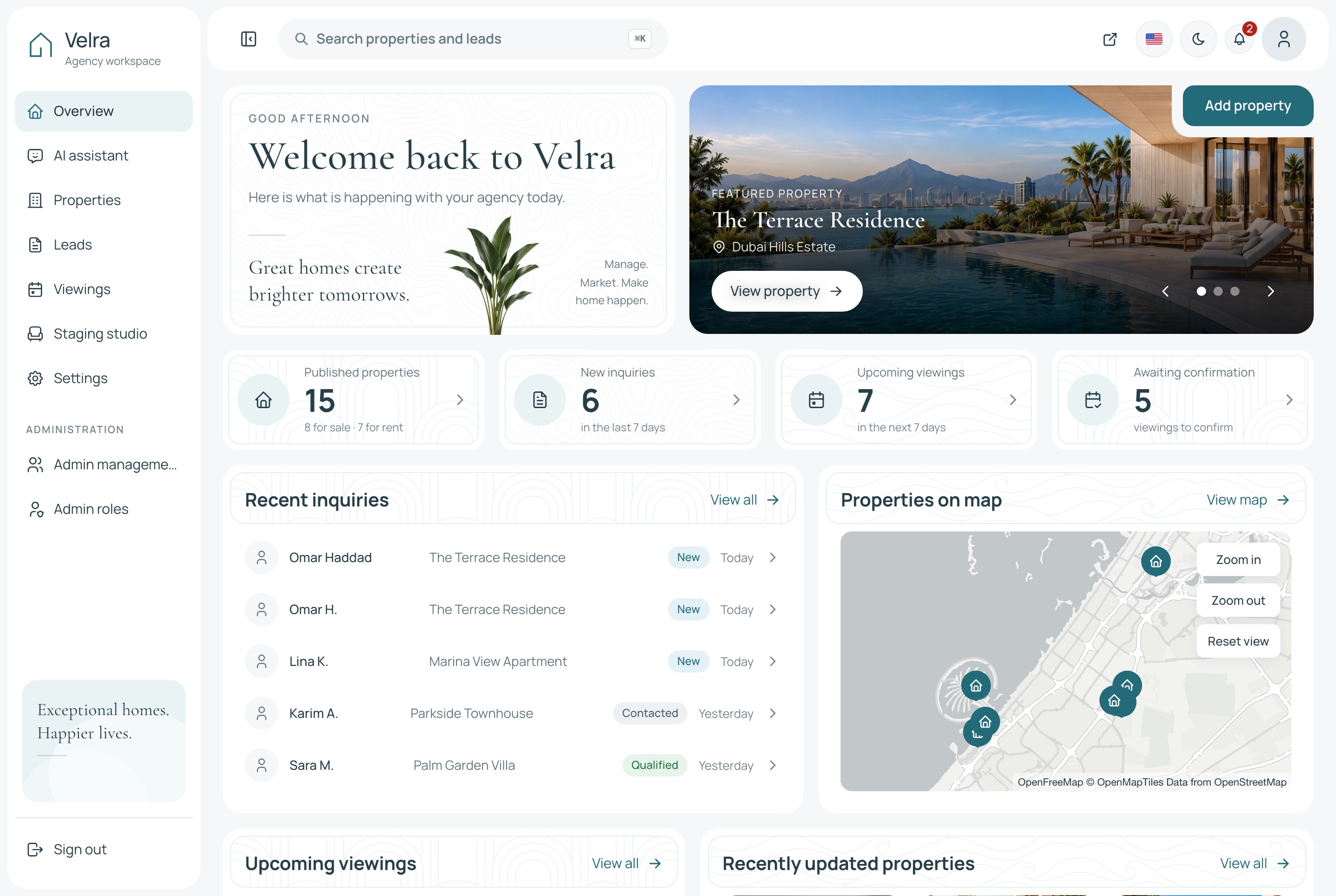
Look at the counts for new inquiries and requested viewings, which decide who the agents call first.
Open Leads next. Each inquiry has a status (new, contacted, qualified or closed) and a note. Move it along as soon as an agent replies, so the list always shows who is waiting.
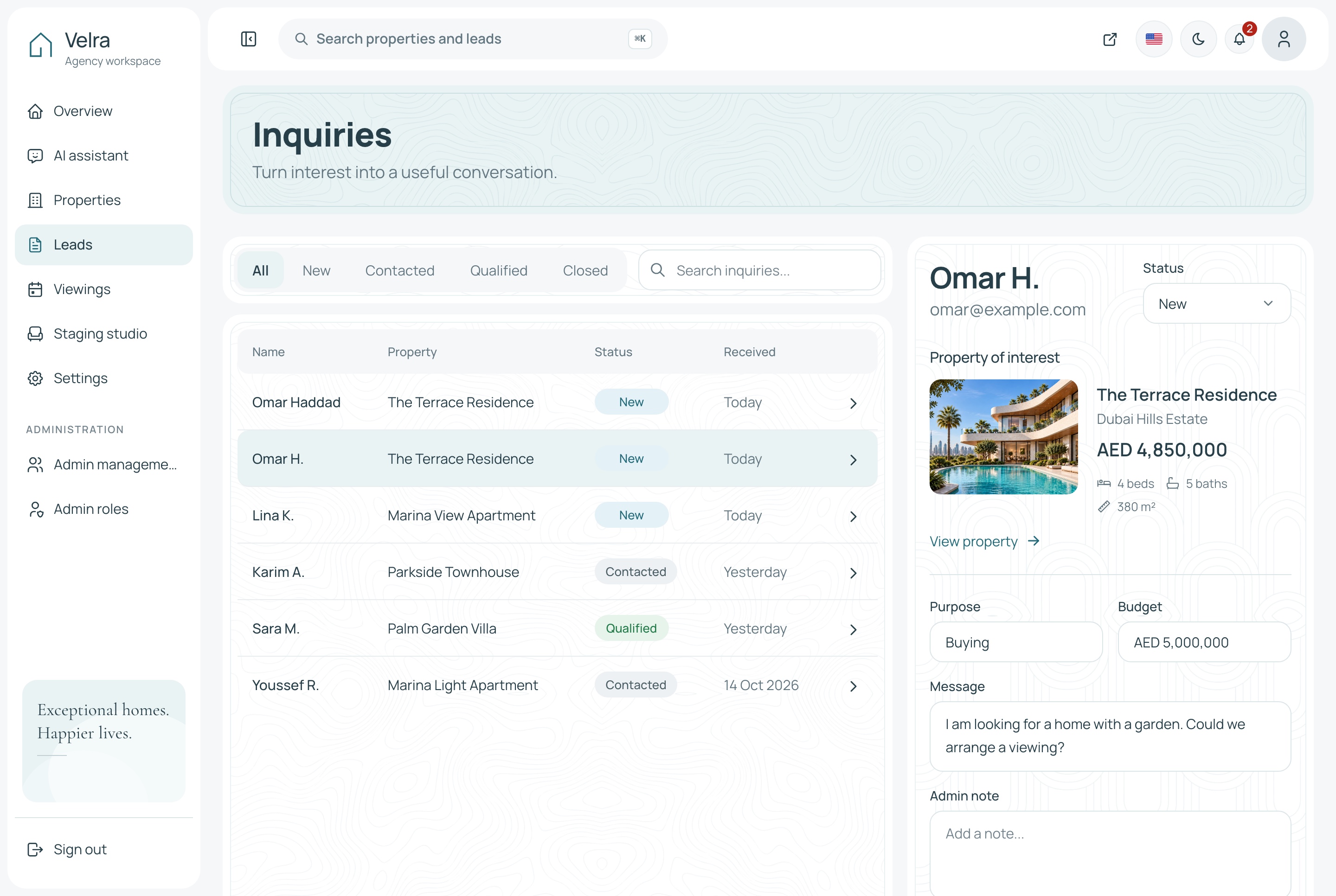
Look at the detail panel beside the list, where the status and the agent's note live.
Keeping listings fresh
The Properties page lists everything with status tabs, search and filters. Check drafts that are ready to publish, mark closed deals as sold or rented, and archive what is withdrawn.
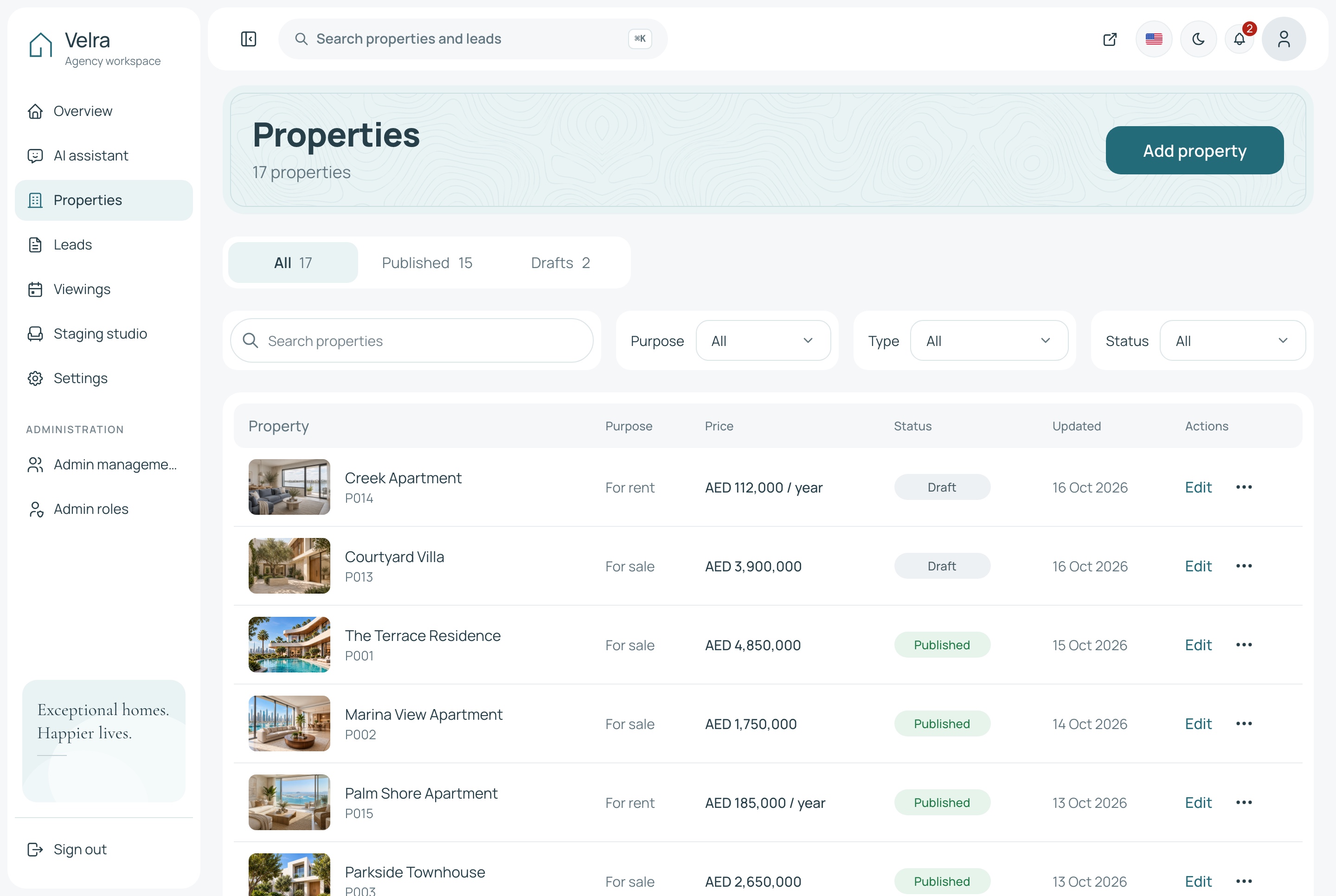
Look at the status tabs across the top, which separate live listings from drafts and closed deals.
Weekly tasks
- Confirm or cancel every viewing still marked requested, and complete the ones that took place.
- Update the three featured homes under Settings, Homepage.
- Generate and approve staged rooms for new empty units.
- Ask the assistant how many viewings are waiting or which listings are still drafts.
- Back up the database and uploads, and keep a copy elsewhere.
An example launch plan, week by week
This is an example schedule for Sandstone, not a promise about how long your project takes.
- Week 1, foundations. Run the stack with Docker, send yourself a viewing request, make the decisions above, and start branding and the privacy page.
- Week 2, content. Add neighborhoods and the first listings in both languages with ordered photos, and publish them.
- Week 3, people and tools. Create the team and roles, try staging on an empty unit, and test on phones and in Arabic.
- Week 4, go live. Deploy on your domain, send a real viewing request, and tell past clients first.
Launch checklist
- Agency name, tagline, contact email and city are yours, in both languages.
- The privacy page is rewritten for your agency and country, and the placeholder note is removed.
- Every published property has both languages, ordered photos, a cover and a located pin.
- The demo passwords are replaced or the seeded accounts removed.
NODE_ENVisproduction,JWT_SECRETis yours, andCORS_ORIGINlists the live addresses.NEXT_PUBLIC_SITE_URLis the real website address, and both front ends were rebuilt.- Photos and the database sit on storage that persists, with a backup.
- Staged photos are approved only when they are labeled and honest.
- Someone owns the notifications and the reply process.
Template, from scratch or a hosted platform
There are three realistic routes to an agency site.
A template like this one
You get the source for the website, the dashboard and the API, with listings, leads, viewings, roles and staging already working together. You own it and can change it. You also host it, and what the template lacks, such as payments or email, is development work.
Building from scratch
You get exactly the product you design, and you build everything: filters kept in the address, the editor with ordered photos, the viewing flow, permissions. That is a long road for a site that many agencies need in similar form.
A hosted real estate platform
This is quick to launch and handles servers for you. The trade-offs are recurring fees, less control over layout and flow, and your leads living on their system. Compare terms, fees and Arabic support first.
What it costs to run
The template is a one-time purchase, from $79 for the public website alone. The Full Stack package used in this example is $179, and it includes a commercial license and lifetime support.
Running costs sit outside the template:
- Hosting for the three apps, and a persistent disk or a MySQL database.
- Bucket storage, if you send uploads to Cloudflare R2 or a similar service.
- A domain name.
- An AI key, only if you use the staging studio (Google Gemini) or the assistant (Gemini, OpenAI or DeepSeek). The providers bill per their own pricing.
Free to use: SQLite for development, the map tiles and place search the template points at by default, and the seeded demo data. There is no payment provider to pay for, because the product has no checkout.
What to customise next
- Currency and market. The template is set to AED and Dubai. Another market is custom work, because the currency, the time zone and some of the wording are set for it.
- Property types and amenities. Each list lives in the API and is labelled in both front ends, so adding a value means editing all three apps.
- Neighborhood pages. Write real descriptions and cover photos for each area, in both languages.
- Tracking. Add a Google Tag Manager, GA4, Meta, TikTok, Snapchat or Pinterest id to the website's
.envand rebuild. The site reports events such asviewing_requestandcontact_submit. - Roles. Build a role per job, for instance a receptionist who sees viewings but not listings.
- Coding agents. The API offers the assistant's tools at
POST /api/mcp, protected by a key you choose.
Common mistakes
Publishing a property without checking its location
A pin on the wrong street makes the listing look careless. Use the place search in the Location tab, and choose approximate when the exact address is private.
Treating a viewing request as a booked appointment
The site tells visitors a request is waiting for confirmation. If agents are slow to confirm, visitors will notice. Agree a response time and watch the notification bell.
Forgetting the AI label on staged photos
The AI label on the slider is there for a reason. Do not remove it, and do not approve a staged photo for a room that looks different in real life.
Expecting emails or payments
The template sends no mail and takes no payments. Plan how agents will reply, and add a mail service yourself if you need automatic confirmations.
Changing a .env and not rebuilding the front ends
If the live site still calls the old API after you change an address, rebuild. With Docker Compose, set the value in the .env beside docker-compose.yml and run docker compose up --build.
FAQ
How do I build a real estate website with Next.js?
Start from a template that already has listings, property pages, leads and an admin area, then configure it for your agency. You need a public site, a dashboard for agents and an API that stores properties and inquiries. The steps above show that path with Velra.
Do I need a backend for a property listing site?
Yes, because listings, photos, inquiries and viewings must be stored and managed somewhere. The template ships a NestJS API with TypeORM that both apps use, on SQLite or MySQL.
Can I use it for client agencies?
Yes. It comes with a commercial license for unlimited projects, which covers agencies building sites for clients. Read the license page in the documentation for the exact terms.
Does it support Arabic and RTL?
Yes. The website and the dashboard run in English and Arabic, with Arabic laid out right to left. Properties are written in both languages.
Can visitors pay or book online?
No. Visitors request a viewing or send an inquiry, and the agency follows up. There is no checkout, so the template fits agencies that close deals offline.
Can several agencies list on one site?
No. It is built for one agency with one team. A portal for many agencies would need new features such as agency accounts and billing.
Do I need Docker?
No, but it is the quickest start. Without Docker you need Node.js 22 or newer, Corepack enabled, and one terminal per app. The API runs on SQLite, so there is no database server to install.
Can visitors create accounts?
No. The website has no accounts. Saved homes and the comparison stay in the visitor's browser, and a viewing request needs only a name, an email and a time.
Can I use MySQL instead of SQLite?
Yes, as a configuration change. Create an empty database, set the driver and connection in the API's .env, and run the seed or table setup before the first production start.
Is the staged photo label optional?
No. The property page shows staged rooms with a clear label that they are AI-generated, and you should keep it.
Try it yourself
Search homes on the live public website and then open the agency dashboard demo to see how a request arrives. The Velra documentation covers every setting mentioned here, and the product page lists the packages. For related options, browse the real estate template category. Velra is also one of ten templates in the Next.js Templates Bundle.
You might also like
How to Build an Online Fitness Coaching App with Next.js
Build an online coaching platform with client rosters, assigned workouts and weekly check-ins using Next.js and NestJS. A worked example, step by step.
How to Build a Restaurant Online Ordering System with Next.js
Build an online ordering system for a restaurant with Next.js: run the stack, add kitchens and a bilingual menu, test payments and go live.
How to Build a Vacation Rental Booking Website with Next.js
Build a vacation rental website with direct booking in Next.js: add stays, protect the calendar, set up Stripe and PayPal, and go live.
