How to Build a Vacation Rental Booking Website with Next.js
Build a vacation rental website with direct booking in Next.js: add stays, protect the calendar, set up Stripe and PayPal, and go live.
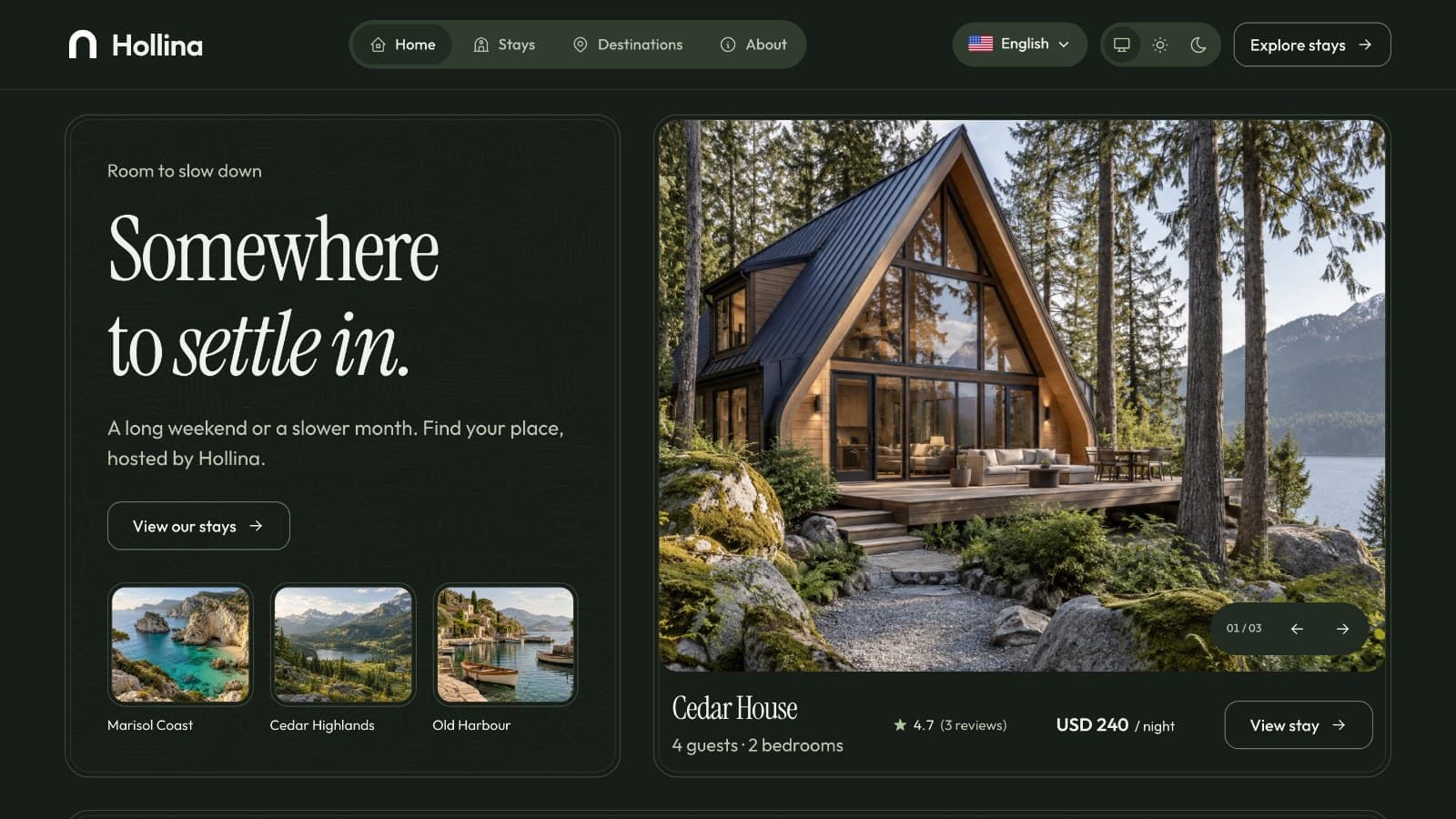
This guide shows how to build a vacation rental website with direct booking in Next.js: a public site where guests pick free nights and pay, a dashboard where the host runs the calendar, and an API that keeps every date consistent. We use the Hollina template as the base and follow one example host from install to launch.
Direct booking is mostly about trust in the calendar. If the site shows a night as free and the dashboard says it is taken, you lose the guest and the evening. So the steps below spend extra time on availability, payments and the first week after launch, and less on decoration.
The brief
Larch Ridge Cabins is a small host with six cabins and cottages, run by a team of three. Today it takes bookings by phone and through a listing site, and it wants its own site as well. The project needs to:
- Let a guest search stays by destination, dates, number of guests and type of place.
- Show each stay with photos, amenities, house rules, reviews and a calendar of free nights.
- Price the stay before payment: nightly rate, a cleaning fee and the total.
- Take card and PayPal payments, and allow paying on arrival for guests who prefer it.
- Stop double bookings, while letting a guest arrive on the day another leaves.
- Let the host block nights for repairs, and see arrivals and departures at a glance.
- Work in English and Arabic, because some guests browse in Arabic.
One more constraint, which belongs in any honest brief: the template prices a stay with one nightly rate and one cleaning fee, and it works in one currency (US dollars) and one time zone (America/New_York). Larch Ridge is a US east coast business, so that fits. If your business needs seasonal rates or another currency, plan custom work.
How the template covers the brief
| Need | Where it lives | What you use |
|---|---|---|
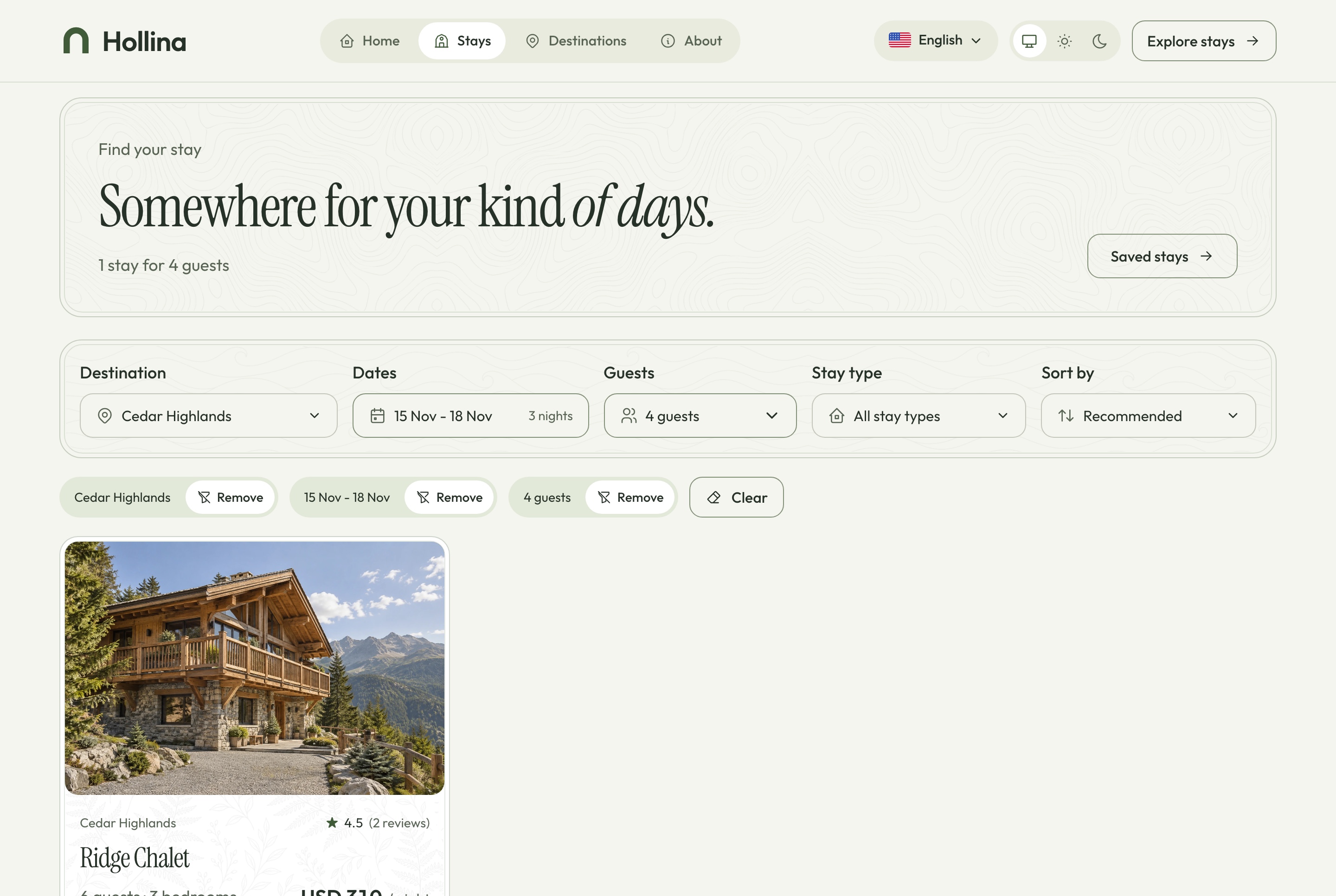
| Search and filter stays | Stays website | The stays list at /en/stays, with filters kept in the address bar |
| Free nights and a live quote | Website and API | The two-month calendar and reserve card on each stay page |
| No double bookings | API | One availability service used by the calendar, the checkout and the dashboard |
| Card, PayPal or pay on arrival | API and dashboard | Stripe and PayPal keys in the API's .env, and the pay on arrival switch under Settings, Payments |
| Blocked dates and bookings | Booking dashboard | Calendar page with the block dates dialog, and the Bookings page |
| Guest questions and reviews | Website and dashboard | The question dialog and contact form feeding Inquiries; Reviews to publish or hide |
| English and Arabic | All three apps | /en and /ar routes, messages files, bilingual stay editor |
Before you start: decisions to make
Booking sites go wrong when the business rules are vague. Settle these first.
- Which package. Full Stack for a new business. A single front end needs an API somewhere.
- Where it runs. A Node host for three apps, a database (SQLite on a persistent disk, or MySQL) and a place for photos (a persistent folder or a bucket such as Cloudflare R2).
- Languages. Each stay is written in English and Arabic. Publishing needs both, so someone has to write the Arabic text.
- Payments. Stripe, PayPal, pay on arrival, or a mix, on accounts that belong to the business. The money goes to those accounts, not through the template.
- Pricing rules. One nightly rate, one cleaning fee and a minimum stay per cabin. Seasonal rates, discount codes and syncing calendars with other listing sites are not included.
- Who runs the dashboard. Decide who is the Super Admin, who is a manager, and whether a cleaner needs a role of their own.
- How guests hear back. The API sends no email, so decide who replies to questions and from which inbox.
Step by step
Step 1: Choose the package
Hollina comes as a Full Stack package (website, dashboard and API) and as three separate packages. The website and the dashboard hold no data of their own, so each needs the API behind it. For a new business, take the Full Stack package and keep everything in one folder.
The separate pieces make sense for agencies that already host an API, or for a host who wants only the stays website or only the booking dashboard. One thing to know before you commit: the template is built for one host company. It is not a marketplace where many owners list their own properties.
Check before moving on
You can say which ZIP you downloaded and which apps it holds. If it is a single front end, you know where its API will run.
What usually goes wrong
A single front end shows nothing without its API, because neither app holds data of its own.
Step 2: Run it locally with Docker
Install Docker Desktop, download your ZIP from My templates, unzip it, and open a terminal in the hollina-vacation-rental-full-stack folder. Then run:
docker compose up --buildThe first start builds three images and seeds a demo company, so it takes a few minutes. You then have the stays website at http://localhost:3030, the booking dashboard at http://localhost:3031 and the API at http://localhost:8000. If a port is taken, add SITE_PORT, ADMIN_PORT or API_PORT to a .env file beside docker-compose.yml and run the command again.
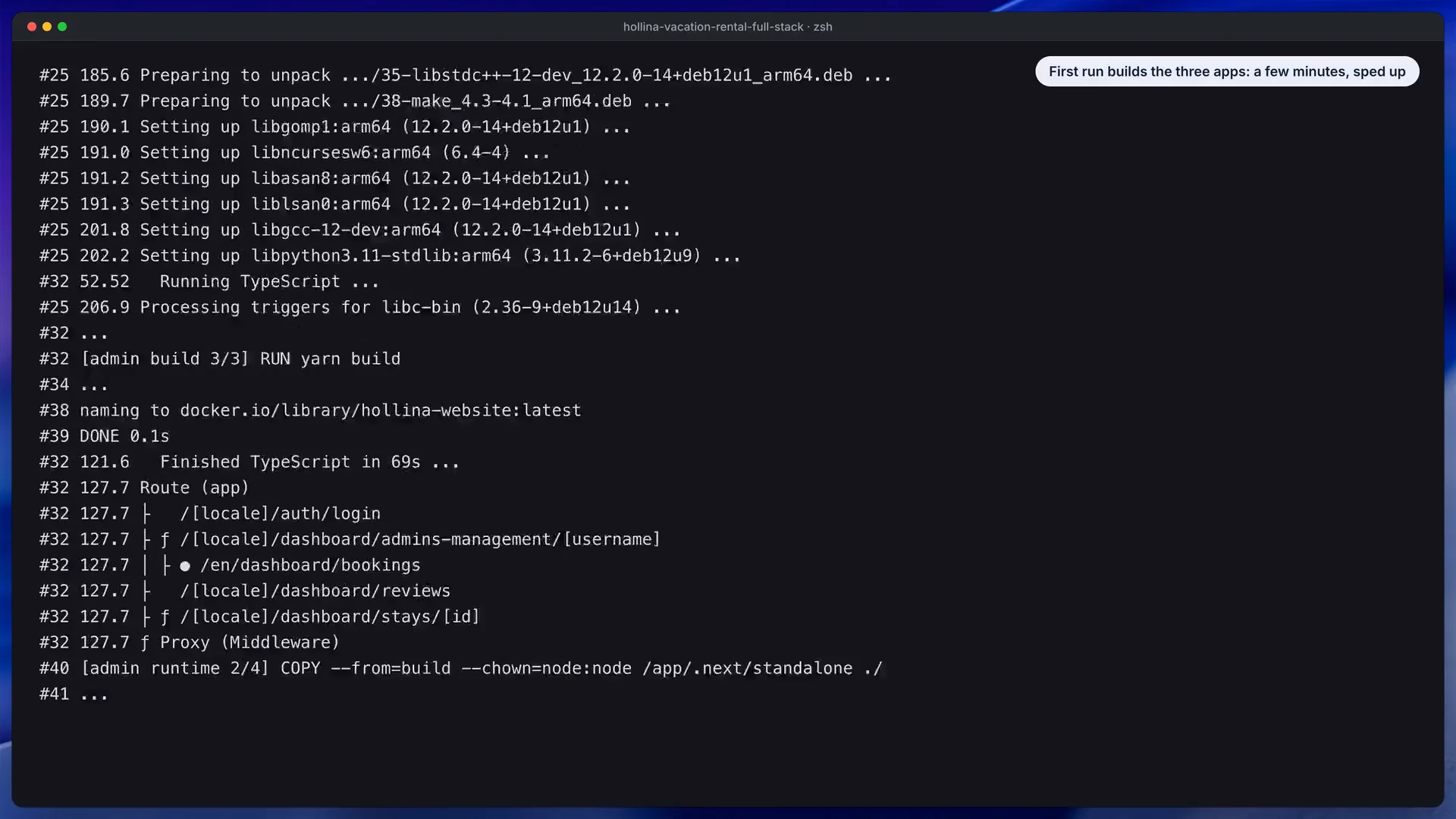
In this still from the install video, look at the one command that starts all three apps.
The dashboard has two demo accounts: admin@hollina.example with the password Admin@123, and manager@hollina.example with Manager@123. The website has no accounts at all. Guests are identified by a booking reference and the email they booked with.
Spend an hour with the demo data before deleting anything. The seed holds 14 stays, 60 bookings spread over the year, blocked ranges, guest questions and reviews, and the seed keeps its dates relative to the day you start, so a fresh database always has someone arriving. Book a stay as a guest, then find that booking in the dashboard and move it along.
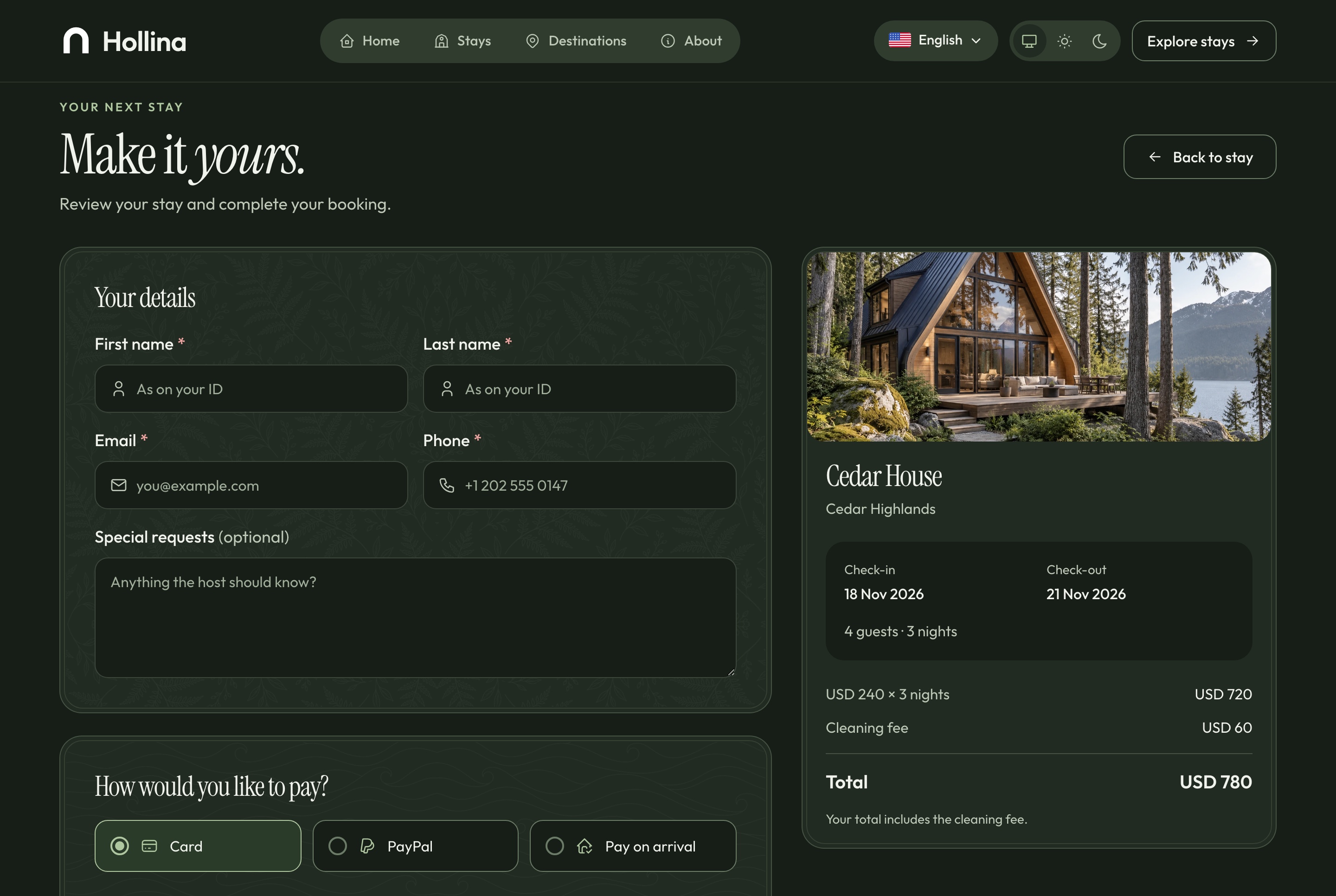
Look at the path from a stay page to a booking, which is the loop to rehearse as a guest.
Careful with docker compose down -v: it also deletes the hollina-data volume, so the next start brings back a fresh demo company and everything you entered is gone.
Check before moving on
The three addresses answer, you booked a demo stay as a guest, and you found that booking in the dashboard.
What usually goes wrong
Docker is not running, so start Docker Desktop and retry. A busy port ends the start with "address already in use": move the app with the port variables above. On a fresh start, a stay page tab that says only "Stay" is harmless inside Docker, and the full stack already sets the internal API address that fixes it. Without Docker, remember that the apps expect Node.js 22 or newer and that Yarn 1.22 answers until you run corepack enable.
Step 3: Put the company in
Some details are code and some are data. The code ones live in the website's folder:
storefront/src/config/brand.config.tsholds the site name and metadata.storefront/src/config/booking.config.tsholds the fallbacks for time zone and currency.storefront/src/styles/theme-variables.cssholds the colors as tokens, with a light value and a dark value. Change both, or one theme keeps the old brand color.storefront/public/brand/holds the mark, and the host's own site photographs (hero, how-it-works steps, contact card) sit in the API's folder underpublic/media/hollina/site/.
Search messages/ for Hollina and rewrite those lines in English and Arabic. The data ones are edited in the dashboard under Settings, on the Company tab: the company name, tagline and description in both languages, the contact details, and the default check-in and check-out times. Then open the privacy page. Its text is a placeholder, flagged as such on the page, so rewrite it for your company and country and remove that flag.
Check before moving on
The tab titles, footer and headings show Larch Ridge in both languages, and both themes still read well on the new colors.
What usually goes wrong
A color changed in one theme only, or a sentence rewritten in English without the matching line in the Arabic messages file. The privacy page is a classic miss.
Step 4: Add destinations and stays
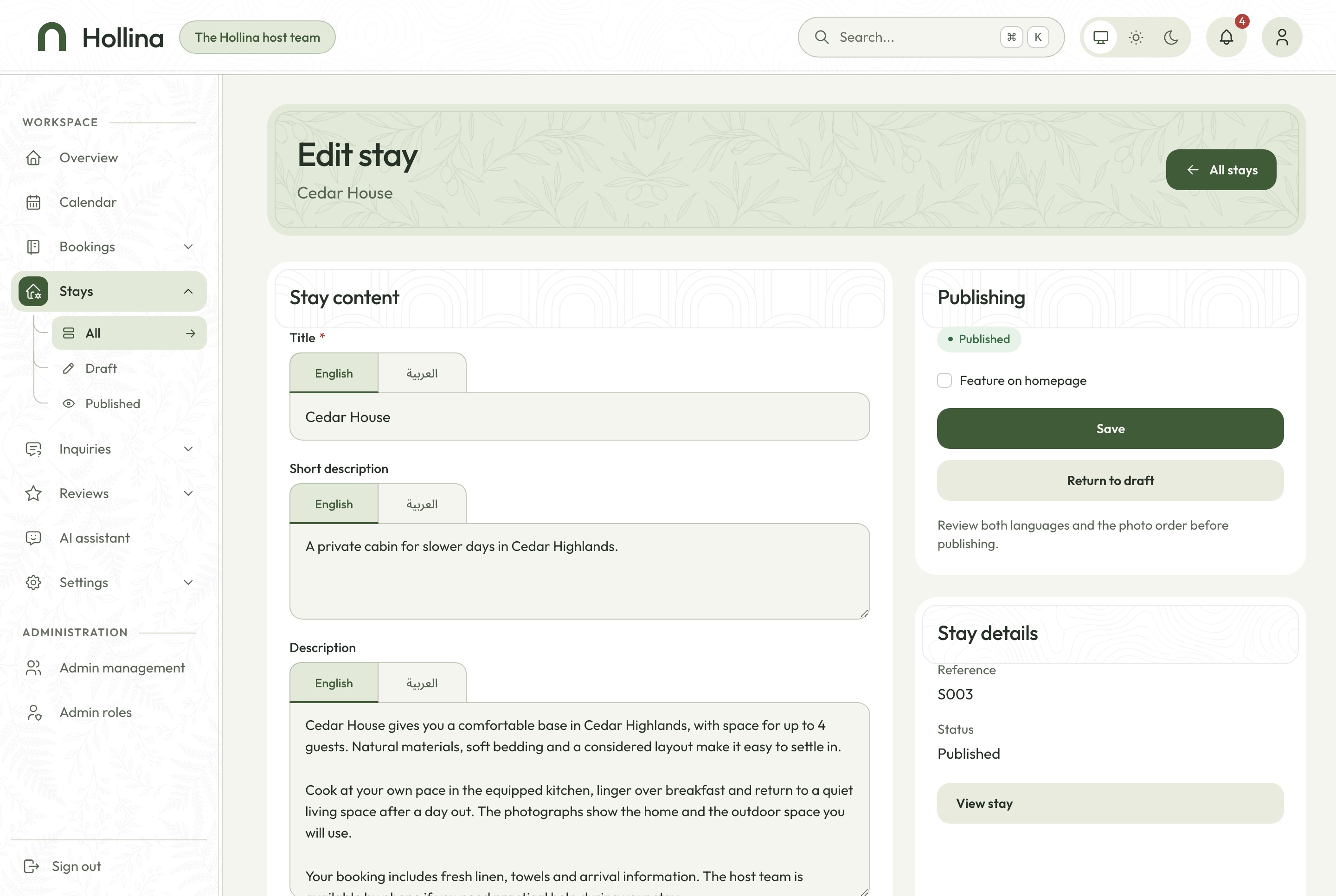
Create the destinations first (Settings, Destinations), since every stay belongs to one. Larch Ridge uses two: the lake side and the ridge. Then add each stay from the Stays page. The editor holds title and descriptions under English and Arabic tabs, the type of place (cabin, cottage, chalet and so on), capacity, nightly rate, cleaning fee, minimum nights, amenities, house rules and photos.
A few rules from the editor matter for planning:
- Every new stay is a draft. A draft answers as not found on the public site until you publish it.
- Publishing needs three photographs and both languages.
- Photos are uploaded and ordered by you. The first one is the card and cover photo.
- The rate is a whole number of US dollars. A quote multiplies the rate by the nights and adds the cleaning fee a single time.
When the stays are in, pick the stay for the home page hero and the four featured stays under Settings, Homepage. Start with the few stays you can photograph well rather than all six at once.
Check before moving on
Publish one stay and open it as a guest in a private window. Then try to publish a second stay with only one language filled in, to see the check that stops you.
What usually goes wrong
Stay photos do not load. Their addresses are built from PUBLIC_MEDIA_URL, which must reach the API from the guest's browser. Also remember that the dashboard has no delete button for stays, so unpublish instead.
Step 5: Understand how nights work
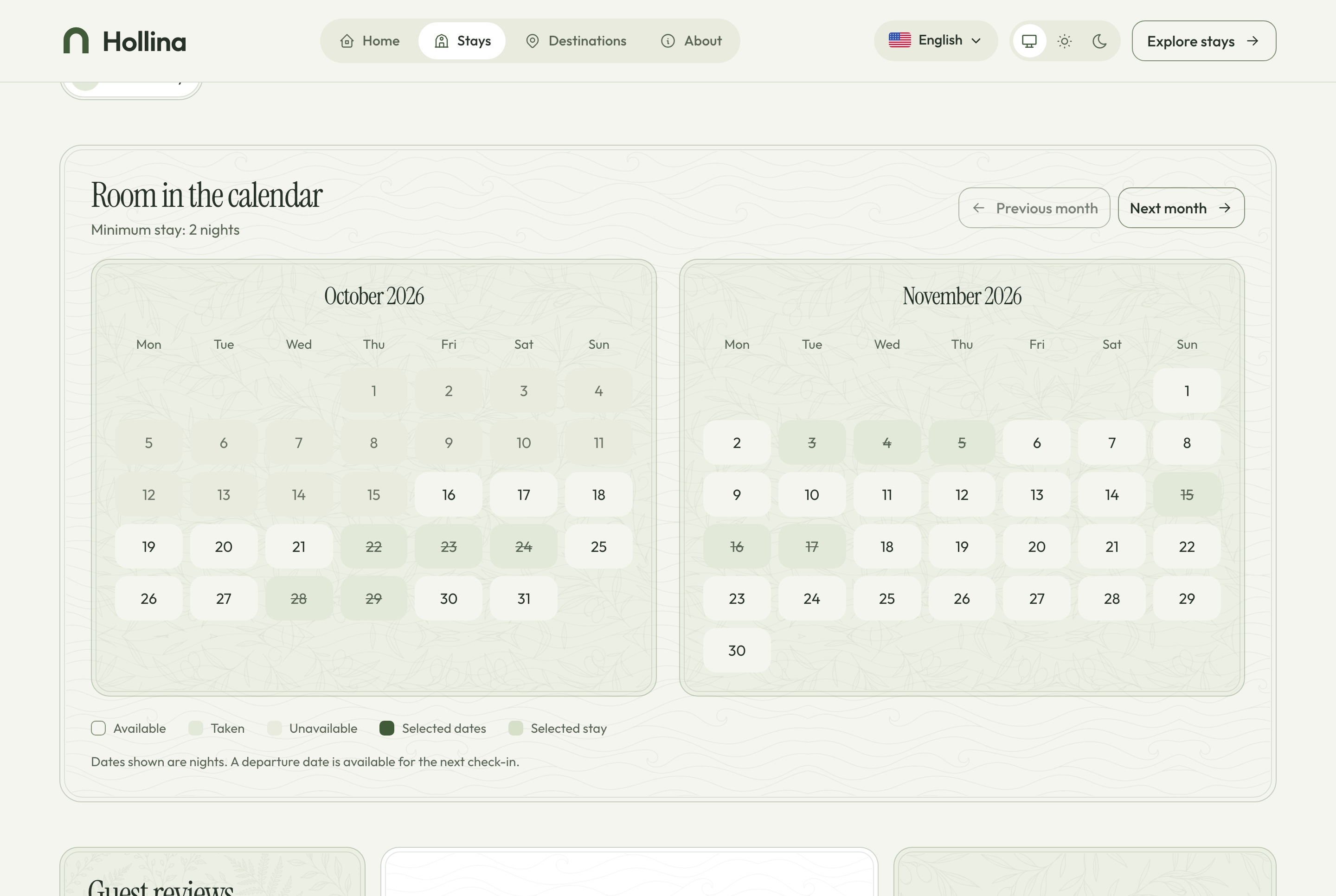
The calendar logic is the heart of a booking site, and this one is simple to reason about. A booking covers the nights from check-in up to, but not including, check-out. If a guest leaves on the 10th, the next guest can arrive that same day, and three nights means three nights, not four.
The quote and the checkout apply the same four checks: the check-in date has not passed, the stay meets its minimum nights, the party fits the capacity, and none of the nights is taken. The checkout repeats them when it writes the booking, so two guests cannot pay for the same night. A booking that is waiting for payment holds its dates for 30 minutes and then expires.
The dashboard calendar shows each booking as a bar across its nights. To close a cabin for repairs, open the block dates dialog, choose maintenance, company use or other, and add a note. If the range runs into a booking or an earlier block, the dialog says no and shows which one.
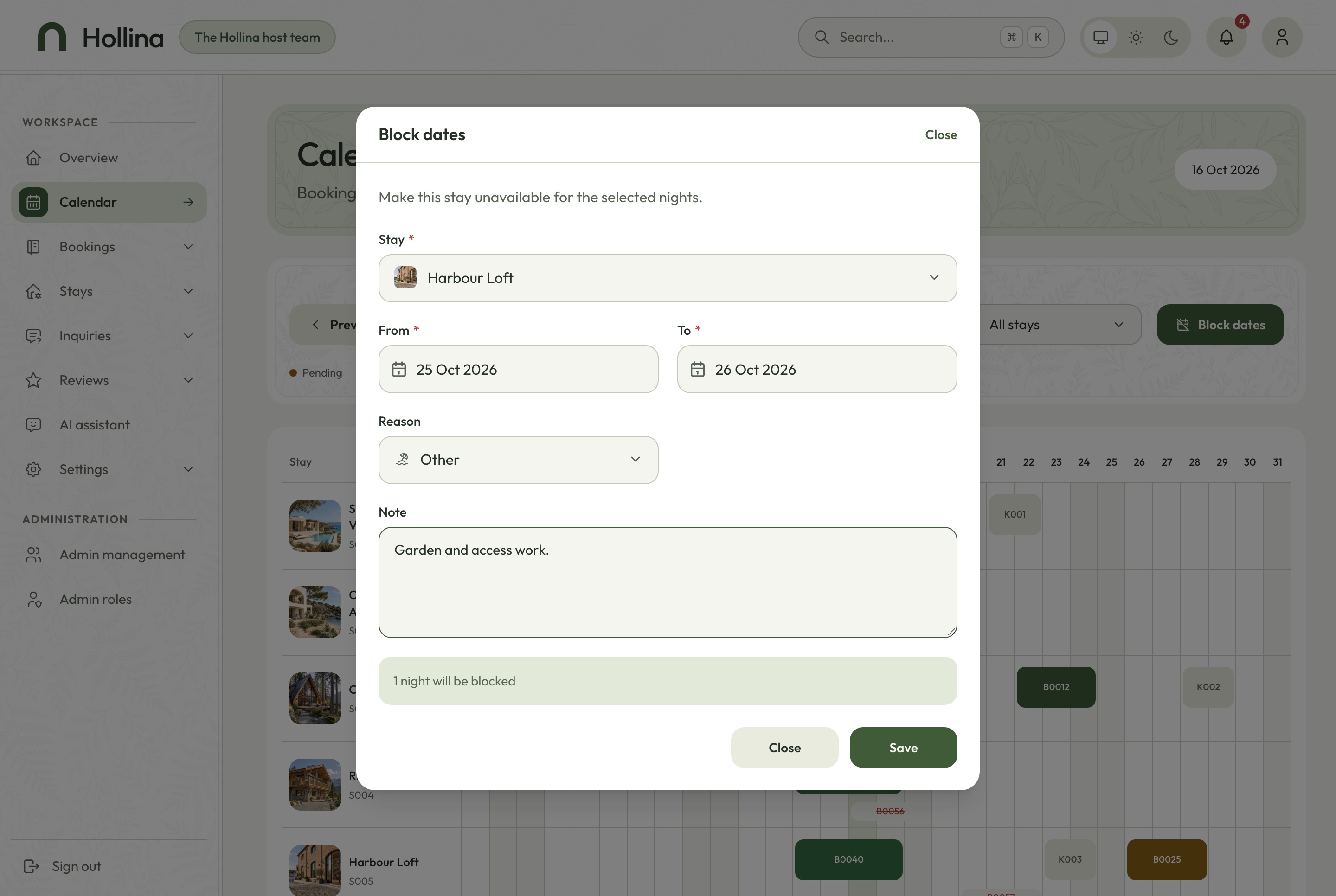
Look at the reason choices and the note field in the dialog that closes a cabin for repairs.
Check before moving on
Book the same cabin twice for overlapping nights and confirm the second attempt is refused with a message that those nights are taken. Block a range, then try to book across it.
What usually goes wrong
People expect a guest checking out on the 10th to block the 10th. It does not: that day stays open for whoever arrives next. Another surprise is the minimum stay, which also limits which check-out days the calendar offers.
Step 6: Set up payments, then switch the simulator off
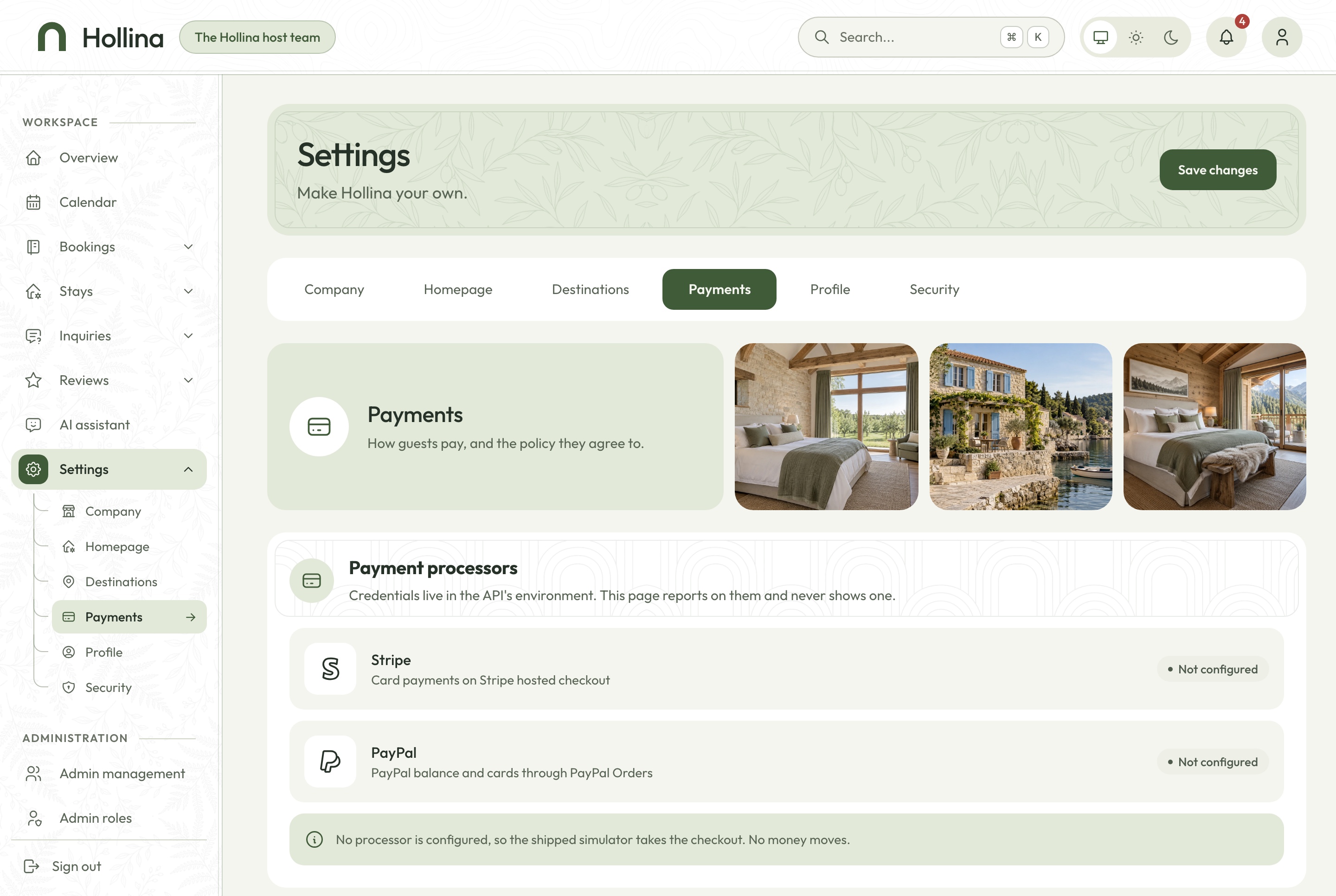
A fresh install has no payment processor, so a built-in simulator settles every card and PayPal booking without taking money. The checkout says "Test mode: no card is charged", and a card number that ends in 0 fails on purpose, so you can see the failure path. It is useful for building, and dangerous if you forget it. Once Stripe or PayPal is configured, the simulator switches off by itself.
For Stripe, set a test secret key (sk_test_) as STRIPE_SECRET_KEY in the API's .env. When the API is on a server, add a webhook endpoint in Stripe whose address is your API's public address plus:
/api/webhooks/payments/stripeSubscribe it to checkout.session.completed, payment_intent.payment_failed, charge.refunded and charge.dispute.created, then put its signing secret in STRIPE_WEBHOOK_SECRET. Leave that secret out and the API rejects every Stripe webhook, so no card booking ever settles. Then book a stay in the browser using the test card 4242 4242 4242 4242.
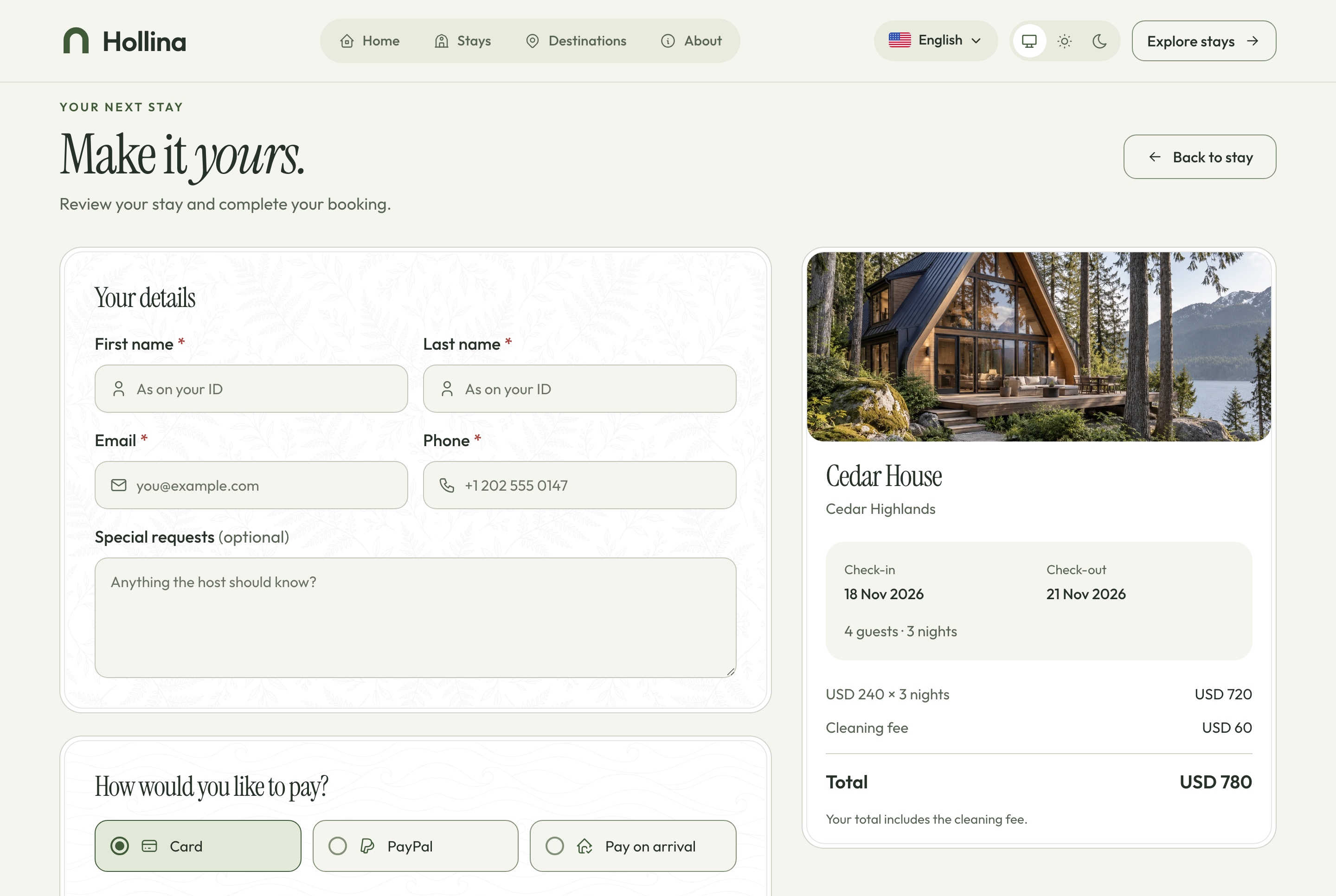
Look at the payment choices and the cancellation policy shown beside the summary of nights.
For PayPal, set PAYPAL_CLIENT_ID, PAYPAL_CLIENT_SECRET and PAYPAL_WEBHOOK_ID; PAYPAL_ENV stays on sandbox until you go live. Pay on arrival needs no key. It is a switch under Settings, Payments, and the same tab holds the cancellation policy guests read, in both languages.
Check before moving on
Book with the Stripe test card, then confirm the booking turns paid in the dashboard and the guest's booking page stops saying the payment is being confirmed.
What usually goes wrong
A paid booking stays pending. The booking page waits for the webhook, so check the endpoint address, the signing secret and a restart of the API. After 30 minutes the unpaid hold ends and a sweep cancels the booking as expired.
Step 7: Add the team and limit what each person sees
There is no sign-up page. The two dashboard accounts come from the seed: a Super Admin with all 32 permissions, and a Manager with everything except admins, roles and company settings. Create real accounts under Admin management, then replace the demo passwords, or remove the seeded accounts, before anyone outside your team can reach the dashboard.
For Larch Ridge, add a role for the cleaner who only needs the calendar. Under Admin roles, create a role with just the calendar permissions and assign it to that person. The assistant respects the same permissions, so someone without the right to edit bookings cannot cancel one through the chat either.
Check before moving on
Sign in as the manager and confirm the admin and role pages are missing. Sign in as the cleaner role and confirm only the calendar shows.
What usually goes wrong
Nobody removed the seeded passwords. The Manager role also cannot edit company settings, so the owner must make changes to the Payments tab.
Step 8: Plan the guest side after the booking
This is where direct booking differs from a listing site, and it deserves a decision before launch. The API sends no email. After checkout a guest sees the booking page with a reference number, and finds it again at the Find my booking page with the reference and the email used. Questions from the contact form and the stay page arrive as inquiries in the dashboard, with a bell notification, and the team replies from its own email.
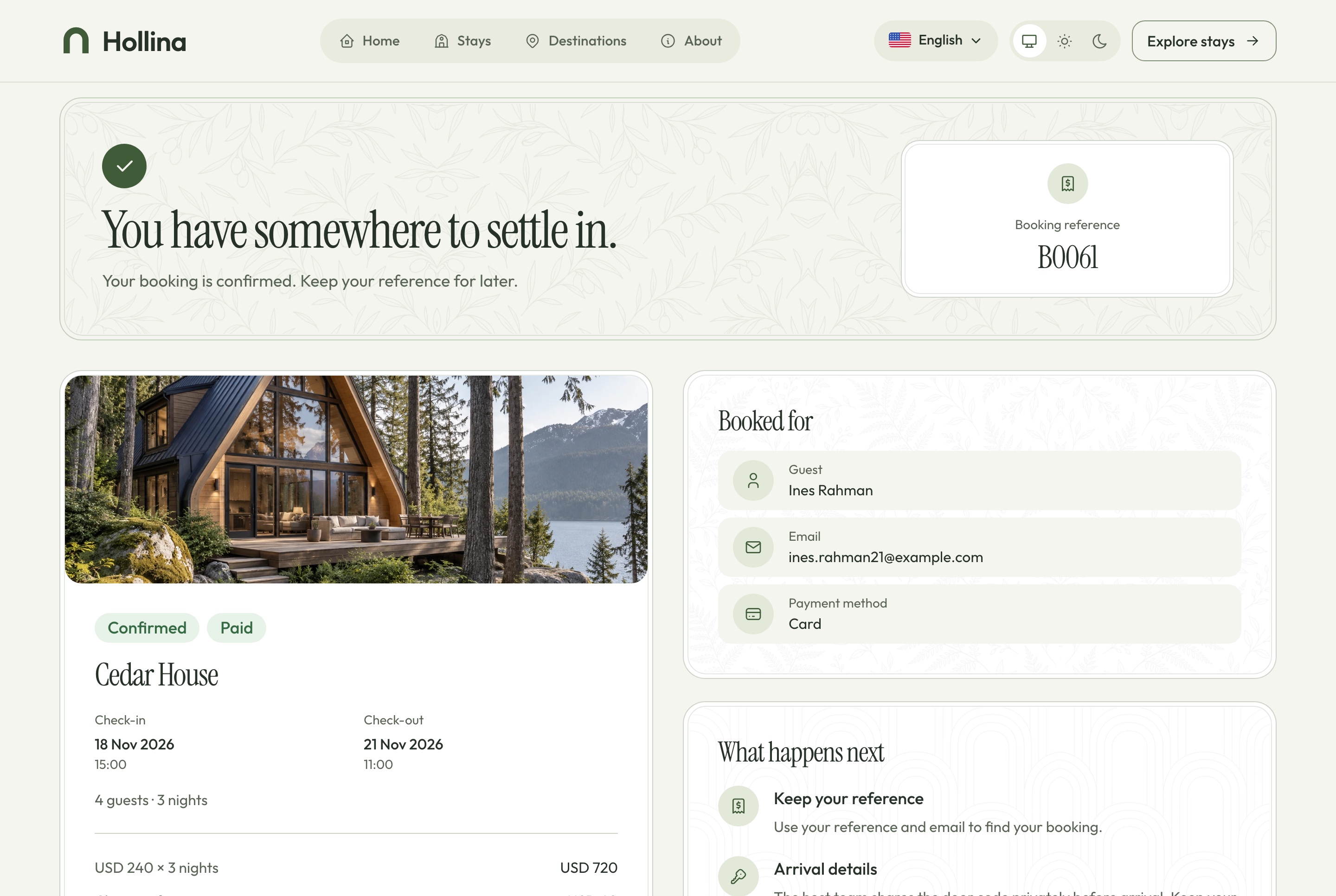
Look at the booking reference, which the guest needs later to find the booking again.
Guests can cancel from their booking page while check-in is at least seven days away. A paid booking then becomes refund pending, and the host makes the refund in the Stripe or PayPal dashboard. Reviews work only for completed stays, one per booking, and the team can hide or publish each one.
The assistant is optional. With a Google Gemini key in GOOGLE_API_KEY, the dashboard chat answers questions such as which cabins are free next weekend, and, when you ask, it can block dates or advance a booking. Without a key it says it is not connected, nothing is billed, and everything else works. Google charges for Gemini under its own pricing, listed on the Gemini pricing page.
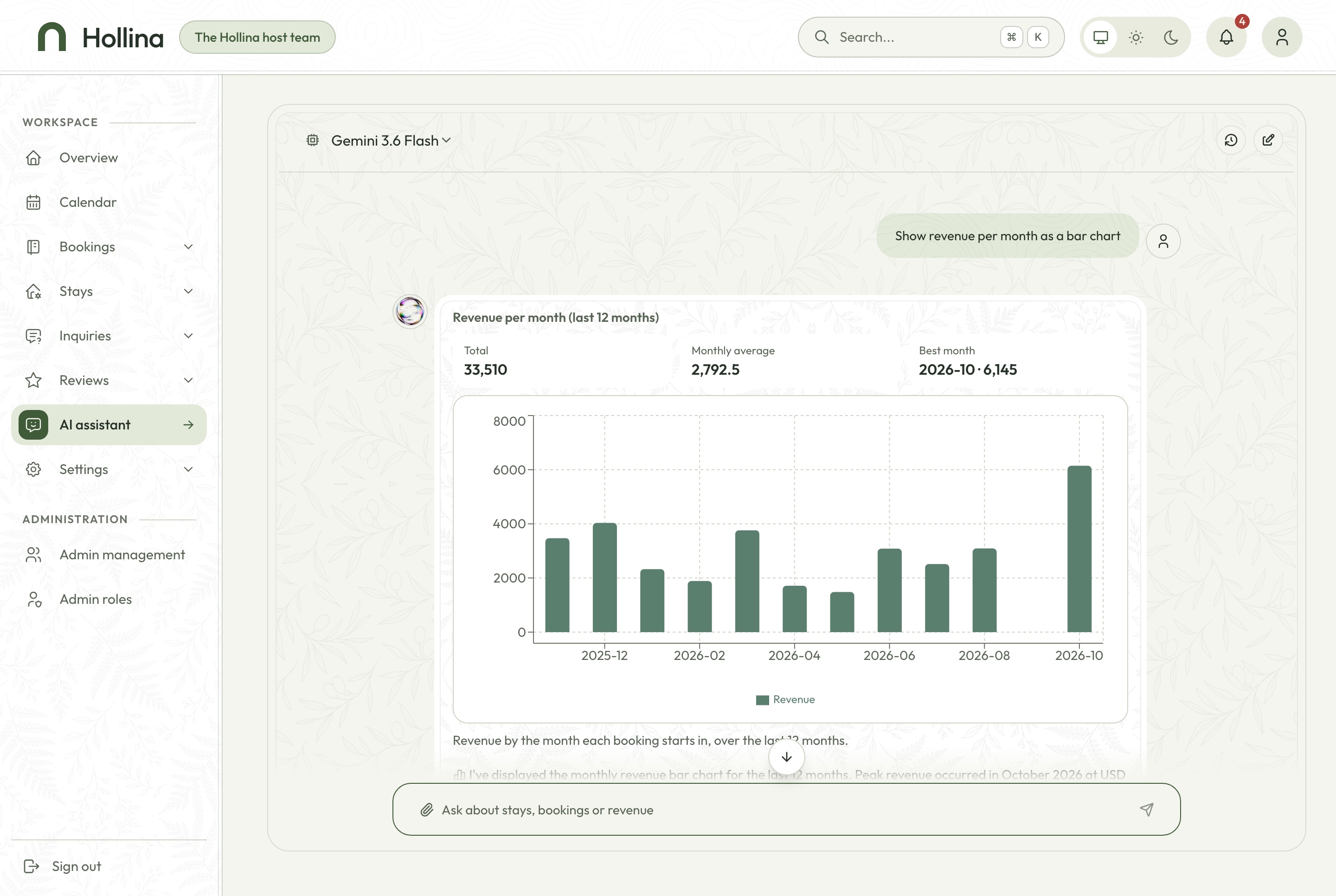
Look at the chart the assistant draws when the question is about a trend.
Check before moving on
Find your own test booking with its reference and email, cancel one that is more than seven days out, and send yourself a question from a stay page so you see it arrive as an inquiry.
What usually goes wrong
A form rejects a submission. The forms allow five of each per address in ten minutes and carry a hidden field against bots, so a testing spree from one laptop can lock you out briefly.
Step 9: Test it on a phone, in both languages
Run the whole path as a guest on a real phone: search, open a stay, choose nights, check the quote, book, pay with the Stripe test card, and open the booking page. The phone layout pins a reserve bar to the bottom of the stay page, so scroll both a long page and a short one to check it. Then do the same in Arabic at /ar.
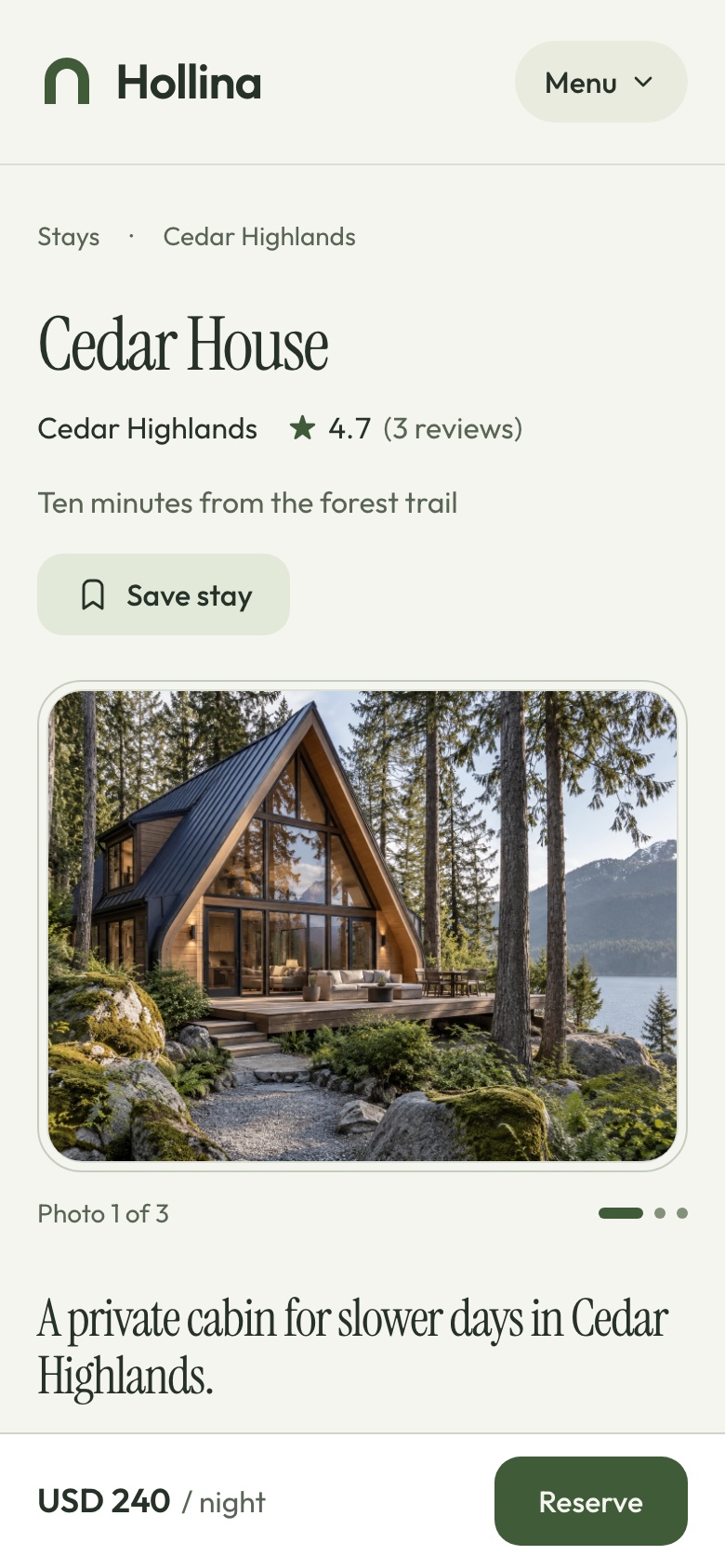
Look at the reserve bar at the bottom, which keeps the price and the next step in reach.
Try the awkward cases on purpose: nights that are already taken, fewer nights than the minimum, a party larger than the cabin sleeps, and a payment that fails. In the dashboard, confirm the booking appears on the calendar, then confirm, check in and complete it. A pay-on-arrival booking is marked paid at check-in.
Check before moving on
Keep a short test list and run it on a phone and a laptop: search, quote, book, pay, find the booking, cancel it, and review a completed stay.
What usually goes wrong
The stay page shows a map error instead of the map. The map uses OpenFreeMap by default, which needs internet access and promises no uptime. Set NEXT_PUBLIC_MAP_STYLE_LIGHT to another MapLibre style if you need a service level.
Step 10: Go live
The docs cover three ways to deploy: one server running Docker Compose, each app from its own Dockerfile on a host such as Railway or Render, or plain Node.js. For a small host, one server with Docker Compose is the simplest. Put the three public addresses in a .env beside docker-compose.yml (SITE_URL, ADMIN_URL and API_URL), and the allowed origins, photo addresses and front end settings are built from them. Use a reverse proxy for HTTPS.
The checklist before the first real guest:
- Build the website and dashboard with public addresses.
NEXT_PUBLIC_API_BASE_URLis compiled into the JavaScript, so a change needs a rebuild. - Set
NODE_ENV=production, your ownJWT_SECRETandCORS_ORIGIN. The API checks them before it starts. - Set
SITE_URLto the address guests browse, because the payment processor sends guests back there. - Put the SQLite file and the uploads on a disk that outlives deploys, or switch to MySQL plus a bucket.
- On a server with
NODE_ENV=production, create the tables first withyarn seed:prodoryarn db:sync:prod, afteryarn build. Use the empty tables option for a real company. - Swap Stripe and PayPal test keys for live keys, and register the live webhook. Behind a proxy, forward the webhook body untouched, or the signature will not match.
Never run yarn setup:fresh or yarn db:reset on a live company. Both drop every table. Last, make one small real booking on a quiet date and cancel it, so you have seen real money move both ways.
Check before moving on
In a private window, book a small real stay on a quiet date, confirm the webhook marks it paid, then cancel it and refund it from the processor's dashboard.
What usually goes wrong
Pages show "Something went wrong" and the console mentions CORS, so add both live addresses to CORS_ORIGIN. Every visitor gets "Too many" errors behind a proxy, so set TRUST_PROXY. Photos fail when NEXT_PUBLIC_MEDIA_HOSTNAME does not name their host.
Running it day to day
Here is a normal week for the Larch Ridge team, using only screens the dashboard already has.
A morning in the dashboard
The overview shows occupancy and revenue for the current month, who arrives and leaves today, the bookings that need a decision, a year of revenue and the newest bookings. Start with what is waiting.
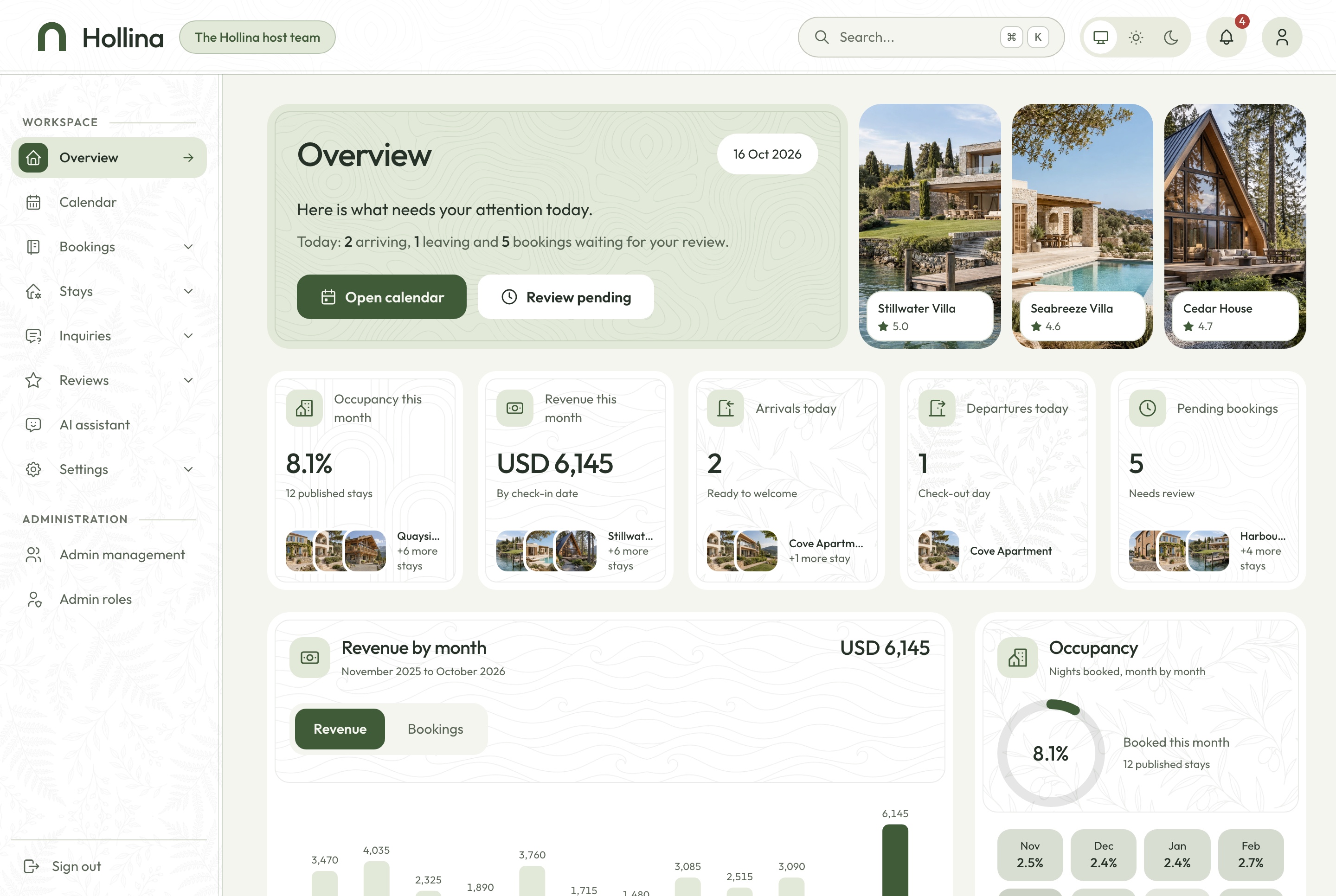
Look at the arrivals and departures for today, which tell the cleaner and the host what the day holds.
Then open Bookings. Status tabs with counts, a search box for reference or guest name, and a check-in range keep the list manageable. Open a booking for the timeline and the actions its state allows: confirm, check in, complete or cancel, with a reason shown when a step is unavailable.
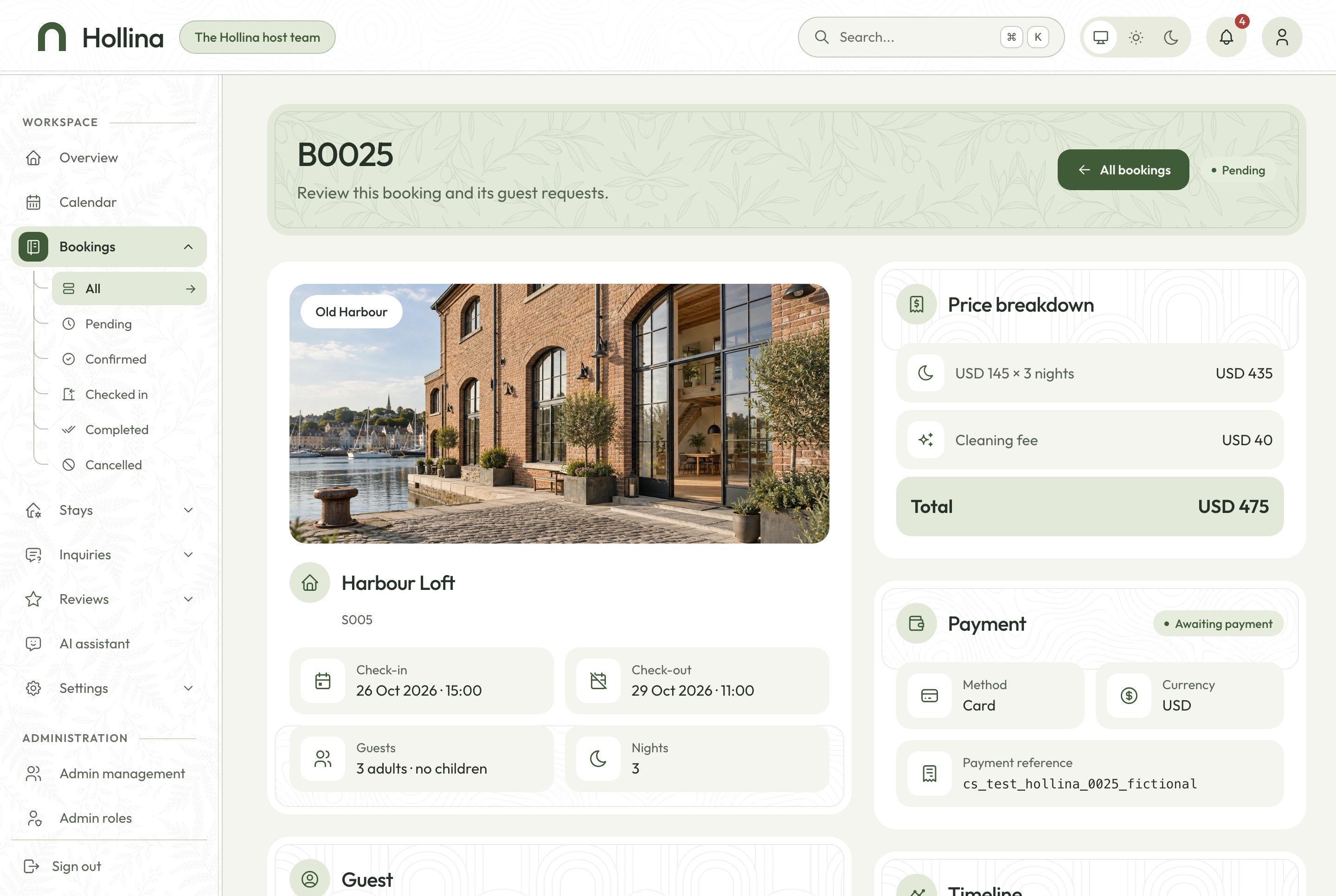
Look at the buttons offered for this booking and the reason shown for any that are unavailable.
The calendar and inquiries
The calendar draws every booking as a bar across its nights, colored by status, and blocked dates sit next to them. Open it before you promise a date by phone.
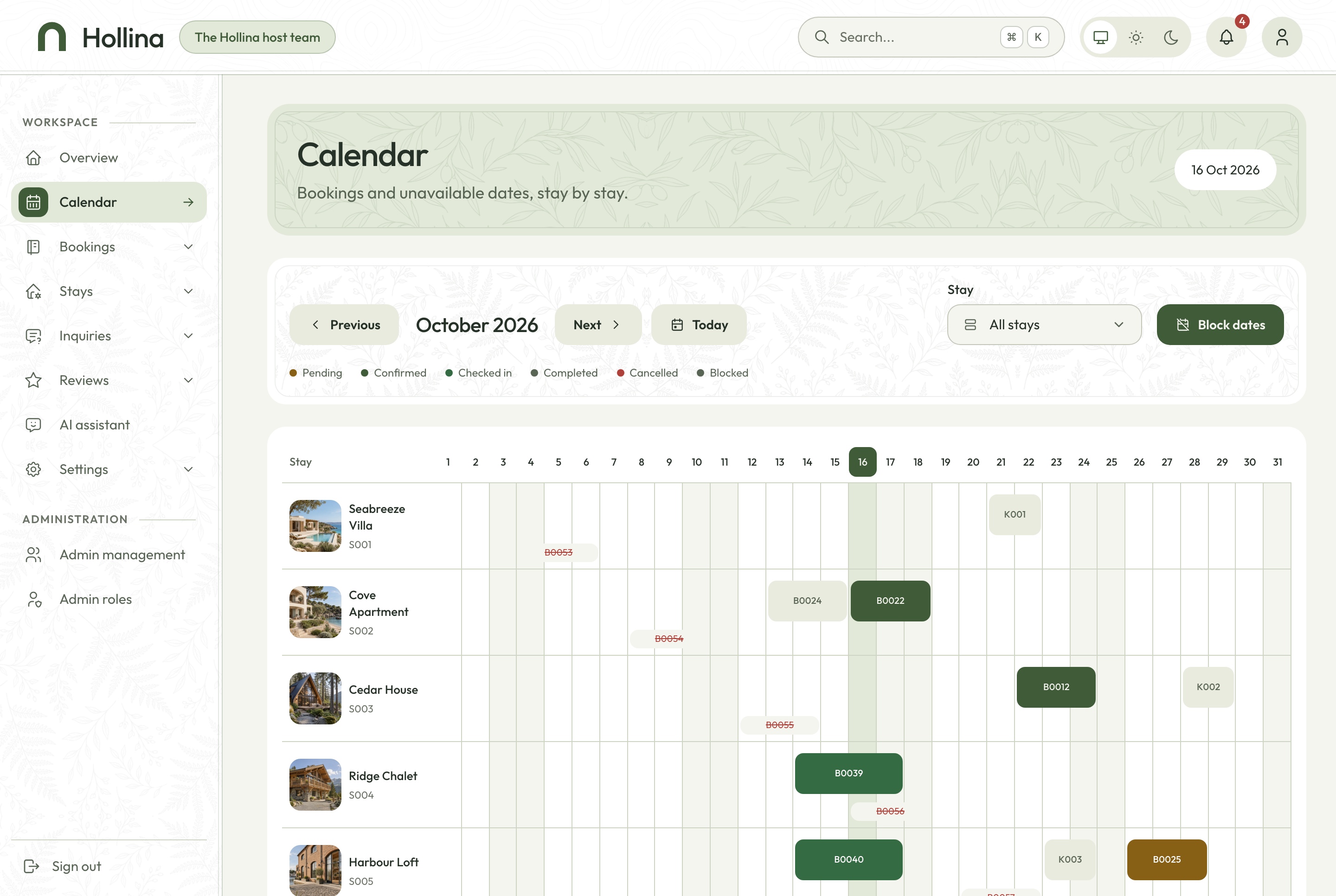
Look at how a booking spans only its nights, so a departure day is visibly free for an arrival.
Inquiries sit in their own page. Each opens beside the list, showing the stay and dates the guest asked about, the party size and a private note. Mark it replied or closed as you go.
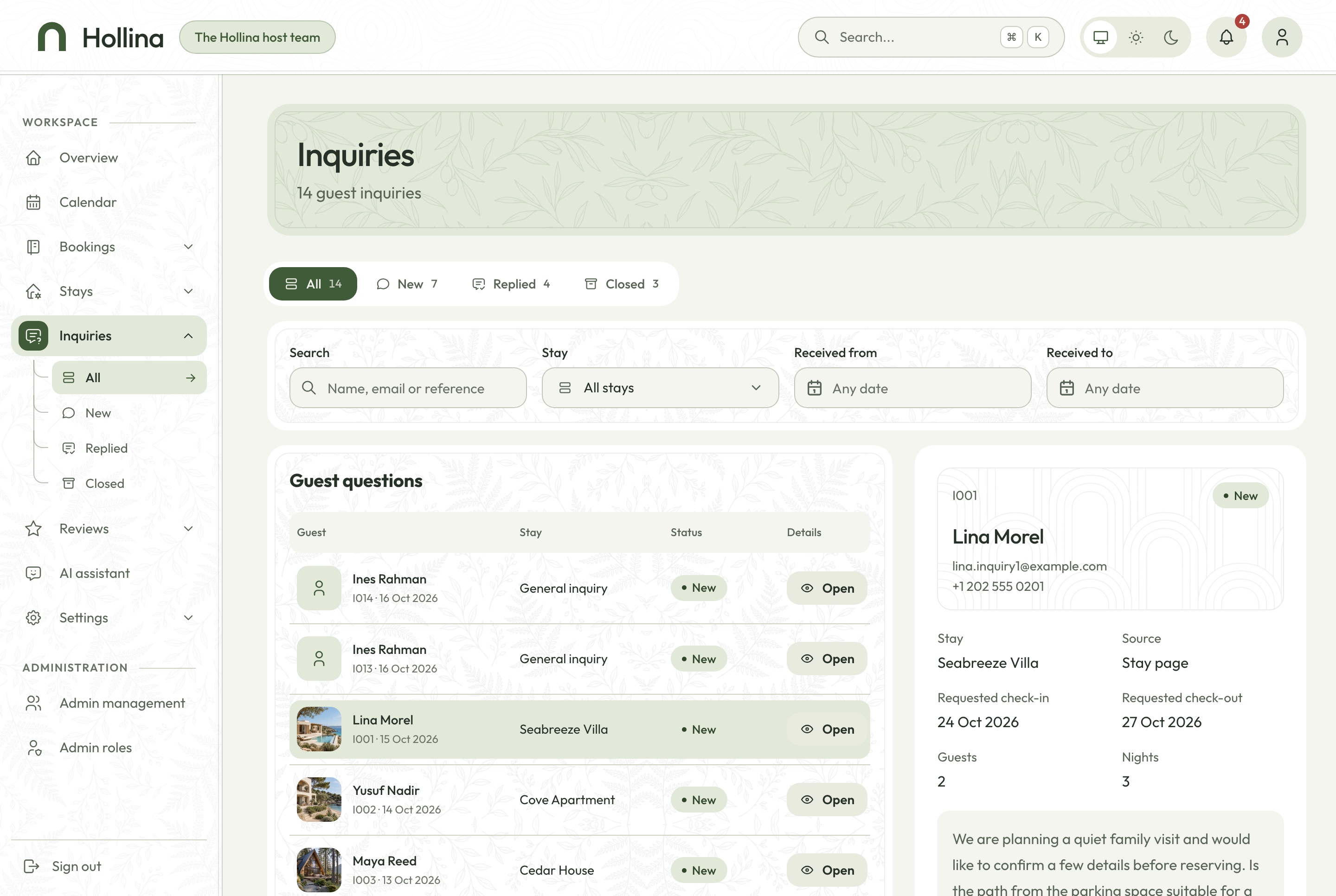
Look at the status of each inquiry, which keeps the team from answering the same question twice.
Weekly tasks
- Publish or hide new reviews, and watch each stay's rating follow.
- Review the register of blocked dates and remove the ones that are over.
- Rotate the featured stays and the home page questions in Settings, Homepage.
- Ask the assistant which cabins are free next weekend or how revenue compares month by month.
- Back up the database and uploads, and keep a copy somewhere else.
An example launch plan, week by week
This is an example schedule for Larch Ridge, not a promise about how long your project takes.
- Week 1, foundations. Run the stack with Docker, book a demo stay, make the decisions above, and start branding and the privacy page.
- Week 2, stays. Add the destinations and the first cabins in both languages with photos, set rates and minimum nights, and test blocking dates.
- Week 3, money and people. Connect Stripe and PayPal in test mode, write the cancellation policy, create the team, and test on phones and in Arabic.
- Week 4, go live. Deploy, switch to live keys, book and refund one real stay, and open the site to past guests first.
Launch checklist
- Company name, contact details, privacy text and cancellation policy are yours, in both languages.
- Every published stay has three or more photos, both languages, a rate, a cleaning fee and a minimum stay.
- The demo passwords are replaced or the seeded accounts are removed.
- Stripe or PayPal keys are live, the webhook delivers, and the Payments tab no longer says the simulator is in use.
NODE_ENVisproduction,JWT_SECRETis yours, andCORS_ORIGINlists the live addresses.SITE_URLis the address guests browse.- Both front ends were rebuilt with the live API address.
- Database and uploads sit on storage that persists, with a backup.
- Someone owns the inbox where guest questions get answered.
- One real booking was made, canceled and refunded.
Template, from scratch or a hosted platform
You have three realistic routes to a direct-booking site.
A template like this one
You get the source for the website, the dashboard and the API, with availability, quotes, payments and webhooks already working together. You own it and can change it. You also host it, and what the template lacks, such as emails, seasonal rates or calendar sync with other sites, is development work.
Building from scratch
You get a product shaped exactly to your business, and you build the hard parts yourself: overlapping-night logic, holds on unpaid bookings, webhook handling that confirms a payment once, refunds. It is a long road unless your rules are unusual.
A hosted booking platform
This is quick to start and often includes channel tools. The trade-offs are recurring fees, less control over the guest experience, and your guest data living on their system. Check terms, fees and Arabic support first.
Many hosts keep listing sites for reach and add a direct site to keep repeat guests. If you do both, remember that this template does not sync calendars with other sites, so blocks must be mirrored by hand.
What it costs to run
The template is a one-time purchase, from $79 for the stays website alone. The Full Stack package we used here is $179, with a commercial license and lifetime support.
Beyond that, you pay for:
- A server or hosts for the API, the website and the dashboard, plus a persistent disk or a MySQL database.
- Photo storage if you use a bucket such as Cloudflare R2 instead of the API's disk.
- Stripe and PayPal fees, charged under their own pricing pages (see Stripe pricing). The money goes to your own accounts and the template never holds it.
- A Google Gemini key, only if you turn on the assistant.
- A domain name.
Free: running locally on SQLite, the payment simulator, pay on arrival, and the stay page's map, which uses OpenFreeMap styles that need no key.
What to customise next
- Destinations and the home page. Add destination covers and rewrite the home page questions in both languages from Settings.
- Stay types. The six kinds of place (villa, apartment, cabin, chalet, loft and cottage) have their own icons in
public/icons/stay-types/. - Tracking. Add a Google Tag Manager, GA4, Meta, TikTok, Snapchat or Pinterest id in the website's
.env. - Cancellation policy. Edit the text in both languages so it matches what you will honour.
Common mistakes
Leaving the simulator on
The simulator confirms bookings that were never paid. Configure Stripe or PayPal before the site is public, then check that the Payments tab no longer says the simulator is in use.
Forgetting the Stripe webhook secret
If a card payment succeeds in Stripe but the booking stays pending, the webhook is not arriving or its secret is missing. The booking keeps its nights reserved for 30 minutes, after which a background sweep cancels it as expired.
Expecting seasonal rates or taxes
Each stay has a single nightly rate. Seasonal rates, weekend rates, taxes and service fees do not exist. If your pricing is more complicated, decide early whether to extend the quote logic or simplify the pricing.
Expecting automatic emails
The API sends no mail, so guests only see what happens on the page. Plan how the team will message guests, and say so on the site.
FAQ
How do I build a vacation rental website with Next.js?
Start from a template that already handles availability, pricing and payments, then configure it for your properties. A direct booking site needs a public website, a host dashboard and an API that is the single source of truth for dates. The steps above walk through that with Hollina.
Do I need a backend?
Yes. Free dates, prices and payment confirmation have to be decided on a server. The template includes a NestJS API with TypeORM, which both the website and the dashboard use.
How does it stop double bookings?
A single availability service decides which nights are free for the calendar, the quote, the checkout and the dashboard, and the checkout checks again when it writes the booking. Unpaid bookings reserve their nights for 30 minutes.
Can I use it for clients?
Yes. It ships with a commercial license for unlimited projects. Check the license page in the documentation for the exact terms.
Does it support Arabic and RTL?
Yes. The website and the dashboard come in English and Arabic, and Arabic mirrors the whole layout. Stays are written in both languages, and prices and dates keep Latin digits.
Can several owners list properties on it?
No. It is built for one host company, with one set of stays, one team and one payment account. A marketplace would need extra work.
Which payment methods can guests use?
Card through Stripe's hosted Checkout, PayPal, and pay on arrival while that switch is on. Hosted payment means no card number reaches your server.
Can guests book without creating an account?
Yes. The website has no guest accounts. A guest books with a name and email, then finds the booking again with its reference and that email.
Does it sync with other listing sites?
No. Channel sync is not included, so if you also list elsewhere you need to mirror blocked dates and bookings yourself or build the sync.
Try it yourself
Book a stay on the live stays website, then open the booking dashboard demo to see it arrive. The demo uses Stripe's test mode: pay with Stripe's test card and no money moves. The Hollina documentation covers every setting in this guide, and the product page lists the packages. Browse similar projects in the full-stack templates category. Hollina is also one of ten templates in the Next.js Templates Bundle.
You might also like
How to Build a Restaurant Online Ordering System with Next.js
Build an online ordering system for a restaurant with Next.js: run the stack, add kitchens and a bilingual menu, test payments and go live.
How to Build a Real Estate Agency Website in Next.js
Build a real estate agency website in Next.js with property listings, viewing requests and an admin dashboard: setup, staging, roles and launch.
How to Build an Online Fitness Coaching App with Next.js
Build an online coaching platform with client rosters, assigned workouts and weekly check-ins using Next.js and NestJS. A worked example, step by step.
