How to Build an Online Fitness Coaching App with Next.js
Build an online coaching platform with client rosters, assigned workouts and weekly check-ins using Next.js and NestJS. A worked example, step by step.
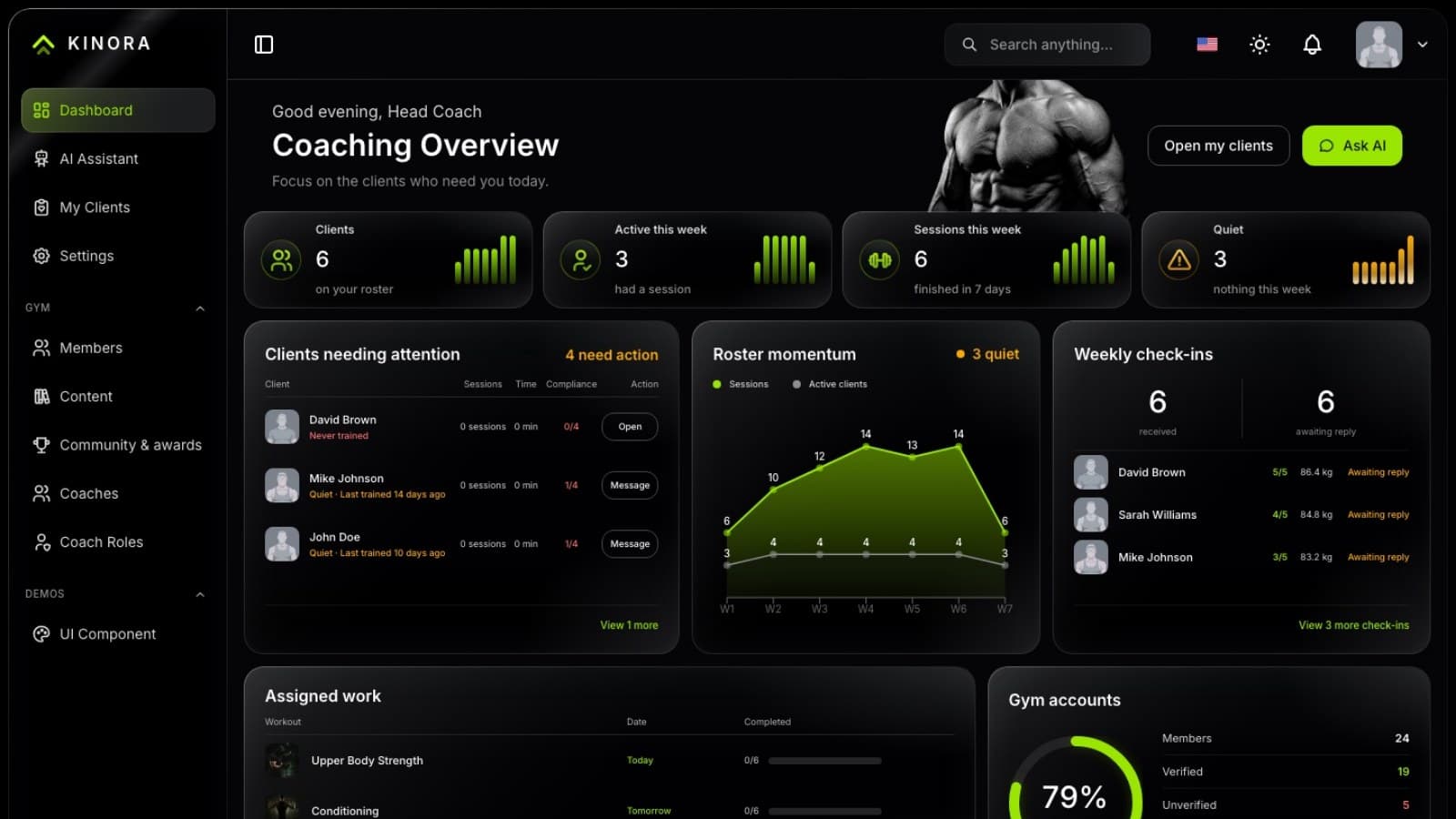
By the end of this guide you will know how to build an online fitness coaching app, with a client roster, assigned workouts, weekly check-ins and a member app, using Next.js, NestJS and the Kinora template from Aniq UI. You do not need to design the screens or write the API from scratch.
We follow one example business from the first plan to launch day. You will see which screen does which job, which commands to run, and which settings catch people out. The same steps work for a solo trainer, a small gym, or an agency building the app for a client.
The brief
Northgate Strength is an online coaching studio. A head coach runs it with two personal trainers. They want to leave spreadsheets and chat threads behind and give every client one place to train. Here is what the studio asks for:
- Three coaches, and each one sees their own clients and nobody else's.
- Clients log workouts, meals, sleep and weight, so coaches see what really happened.
- A coach picks a workout for a given day, and the client sees it first.
- Every week, each client files a short check-in and the coach answers it.
- Coach and client talk in one private thread inside the app.
- Some clients read English and some read Arabic, so the app must work in both, right to left included.
- The studio's own name, colors and domain, and its own database.
How the template covers the brief
| Need | Where it lives | What you use |
|---|---|---|
| Each coach sees only their clients | Dashboard and API | My Clients screen, gated by the coaching.clients permission |
| Workout set for a day | Dashboard | The plan on a client's page; the client sees it under Workouts |
| Clients log training and meals | Dashboard, member side | The live workout session, the exercise library, the Meal Planner |
| Sleep, health and body readings | Dashboard, member side | Sleep, Health and Progress pages, with manual entry |
| Weekly check-ins | Dashboard and API | A check-in form for the client, a reply box for the coach |
| Private messages | Dashboard and API | One thread per coach and client, pushed live by Socket.io |
| English and Arabic | Dashboard and API | /en and /ar routes, message files, content entered in both languages |
| Staff and permissions | Dashboard | The Coaches and Coach Roles screens |
| Own database and domain | API | SQLite locally, MySQL by configuration, environment files |
Before you start: decisions to make
A few choices are cheap to make on paper and expensive to change after clients have signed up. Settle these before you open a terminal.
Who will use the app, and in what roles?
Kinora separates clients, who train, from staff, who coach and run the back office. Northgate has one head coach and two personal trainers, so it needs three staff accounts and a role that gives each of them a roster. Write down the people and the screens each one needs. That list becomes your roles later.
Which languages will clients read?
English and Arabic ship ready. Every visible word is in a message file, and catalogue content is stored in exactly those two languages. If a third language matters to your market, plan for extra work in several files rather than a quick switch.
Where will it run?
Locally it needs only Docker, or Node.js with Yarn. In production you need a host for the dashboard and another for the API, plus a database. SQLite works for development, and MySQL is a configuration change. Decide early whether you will run the servers yourself or use a platform, because it changes how you set the environment files.
How will clients pay you?
The template has no payment provider. The billing card in settings shows seeded figures only. If you charge for coaching, choose the tool that sends invoices or takes subscriptions now, and keep it outside the app.
Do you want the AI assistant on day one?
It needs a model key from Google, OpenAI or DeepSeek, and you pay that provider directly. You can launch without it and add it once the core loop of workouts, check-ins and messages is working.
What will clients log by hand?
Training, meals, sleep, health readings and body measurements can all be entered manually. Automatic readings from watches and trackers are not built in. If Northgate wants the coach to see sleep, it must ask clients to log it, or connect a source of its own later.
Step by step
Step 1: Choose the package
Kinora comes as a Full Stack package (dashboard plus API), a Member & Coach Dashboard package, and a Backend API package. The dashboard alone runs on sample data inside the browser. That is fine for a design pass, but nothing reaches a database, so two coaches could never share a client.
Northgate needs shared data, so it takes the Full Stack package. If you already have your own API, the dashboard package can talk to it. The license covers an unlimited number of projects, including work you hand over to a client.
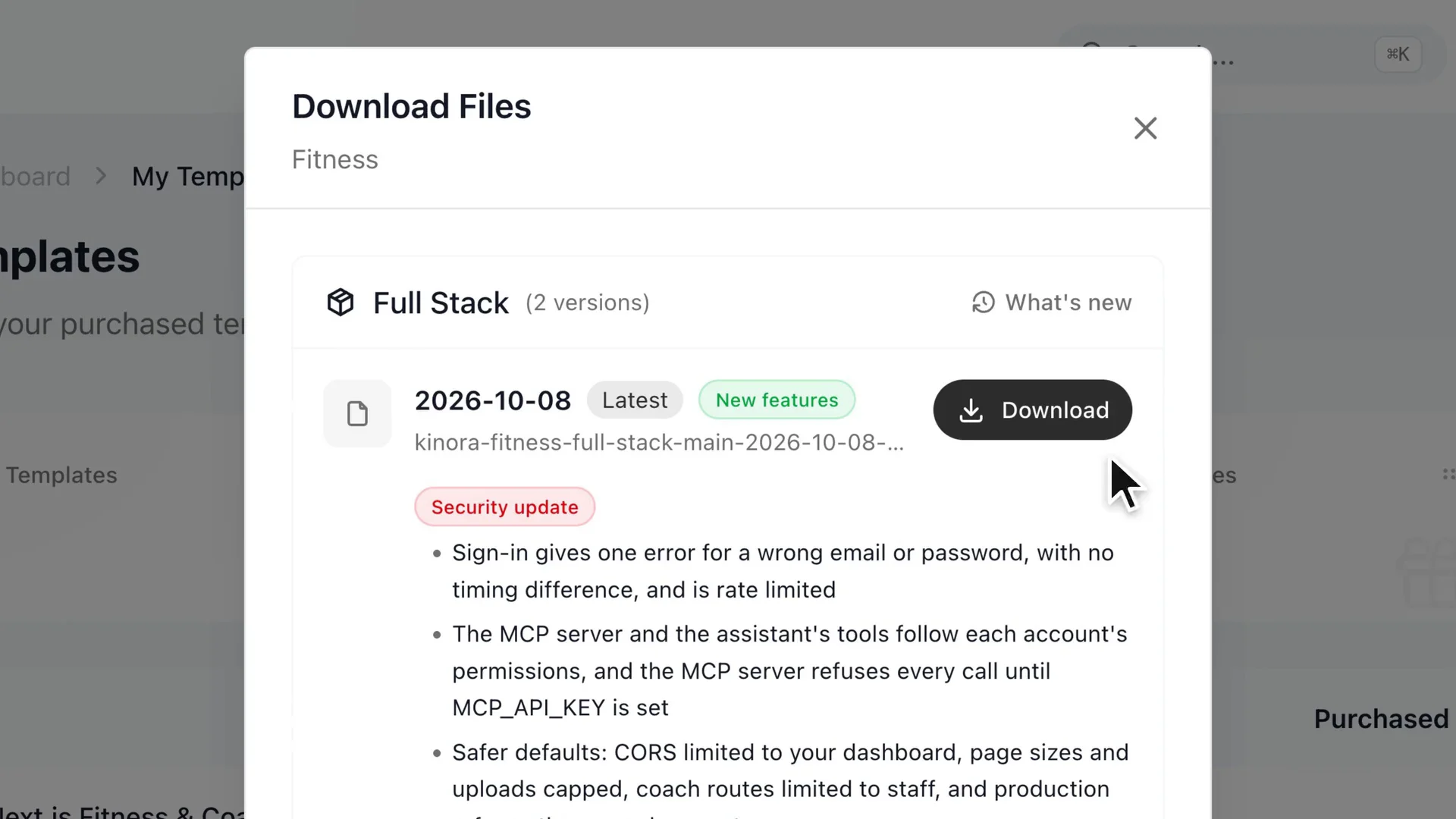
Look at the My templates page in this still: the ZIP for each package you bought sits there.
What to check: that the folder you extracted is named after your package (the full stack extracts to kinora-fitness-full-stack) and holds back-end, dashboard and docker-compose.yml. If you see an extra folder with the same name inside, move into the inner one.
Step 2: Run it locally with Docker
Download the ZIP from My templates, unzip it, and open a terminal in the kinora-fitness-full-stack folder. Make sure Docker Desktop (or Docker Engine with Compose) is running. Then start everything:
docker compose up --buildDocker builds two images on the first run and loads demo data into the database, so allow a few minutes. When it finishes, the dashboard is at localhost:3030 and the API at localhost:8000. If another program already holds a port, create a .env file next to docker-compose.yml with DASHBOARD_PORT=3040 or API_PORT set to a free number, and run the command again.
Prefer plain Node.js? Install Node 22.9 or newer, run corepack enable once, then start the API (yarn seed, then yarn dev) and the dashboard (yarn dev) in two terminals. Start the API first.
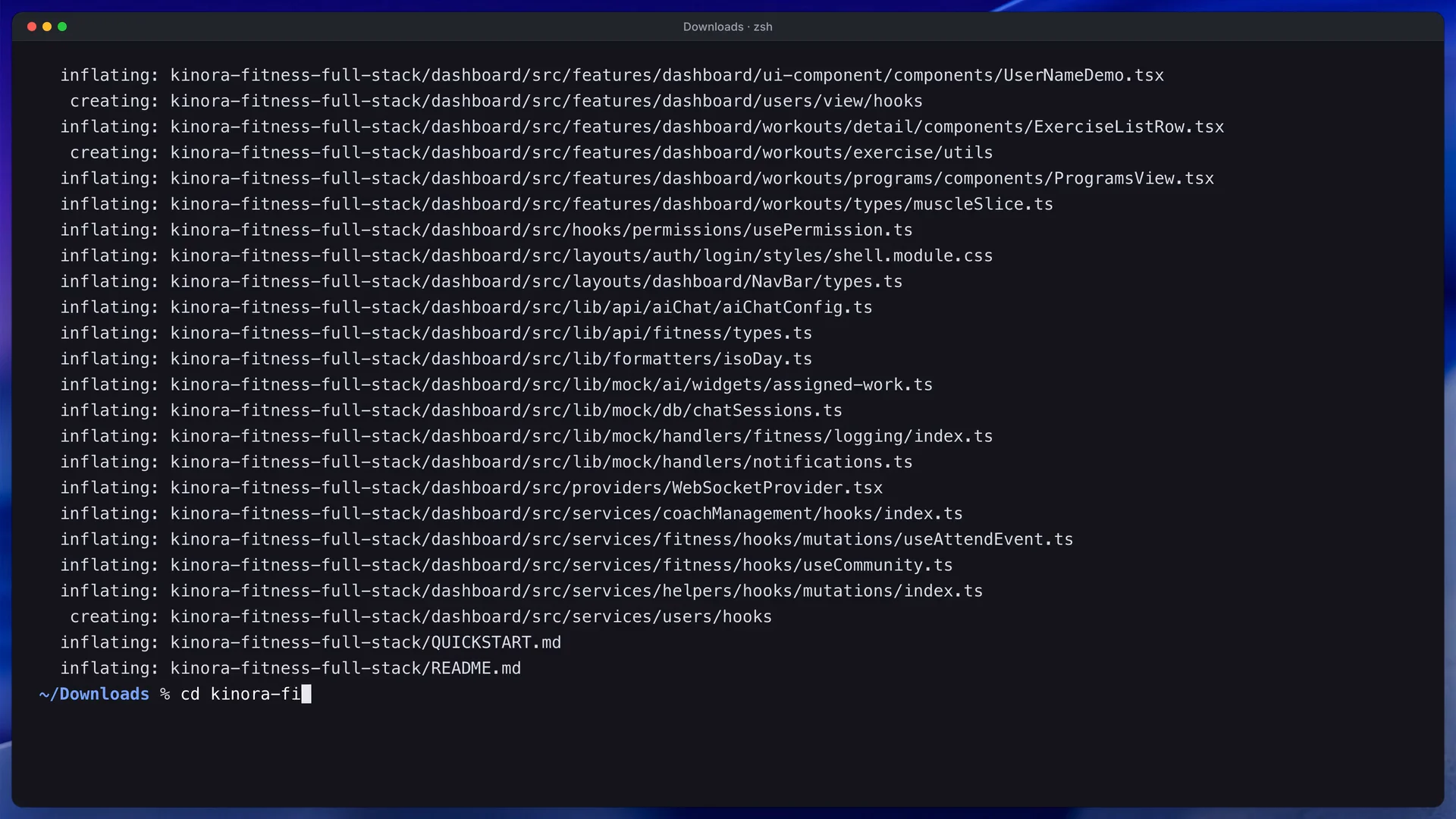
This still shows the terminal opened inside the extracted folder, which is where every command in this guide expects to run.
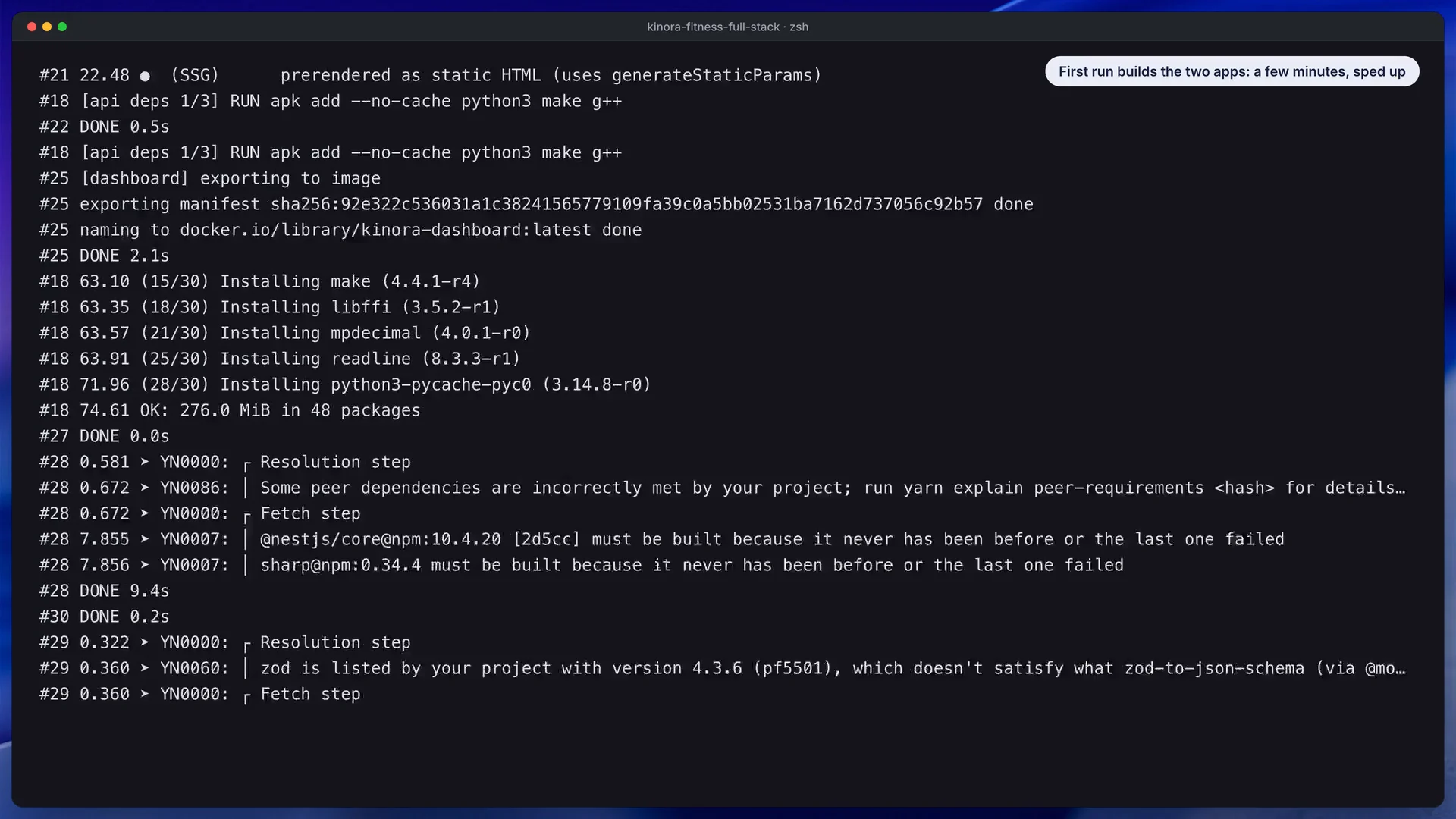
Watch for the API reporting itself healthy, because the dashboard only starts after that.
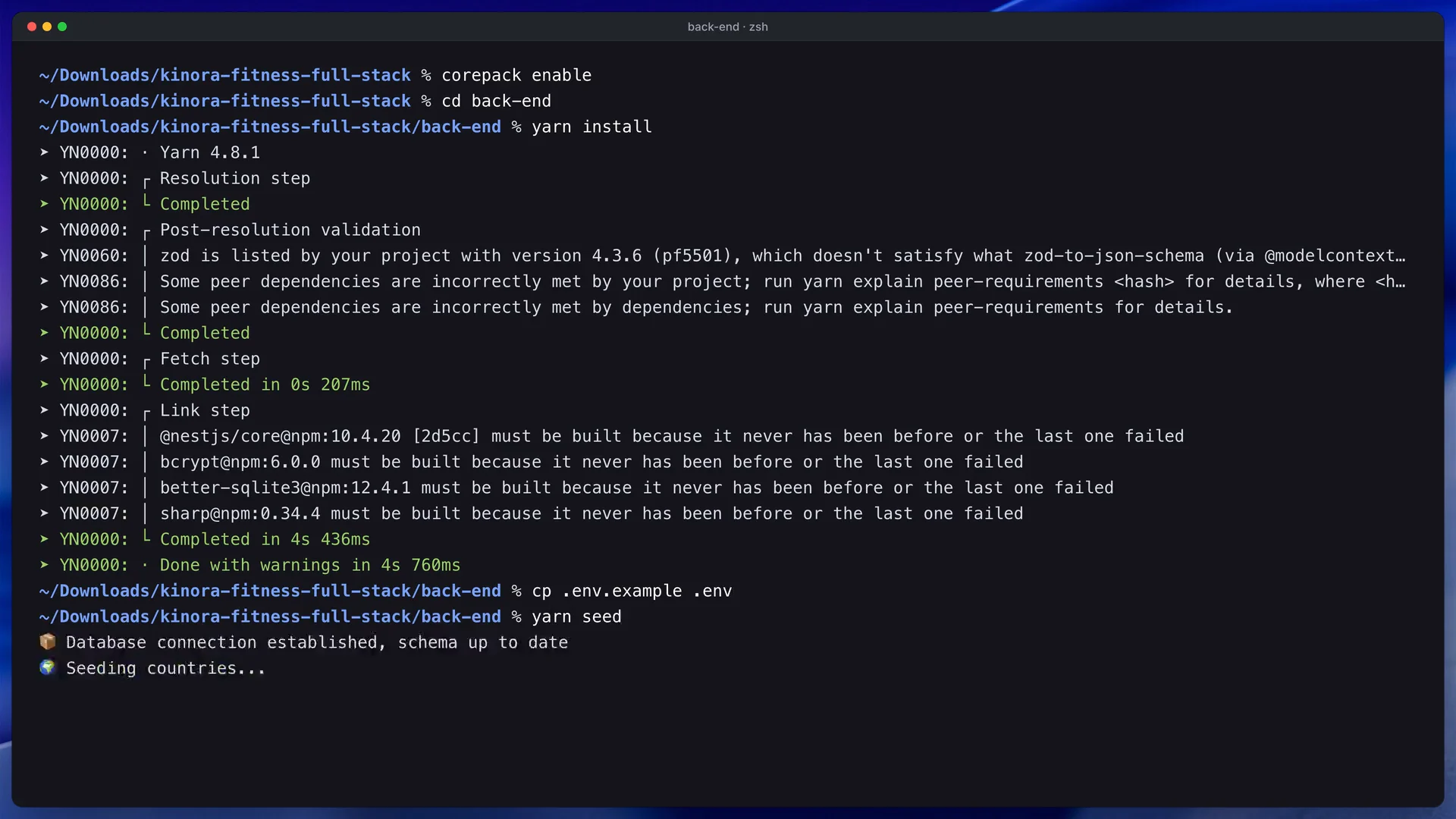
If you chose the Node.js route, this is the API terminal after the seed has run and the server is up.
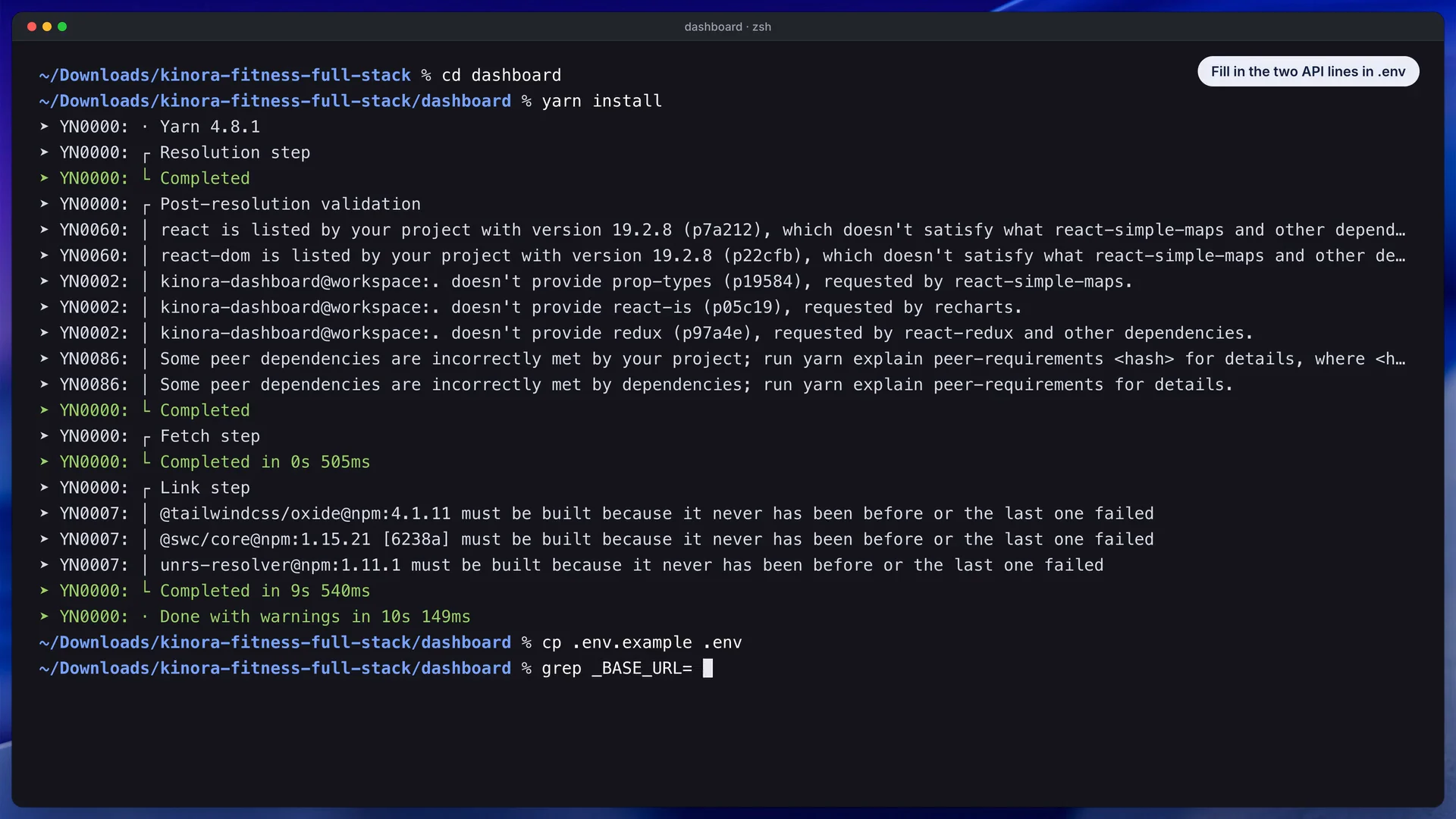
The second terminal runs the dashboard on port 3030, with the API address filled in so the sample data is switched off.
What to check: open localhost:8000/api/health. It should answer with a status of ok. If the dashboard shows a "Sample data" notice, it is not talking to the API yet.
What usually goes wrong:
- Docker is installed but not running. Start Docker Desktop and wait for the engine to report that it is up.
- Port 3030 or 8000 is taken, often by an earlier run or another project. Free the port, or set
DASHBOARD_PORTorAPI_PORTas shown above. - The first start looks stuck. It is usually still seeding the demo data, so wait for the health check to turn green.
docker compose down -vdeletes the database volume. Plaindocker compose downkeeps your data.
Step 3: Tour the demo as each role
The sign-in form fills itself in. Open localhost:3030 for the Head Coach (headcoach@example.com, password Coach@123). For the member side, open localhost:3030/en/auth/login?as=client (member@example.com, password Member@123). A third account, trainer@example.com with Trainer@123, shows what a personal trainer sees.
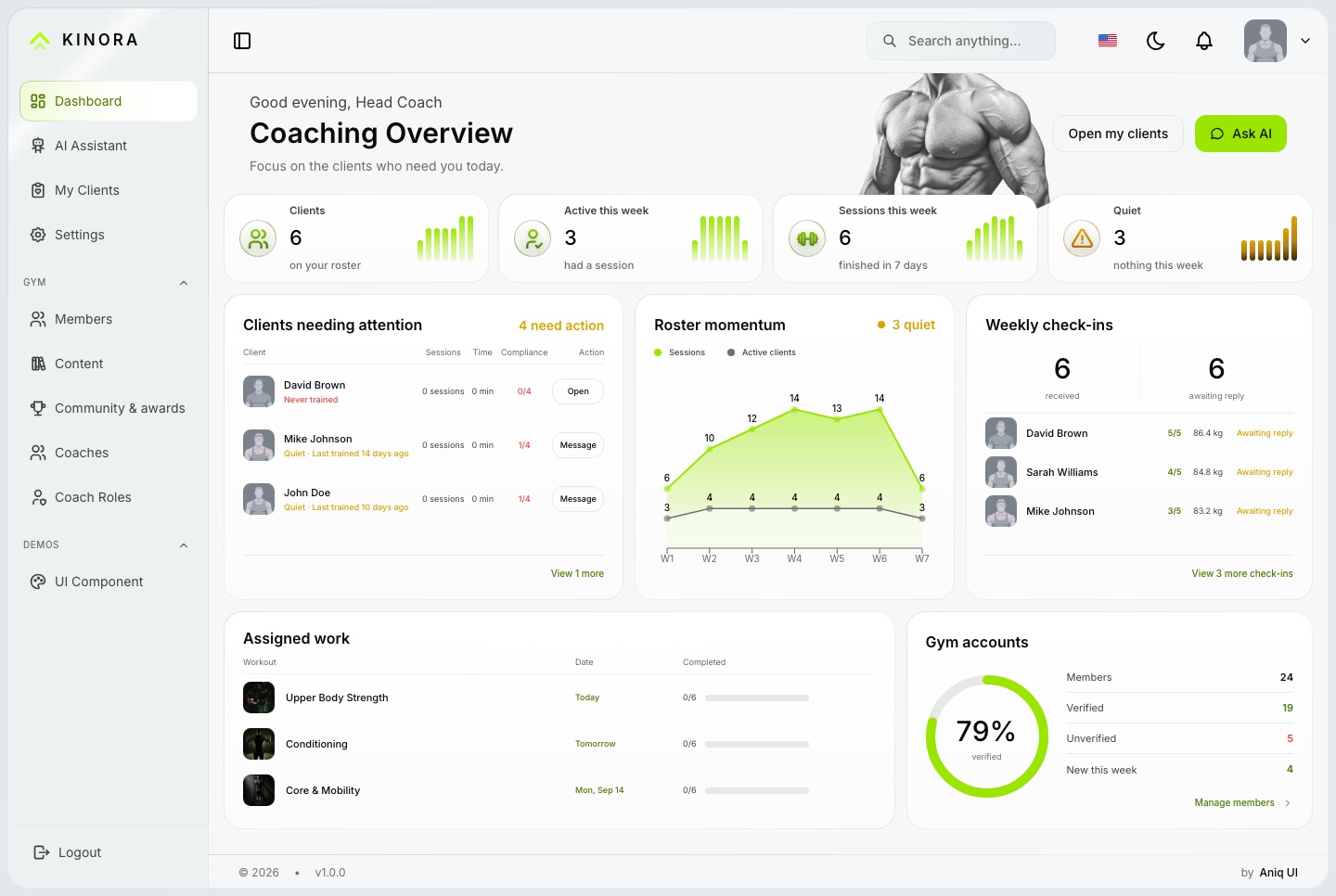
Spend twenty minutes here. As the coach, open My Clients and one client's page. As the member, start the live session under Workouts, log a set, and look at the Meal Planner. This is also how Northgate decides what to keep: the studio will use training, nutrition, sleep and progress, and ignore community challenges for now.
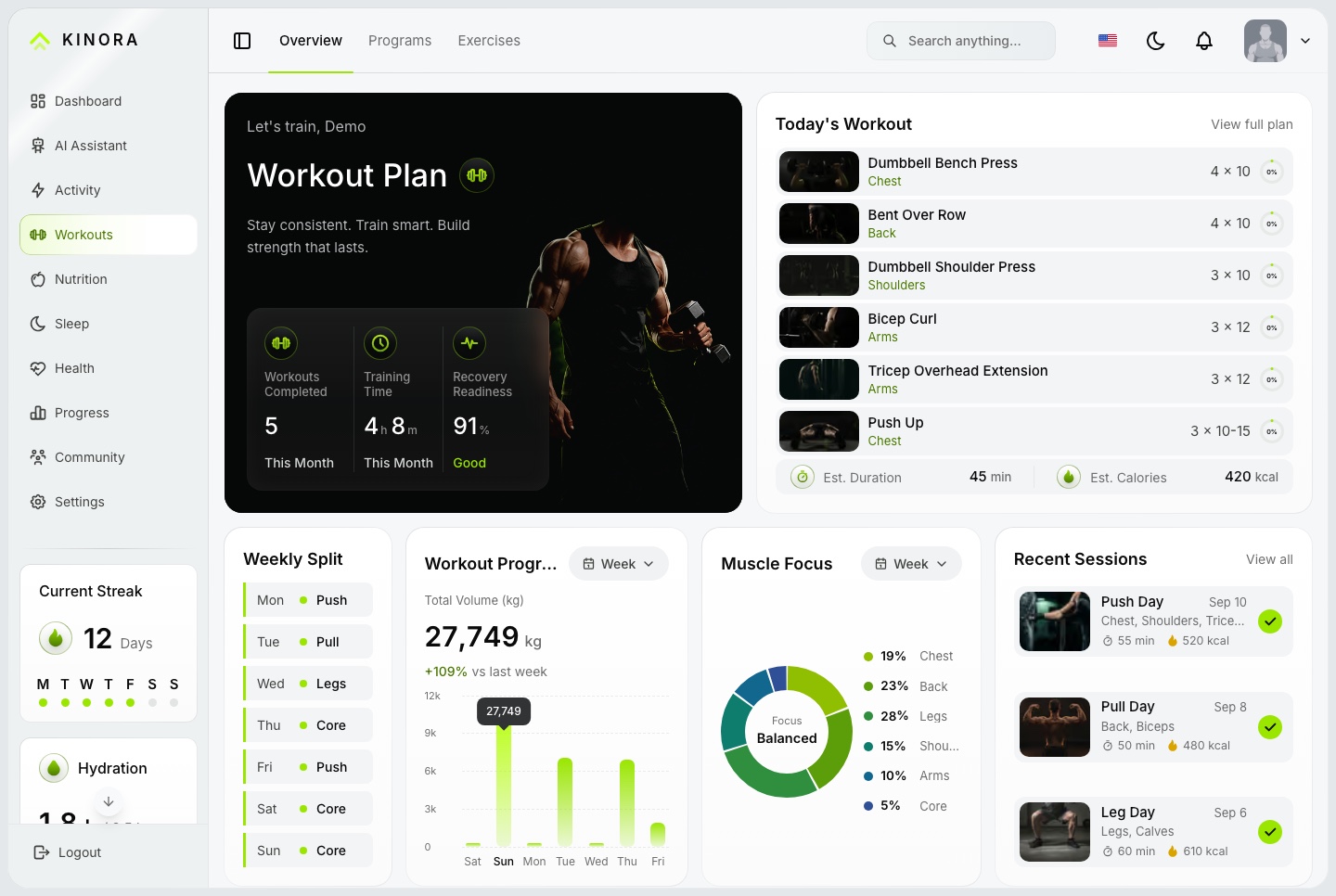
Look at the weekly plan and the coach's assigned work, because these are the two things Northgate's coaches will be filling.
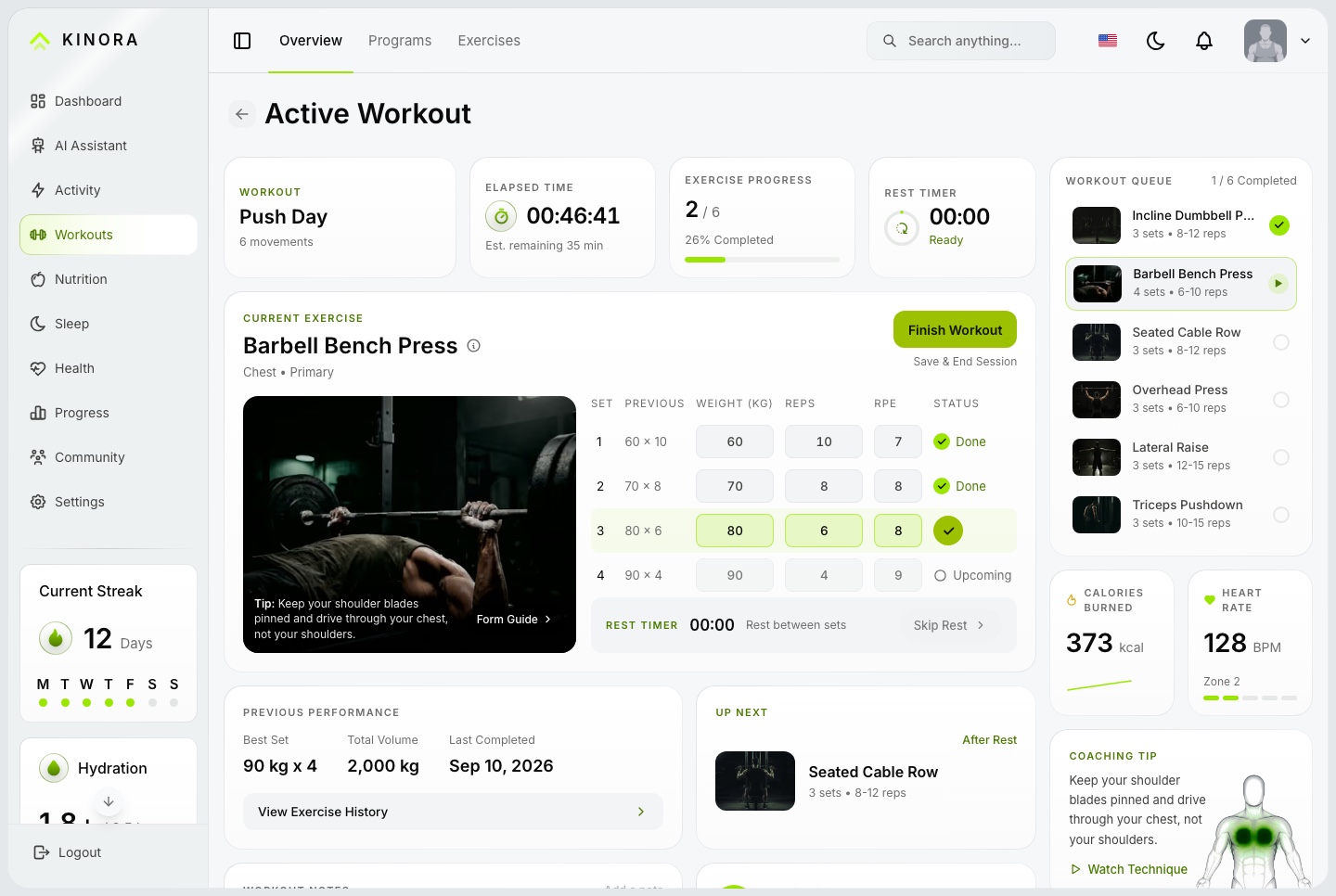
The set table with weight, reps and RPE is where a client's real training enters the system, and it is what the coach reads later.
What to check: write down, for each role, the three screens that matter most. Northgate's list for a client is Workouts, the live session and the weekly check-in. For a coach it is the overview, My Clients and the messages thread. Anything not on a list can wait.
What usually goes wrong: people judge the demo as if its data were theirs. The sample clients, meals and messages are seed data. Judge the structure of the screens, not the figures.
Step 4: Put the studio's brand on it
Branding lives in files, not in a settings screen. In the dashboard folder:
src/config/brand.config.tsholds the name, description and contact details, each with an English and an Arabic value. Setdomain.urltoo, because it ships as a placeholder address.src/components/icons/KinoraMark.tsxdraws the logo mark in code.src/styles/theme-variables.cssholds every color. The accent is--primaryColor, set in both the light and dark blocks.src/app/layout.tsxloads the fonts, Inter handles English and IBM Plex Sans Arabic handles Arabic.
The product name also appears in a few messages, such as the welcome card and the assistant's greeting. Search the messages folder for Kinora and its Arabic spelling and change both languages. Brand values are baked in at build time, so run docker compose up --build again after each round of changes.
What to check: reload the dashboard after a brand change in development and confirm the name appears in the sidebar, the browser tab and the footer, in both English and Arabic. Then do a production-style build and check again, because that is what clients will see.
What usually goes wrong:
- Only the English message file is edited. Always change the same key in
ar.json. - The footer still links to the template's maker. The credit comes from
src/config/author.config.ts. - The links and contact details in
brand.config.tsstart out pointing at the template's maker, so swap them for yours.
Step 5: Build the catalogue in two languages
Everything a client reads while training comes from a catalogue: exercises, workouts, programs and dishes, plus community groups, events, challenges and badges. Staff with the fitness.manage permission edit them under Content. Each record takes a name and description in English and in Arabic, side by side.
The demo ships 23 exercises, 6 workouts, 4 programs and 10 dishes. Northgate keeps the ones that fit, and replaces the rest with its own. Example entries: a goblet squat and a Romanian deadlift as exercises, a three-day full-body week as a workout, and a tuna rice bowl as a dish. For a dish you enter grams of protein, carbs and fat, and the calories are worked out for you.
Because members read the same rows, an edit shows in the library, the weekly plan and the live session at once.
Work through it in this order, so nothing refers to something that does not exist yet:
- Exercises first, with form steps and common mistakes for the movements clients will actually do.
- Workouts next, built from those exercises with sets and reps.
- Programs last, which arrange workouts into weeks. The demo member sits in week 6 of 8 of a program called Strength Foundation.
- Dishes for the meal planner, so clients can log from a shared list.
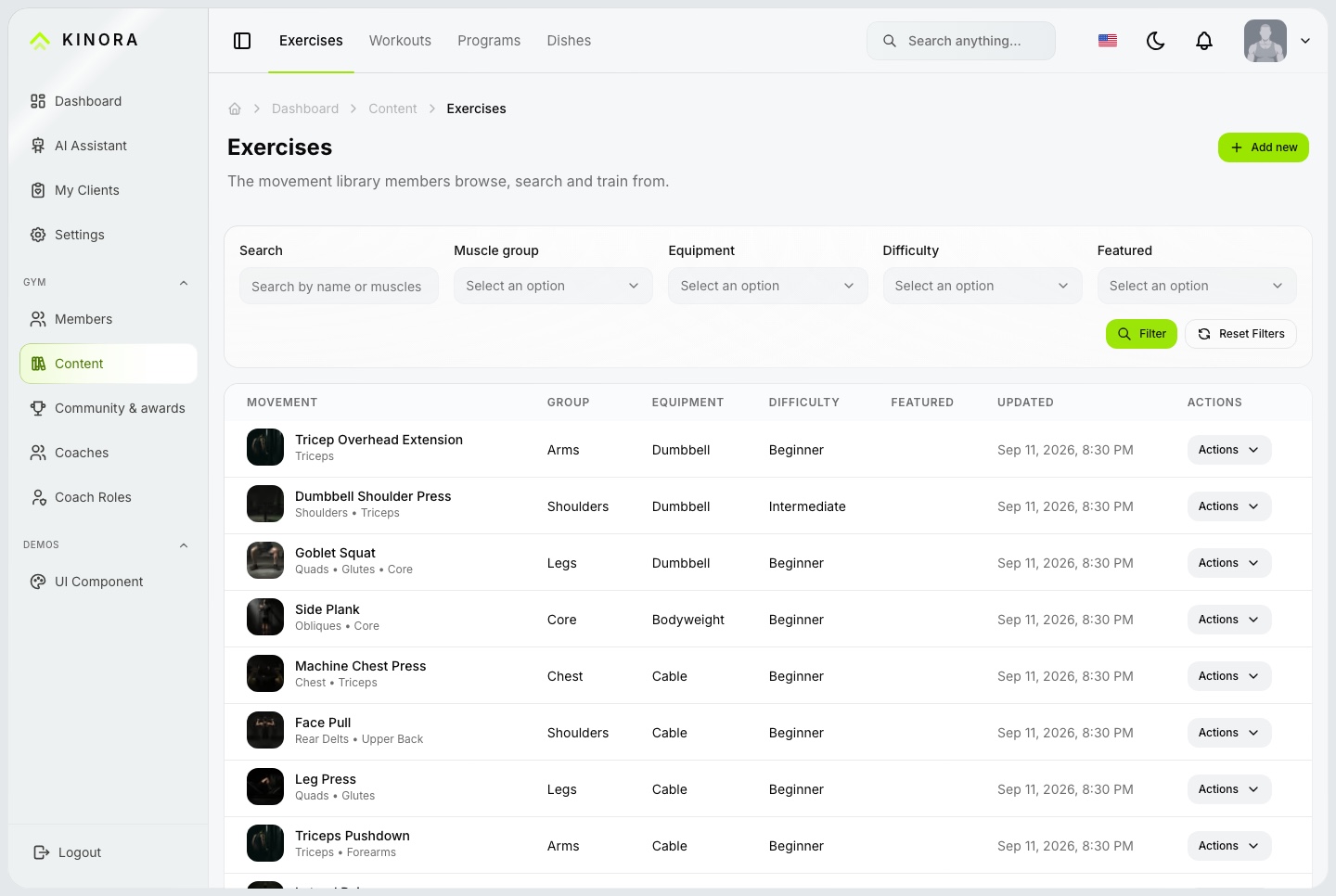
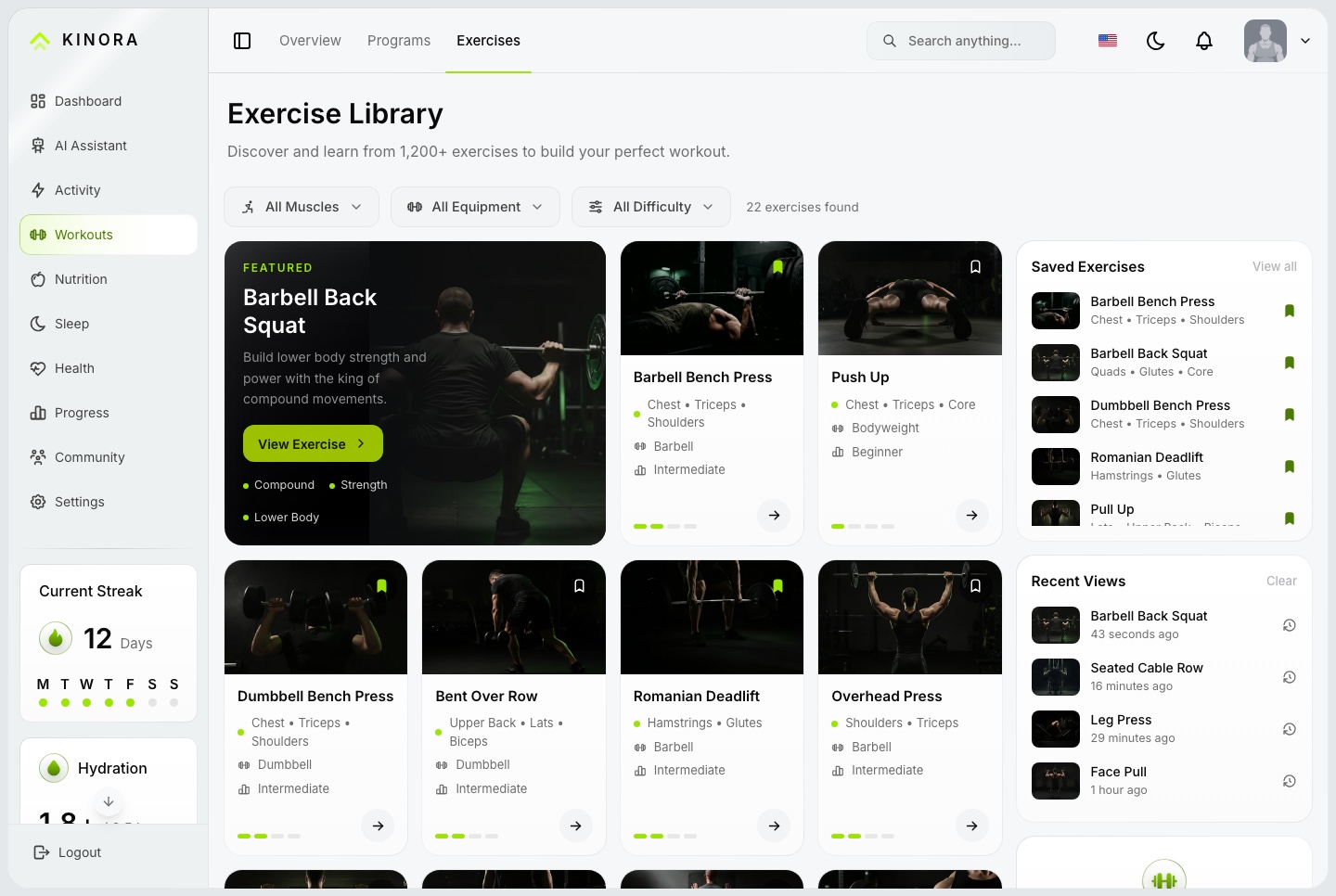
Notice the filters for muscle, equipment and difficulty: every exercise you add in Content shows up here, ready to be pushed into today's workout queue.
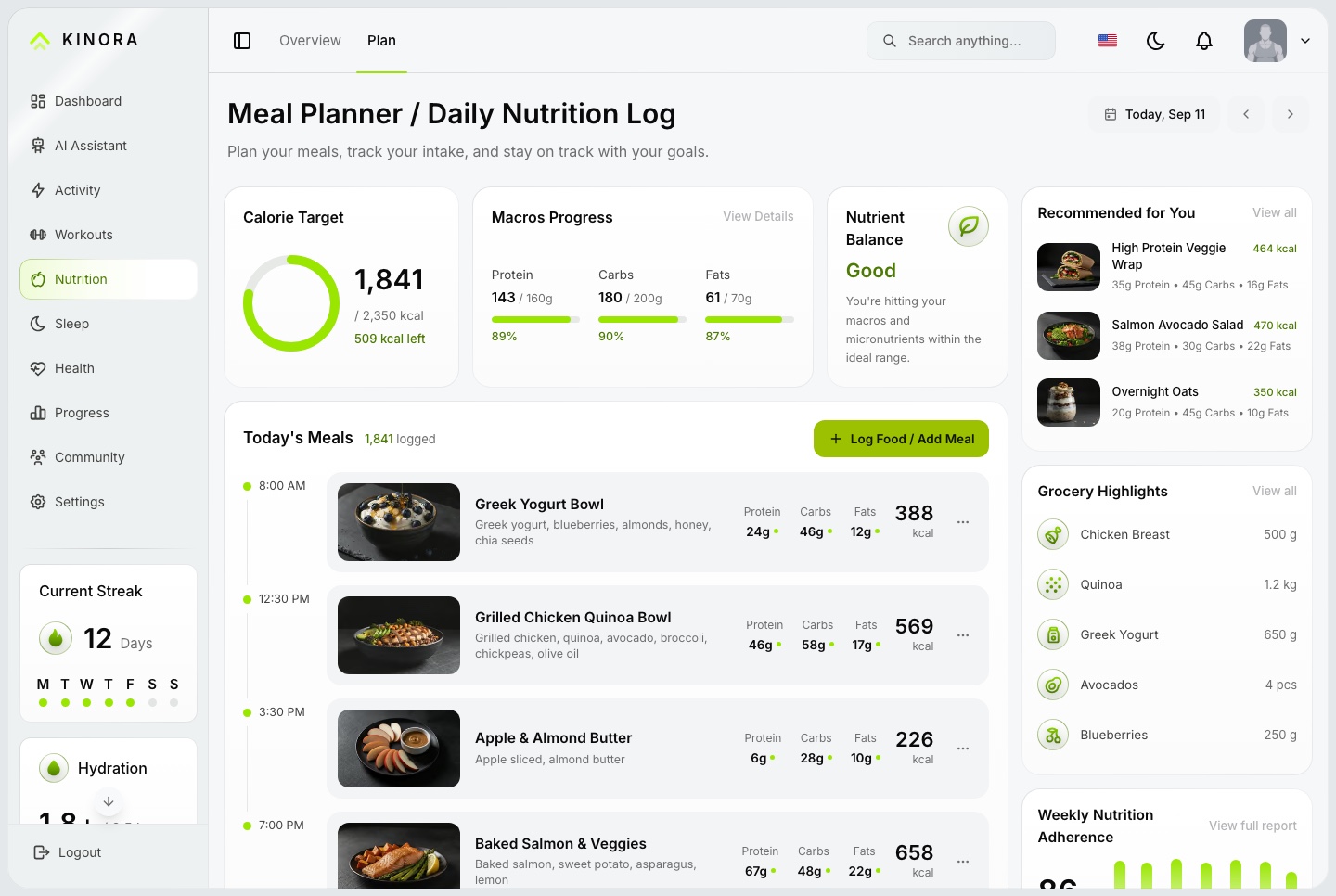
The planner lists a day's meals by time, with calories against a target, so check that your dishes carry sensible grams of protein, carbs and fat.
What to check: sign in as the member and find a movement you just created in the library. Open its page and confirm both the English and Arabic text show when you switch language.
What usually goes wrong: deleting a record that something still uses is refused, for example an exercise that a workout contains. Remove it from the workout first. An achievement or badge already earned by someone cannot be removed either.
Step 6: Set up coaches, roles and the roster
Coaches and clients sign in at the same form, from one accounts table, and a person's roles set what they see. The API enforces the same permissions as the sidebar. The seed creates seven roles. Two matter most here:
- Head Coach and Personal Trainer hold
coaching.clients, so they get My Clients and a roster of their own. - Coach can move members between coaches, but it does not hold
coaching.clients.
Northgate creates three staff accounts under Coaches: the head coach and two personal trainers. If it wants a plain Coach to work a roster too, it ticks coaching.clients for that role on the Coach Roles screen. Each member can have only one active coach.
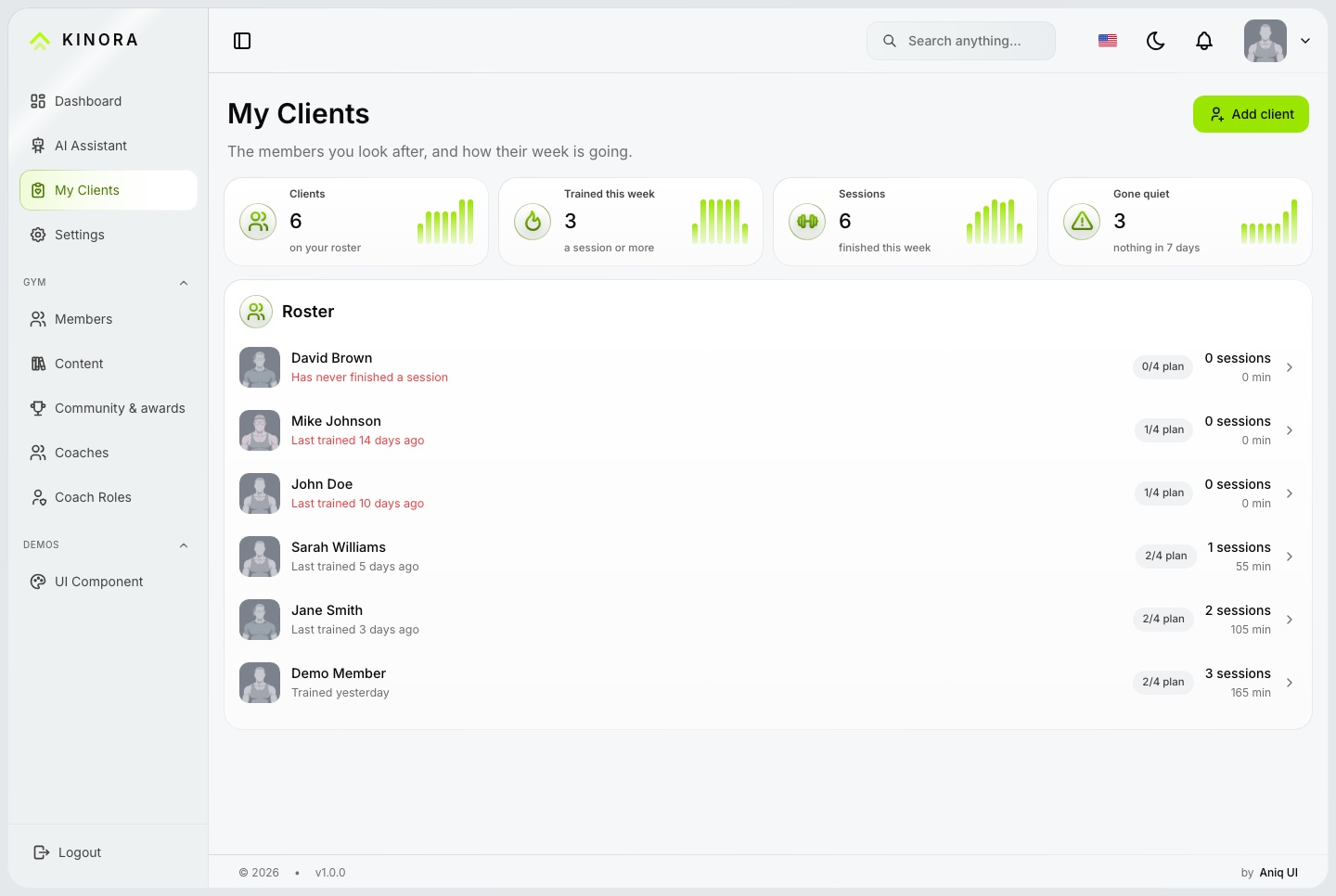
From My Clients, a coach uses Add client to take on a member who has no coach. On a client's page the coach assigns a workout to a date, with an optional note. It counts as done when the client finishes a session of that workout. The weekly check-in asks the client for energy, weight and a note, and the coach replies from the same screen. Messages are one thread per pair, up to 2,000 characters each.
What to check: sign in as the head coach, open a client, assign a workout to a date, then sign in as that client and confirm it shows ahead of anything they picked themselves. Finish a session of that workout and watch the assignment count as done. Then file a check-in as the client and answer it as the coach.
What usually goes wrong:
- A trainer cannot see My Clients. Their role lacks
coaching.clients. - Add client lists nobody. Only members with no coach appear, and a member can have one active coach. Move members between coaches under Gym with the
coaching.assignpermission. - Attachments in messages fail. They go through the upload route and need the storage bucket from the next step.
Step 7: Add photo storage and, if you want, device keys
Pictures, progress photos and attachments need storage: Cloudflare R2, or any other service that speaks the S3 protocol. Without it everything renders from bundled demo images, but a new upload answers with a 400 error. Set the five R2_* variables in back-end/.env, and tell the dashboard your bucket's public hostname in NEXT_PUBLIC_MEDIA_HOSTNAME (with Compose, MEDIA_HOSTNAME).
Kinora does not pull from any watch or tracker service. Data arrives when something sends it. A client creates a key in Settings, and a device or aggregator posts to /api/ingest/daily-metrics with that key in an X-Api-Key header. Northgate skips this at launch and lets clients log by hand.
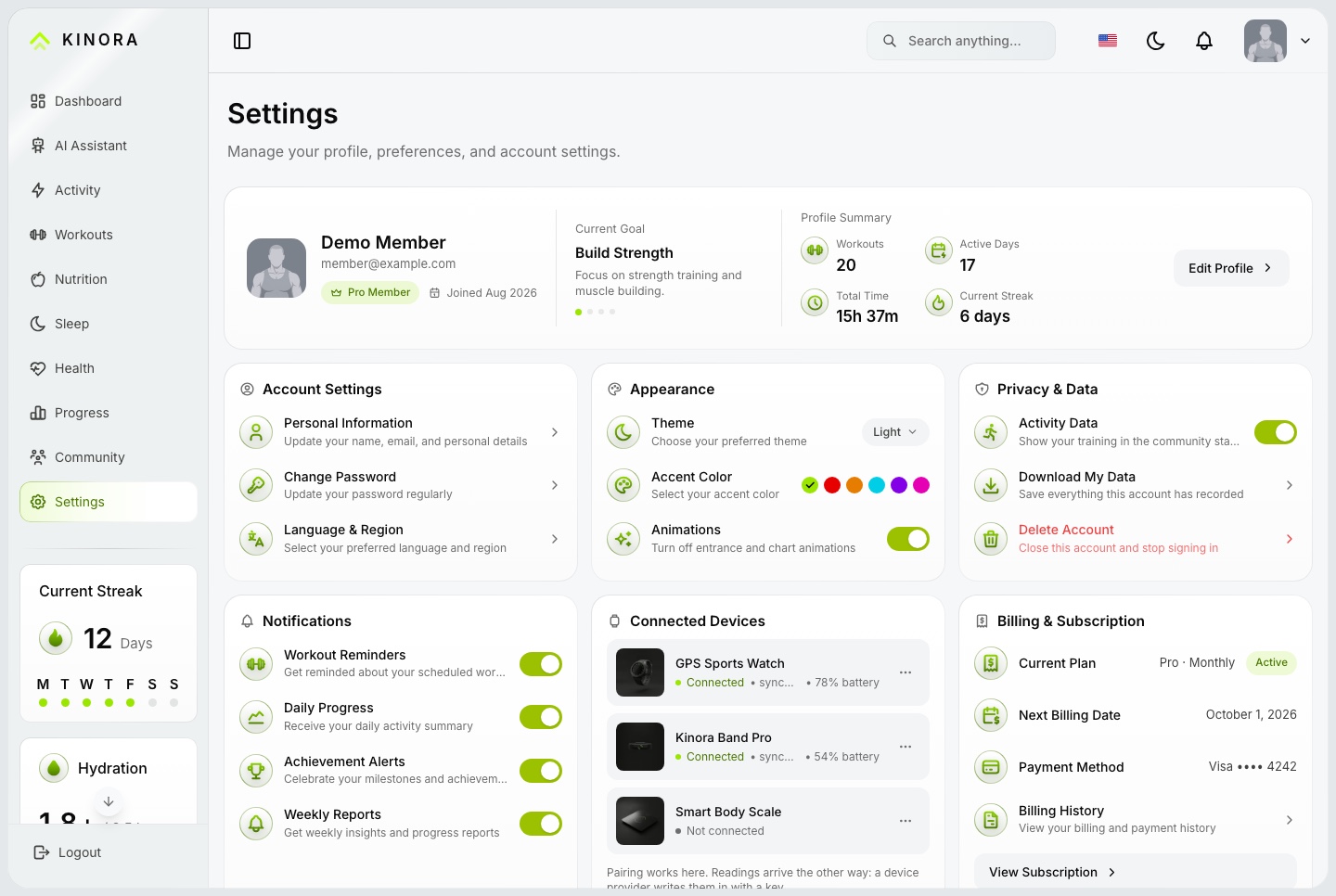
This is where a client manages alerts, privacy, appearance and their connected devices, including the keys a device uses to send data.
What to check: create a key as a client, copy it straight away because the full key is shown once, and send a request to the ingest route that returns who the key belongs to. Then revoke the key and confirm the same request is refused with a 401.
What usually goes wrong: uploads answer 400 because the bucket variables are missing or still hold their example values. A value left at its example counts as not set.
Step 8: Turn on the AI assistant (optional)
The assistant has its own page for every account. A client asks about their own week. A coach asks about the roster, who trained and who slipped, and can file a check-in reply or assign a workout from the chat. It only uses tools that the account's role allows.
It stays off until you put a Google Gemini, OpenAI or DeepSeek key in back-end/.env. The variable names are listed in .env.example. Until then the page says no model is connected and every other screen works. Provider charges are yours. The route a coding agent would use, POST /api/mcp, also stays closed until you set an MCP_API_KEY of your own.
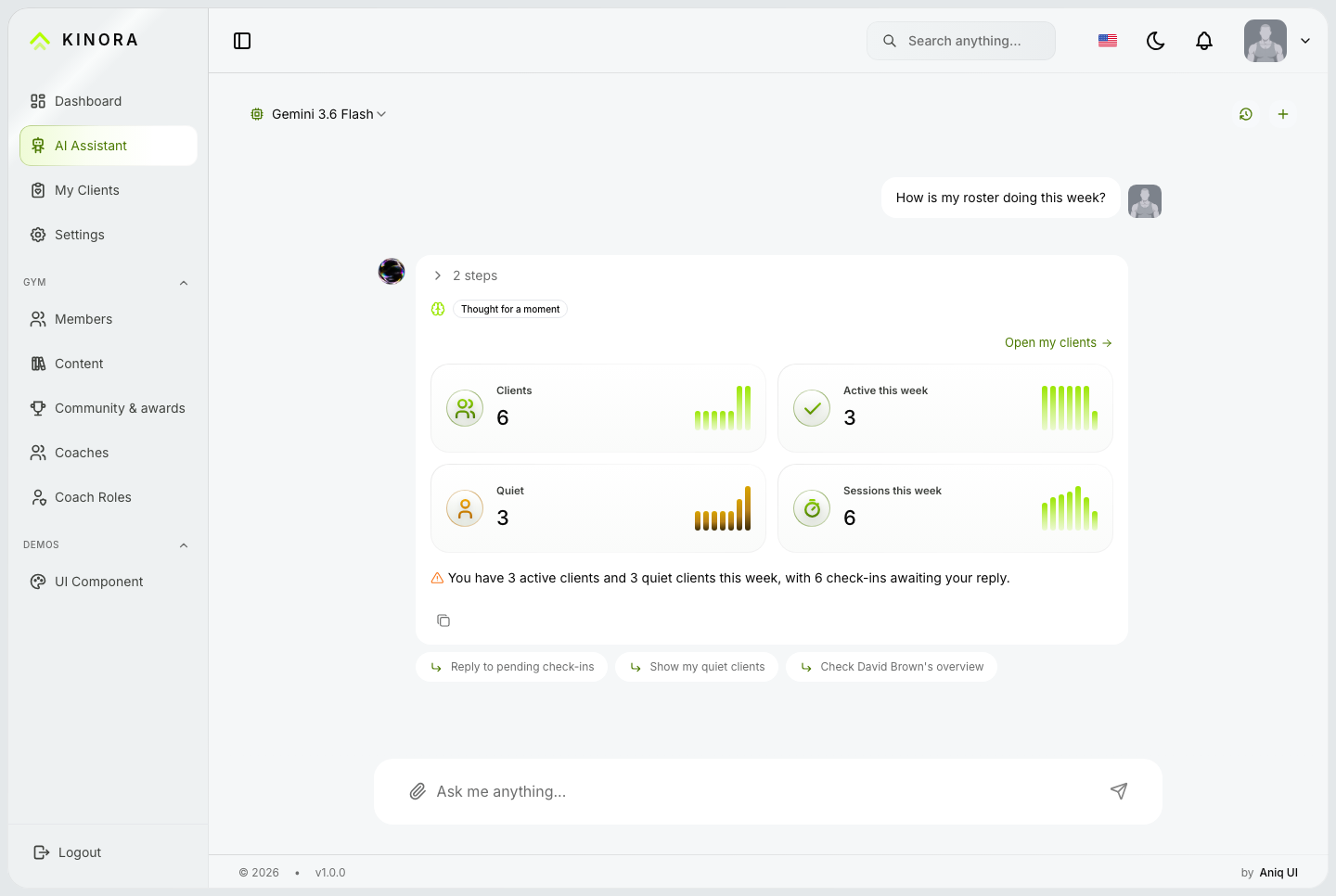
What to check: ask a question as a client and as a coach. The client should get an answer about their own week, and the coach about the roster. Confirm that a client cannot get another client's data, because the assistant only uses tools the signed-in role allows.
What usually goes wrong: the page says no model is connected. Either the key is missing, or it still equals the example value in .env.example. Restart the API after you change it.
Step 9: Check Arabic, themes and a real phone
Open localhost:3030/ar. The whole dashboard mirrors, and the coach screens do too. Every visible word is in messages/<namespace>/en.json and ar.json. Change the value, keep the key, and edit both files.
Catalogue content supports exactly two languages. A third language means touching the locale lists, adding message files, and extending the API's content fields. Flip between light and dark on a few screens, then open the app on a real phone before you invite clients.
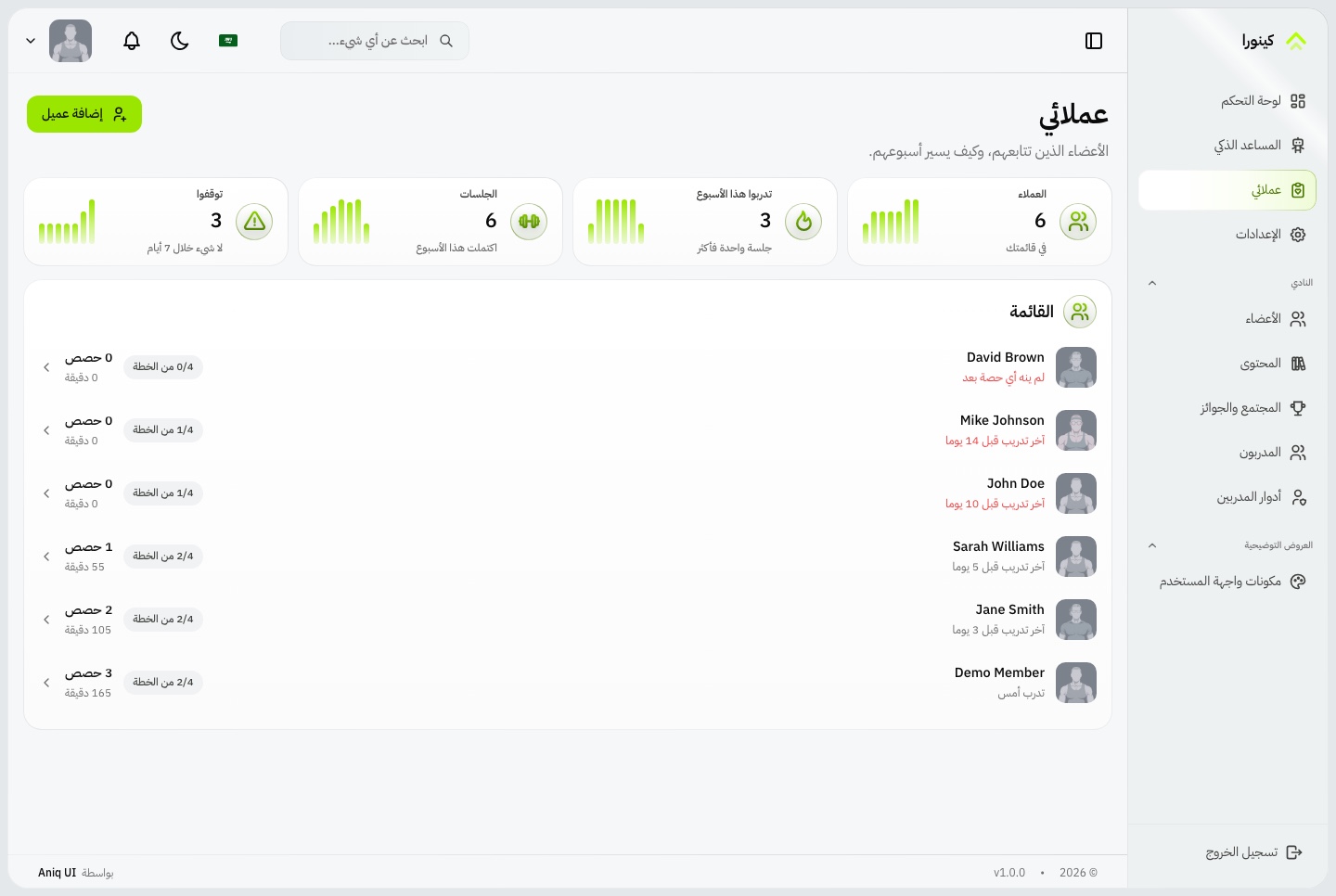
What to check: switch language on the sign-in page, then on a few pages inside the app, and confirm numbers, dates and charts still read correctly. Do it in both light and dark themes.
What usually goes wrong: a label stays in English because it lives in the sidebar configuration instead of a message file, or a new catalogue record has only one language filled in. Fill in both fields on every Content form.
Step 10: Go live
Go live in this order:
- Create a strong secret with
node -e "console.log(require('crypto').randomBytes(48).toString('hex'))"and set it asJWT_SECRET. - In
back-end/.envsetNODE_ENV=production, plusCORS_ORIGINandFRONTEND_URLto your dashboard's address, withhttps://and no trailing slash. The API refuses to start with an empty or example secret, or with an emptyCORS_ORIGIN. - Build the API, create its tables once with
yarn db:sync:prod, and start it. Useyarn seed:prodif you also want the demo accounts as a starting point. - In
dashboard/.envsetNEXT_PUBLIC_API_BASE_URL(with/apion the end) and runyarn build. These values are compiled in, so a change does nothing until you build again. - Change every published demo password, or remove the demo accounts under Gym and Coaches.
For MySQL, create an empty database, set DB_TYPE and DB_DATABASE, and run the seed or sync command. Last, add what the template leaves to you: a mail provider (it sends no email), a self-service password reset, and a way to charge for coaching.
What to check after going live: sign in on the real domain as a staff member and as a client, confirm the live notification bell works, and confirm a coach can message a client. If notifications do not arrive, the socket address (FRONTEND_URL) does not match the address in the browser.
What usually goes wrong:
- The API refuses to start. It prints one line per problem, usually an empty or example
JWT_SECRETor an emptyCORS_ORIGIN. - Browsers are blocked. Copy each address character for character from the browser's address bar,
https://included, minus any trailing slash. - Everyone gets "Too many attempts" behind a proxy. Sign-in allows 10 requests a minute per address, and behind a public proxy all visitors share one address. Set
TRUST_PROXYto the number of proxies in front of the API.
Running it day to day
Once Northgate is live, the app mostly runs itself, and the coaches work from a short list of screens.
The coach's morning
Staff land on the coach overview, which gathers the whole roster, the clients who have gone quiet, check-ins waiting for a reply, and today's assigned work. For the head coach and the personal trainers these panels fill with their own clients. A coach opens the quiet clients first, sends a message, and answers the check-ins that arrived overnight.
The weekly rhythm
Each client files one check-in a week with energy, weight and a note. The coach replies, then assigns next week's workouts to specific dates. Compliance follows from the sessions a client actually finishes, so there is nothing to tick off by hand.
Looking after accounts
Under Gym, staff with the right permission see every member, open a member's page, and restore a deleted member. Deleting a member moves them to a deleted list instead of erasing them. Press Ctrl+K (Cmd+K on a Mac) anywhere to open the search, which finds members, coaches, roles and catalogue items you are allowed to open.
Changing permissions
Edit a role on the Coach Roles screen and the change reaches people who are signed in, over a live connection, without asking them to sign out.
Keeping the data safe
The database is a file with SQLite and lives in a Docker volume when you use Compose. With MySQL it lives on your database server. Whichever you use, schedule your own backups. The template does not do it for you.
An example launch plan by week
This is an example schedule for Northgate, not a promise about how long your project will take. Use it as a pattern and stretch it to fit.
- Week 1, understand. Run the stack with Docker, tour both roles, and finish the decisions list above.
- Week 2, make it theirs. Apply the brand, replace the demo catalogue with the studio's exercises, workouts and programs in both languages.
- Week 3, people and rules. Create the staff accounts, set the roles, take on a handful of test clients, and run the full loop: assign, train, check in, reply, message.
- Week 4, production. Set up the host, environment files, database and storage. Build, create the tables, change passwords, and test on a real phone and in Arabic.
- Week 5, soft launch. Invite a few real clients and fix whatever trips them up before opening wider.
Launch checklist
- Brand name, logo mark, colors and fonts replaced in both themes.
domain.urland the contact and link details inbrand.config.tspoint at your studio.- Every changed message edited in both
en.jsonandar.json. - Catalogue records filled in for both languages.
- Staff accounts created, roles checked, and the Coach role given a roster permission if it needs one.
JWT_SECRETgenerated,NODE_ENV=production,CORS_ORIGINandFRONTEND_URLset withhttps://.- Tables created with
yarn db:sync:prod, or the demo data seeded and then cleaned. - All published demo passwords changed or the demo accounts removed.
- Storage bucket connected, and the dashboard rebuilt with its public host.
- A mail provider and a password reset plan in place, since none ships.
- A way to charge clients chosen, outside the app.
- AI key added, or the assistant deliberately left off.
- Backups scheduled for the database.
- Tested on a real phone, in Arabic, and in light and dark themes.
Template, from scratch, or a hosted platform
There are three honest ways to get a coaching product, and each one trades time, control and cost differently.
A hosted coaching platform
You sign up and start. That is the fastest route to a first client. You pay ongoing fees, your branding and workflows are limited to what the vendor allows, and your client data lives on their system. It suits a solo coach who wants to coach, not to run software.
Building from scratch
You get exactly the product you design. You also build authentication, roles, a roster, a workout logger, check-ins, messaging, translations and an API before you can onboard a single client. That is a large body of work that has nothing to do with coaching, and you maintain all of it.
Starting from a template
You own the source code, host it yourself, and change anything. The coaching loop, the logger and the API already exist, so your effort goes to content and brand. In return you take on hosting, updates and the gaps listed in this guide: no payments, no email, no watch integration. It suits a studio or agency that wants control and can run a small stack, or hire someone to.
What it costs to run
Template packages start from $99, and the Full Stack package Northgate uses is $149, with a commercial license and lifetime support. After that you pay for what you switch on:
- Hosting for the dashboard and the API, and a database if you move past SQLite.
- An S3-compatible bucket such as Cloudflare R2, if clients upload pictures. Check the provider's own pricing page.
- An AI key from Google, OpenAI or DeepSeek, billed by that provider, only if you want the assistant.
- A domain name.
Local development costs nothing extra: SQLite needs no database server, and the demo runs on your own machine. Kinora has no payment provider built in, so charging clients means adding your own billing tool.
What to customise next
- Your programs. Replace the four demo programs with the studio's own weekly splits, in both languages.
- Coach roles. Grant
coaching.clientsto other roles, or create a role for a nutrition-only coach. - The sidebar. Drop the Demos entries from
navigationData.tsonce you are done with them. - Accent color. Move
--primaryColorto the studio's color and check both themes. - Device data. Point a tracker app or aggregator at the ingest route.
- Password reset. Add the two reset routes and a mail provider so clients can recover accounts themselves.
Common mistakes
Changing an environment value and seeing no change
Each NEXT_PUBLIC_* value is baked into the browser code at build time. Restart yarn dev, run yarn build again, or run docker compose up --build after any change.
Expecting the Coach role to show My Clients
Only roles with coaching.clients see it. The seeded Coach role does not have it, so give it that permission or use Personal Trainer.
Shipping with the published demo passwords
The demo accounts use passwords that appear in the documentation. Replace them, or begin with empty tables, before anyone outside your team can reach the site.
Assuming "forgot password" sends an email
It does not. The pages are screens only, and the template sends no mail. A staff account with the right permission can set a client's password on their page under Gym until you build the reset.
Leaving the dashboard on sample data
If you see a "Sample data" notice, the dashboard was built without an API address. What you change is stored in the browser, not in the database.
FAQ
How do I build a fitness coaching app with Next.js?
Start from a template that already has the coaching loop, then change the brand, the catalogue and the roles. Kinora gives you a Next.js 16 dashboard for clients and coaches and a NestJS API, so you spend your time on the content instead of the plumbing.
Can I use it for clients?
Yes. The commercial license covers an unlimited number of projects, including ones you build for a customer and hand over. You may not resell the source code or release it as a template.
Does it support Arabic and RTL?
Yes. English and Arabic ship in both the dashboard and the API, and the Arabic layout runs right to left, coach screens included.
Do I need a backend?
For a real product, yes. The dashboard can run alone on sample data, but shared data between coaches and clients needs the API. The Full Stack package includes it.
Does it connect to a smartwatch?
Not directly. It has no built-in watch or tracker integration. A device or an aggregator can send readings through the ingest route with a personal key.
Which database does it use?
SQLite for local work and MySQL by configuration. You change settings, not code.
Does it take payments?
No. There is no payment provider in the template, and the billing card in settings shows seeded figures. Add your own billing tool if you charge clients.
Can one coach see another coach's clients?
No. The roster routes answer only for the account making the request, and another coach's client returns a not-found answer. Staff with the assignment permission can move members between coaches.
Can I run just the dashboard without the API?
Yes, for design work. The dashboard package works from sample data held in the browser, and your changes stay in that browser. For shared data you need the API.
How do I add a language beyond English and Arabic?
Add the code to the locale lists in the dashboard, copy the message files under the new code, extend the sidebar and brand texts, and set the direction if it is right to left. The API has its own list and translation folder. Catalogue content still holds only two languages unless you extend the API and the Content forms.
Try it yourself
Open the coach demo and the member demo, then read the Kinora documentation or see the Kinora product page. For more options, browse the health and fitness templates or the best Next.js templates guide.
Kinora is also one of the ten templates in the Next.js Templates Bundle.
You might also like

How to Build an LMS with Live Classes in Next.js
Build an online course platform with live classes, quizzes, certificates and Stripe checkout in Next.js and NestJS. A worked example, step by step.
How to Build a Real Estate Agency Website in Next.js
Build a real estate agency website in Next.js with property listings, viewing requests and an admin dashboard: setup, staging, roles and launch.
How to Build an Online Store with an Admin Panel in Next.js
Build an online store with a storefront, admin panel and API in Next.js and NestJS, from local setup to Stripe and launch. A worked example.
